How To Do Email Forwarding in cPanel
You will find this tutorial very helpful in learning the methods used to set up email forwarding in cPanel. Before we do that, you should know a little about cPanel and what it does. Well, a cPanel is really simple; it is fantastic software with a user-friendly interface that permits users to utilize automated tools to complete their business activities smoothly. So, by now, you have understood that a cThe panel is crucial when managing servers and the various factors relating to website ownership.
This tutorial assumes that you already know how to log on to cPanel well.
Now, we will learn the various methods used during email forwarding setup in cPanel in easy steps.
1) First, you must locate the Forwarder’s symbol or icon.
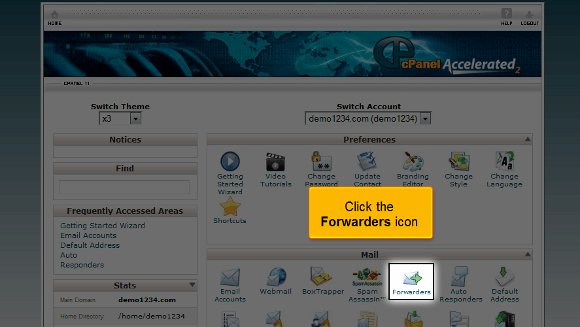
2) This function will allow you to send a specific email from one address to another. This comes in handy if you have more than one email address.
3) After this, you will need to perform an action called Add Forwarder

4) It is here that you have to type in the email address that you want to send the message to.
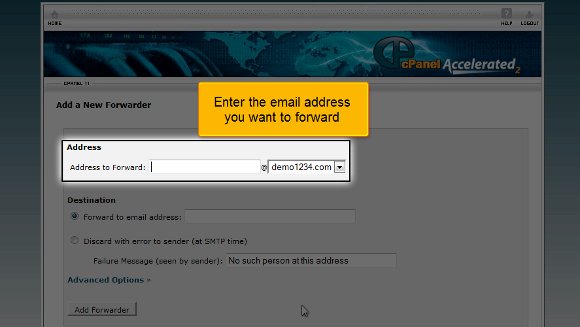

5) you must click the Add Forwarder tab at the end.


So you see that the steps are straightforward to understand, and almost anyone can do it; you do not need technical knowledge. The email forwarder has now been configured and can be used immediately. You can always return to this page to create more forwarders or remove certain existing ones. With this, you can also make specific domain email forwarders. This is where the tutorial ends; you are now equipped with all the knowledge on the various methods used during the setup of email forwarding in cPanel. Now, you can access your email from the interface and check your settings. You start off by parking multiple domains and setting up your emails. To better understand things, you should take a lot of time going through the various settings on your mail.
Okay, now you should also learn how to log out of the email; that should not be so tough. You simply have to locate the logout tab at the top of the page, click on it, and log out. By now, you may have understood that this tutorial is not too tricky to know if you pay attention to the tips. You just have to have a certain amount of patience to try and understand what cPanel is. You can take your time, and you do not have to rush the process. It is best to slow down things while you are learning. It will help you get a better grip on things. You are also free to consult other tutorials that will teach you the various methods used during email forwarding setup in cPanel. If things do not go smoothly for the first couple of times, do not get worried. Simply follow the tips in the tutorial.

 Ananova
You must be logged in to post a comment.