How To Install SohoLaunch


How to install SohoLaunch

You may have been looking for a tutorial that teaches you how to install an excellent application like Soholaunch. This application is provided by none other than the famous company Fantastico. Fantastico is a company that has been around for many years and has been providing reliable web hosting services to users worldwide. The best part is that the applications provided by Fantastico are not only easy to install but are very easy to use and deal with and are compatible with cPanel. Fantastico provides scripts that will allow you to install the applications within a very short period. Soholaunch is an application with handy features and sophisticated tools that let you do many things.

However, with this tutorial, you will learn to install Soholaunch through a systematic process broken down into a few steps.

1. So when you are going through the interface of Fantastico, you will notice a tab that says Pro Edition in the left-hand corner of the screen. You will need to click on it.

soholaunch

2. After you click on the tab, you will be taken to another screen, the installation screen. On this screen, you must click a link that says new installation.

soholaunch

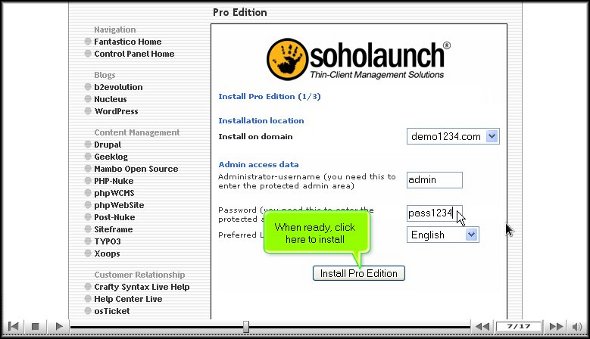
3. On the very same screen, you will also have to provide a name for the admin and a password.

soholaunch

4. To begin the installation process, click Install Soholaunch.
soholaunch

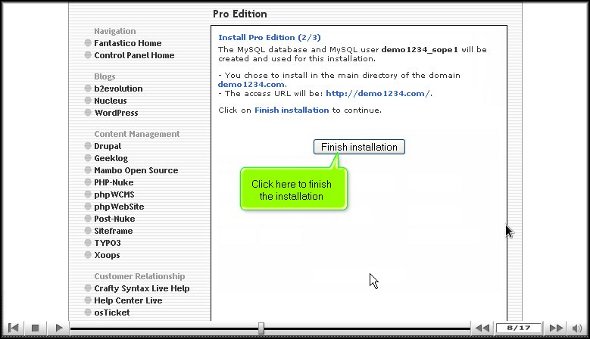
5. To complete the installation process, you must click on finish.
soholaunch

So, with that, we come to the end of the tutorial. So, if you have followed the above steps well, Soholaunch has been installed on your computer without any problems. Once you have installed the application, you can review its interface and check the features individually. This application has various tools that do different things. To learn more about the usage of the application, you must take your time to go through it and understand more about it; in fact, you can even go through other tutorials to learn about the tools. However, it would be best if you did not rush through the learning process as there are many essential aspects that you might miss out on. If you are a new user, you may find it initially challenging to adjust to the application, but you will get used to it over time. So, have a little patience and keep calm while using this application.

Once you start using this application, you will gradually understand its benefits. You will also see that you can configure the settings as per your requirements. Follow the tips in the tutorial, and you will have no problems.

Go to the top of the page. Back to the tutorial

PHP Support ticket


The easiest way to install a PHP Support ticket

To install the PHP Support ticket properly, you need an excellent tutorial. If you are reading this, the good news is that this tutorial will guide you through installing a PHP Support ticket.

The PHP Support ticket is a handy application by a reputed web hosting service provider called Fantastico. Fantastico has been around for many years and provides very reliable services to users. All the applications provided by Fantastico are pretty easy to use and are equally easy to download.

As a user, you will have access to scripts provided by Fantastic, which will help you install this application within a few minutes. The applications provided by Fantastico are very user-friendly and can be used even by a non-technical person. These applications can be used with Cpanel.

Let us get straight into the tutorial on installing an excellent application like the PHP Support ticket on your ticket.

1. You must start by clicking on the tab that says PHP Support ticket on the left-hand side of the Fantastico interface.

php support ticket

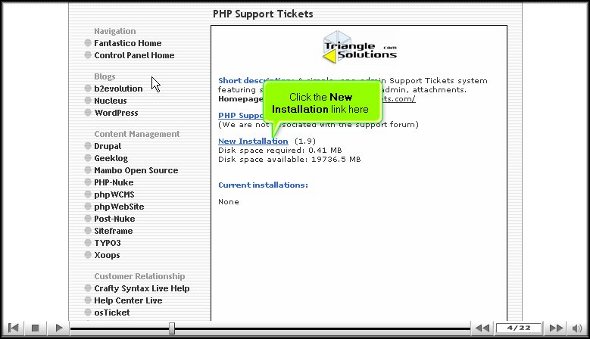
2. Once you click on this tab, an installation screen will appear, and you will find a new installation link. You will need to click on this link.

php support ticket

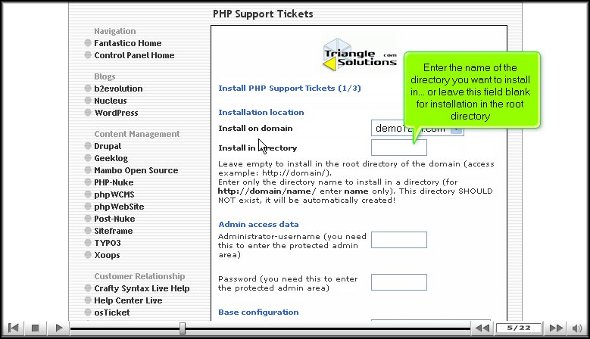
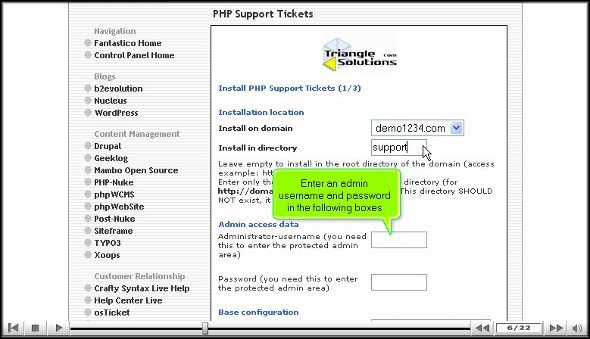
3. Then, you will be taken to a page where you must mention the directory name in which you want the PHP Support ticket installed.

php support ticket

4. you must also type in the administrator’s name and password on the same page.

php support ticket

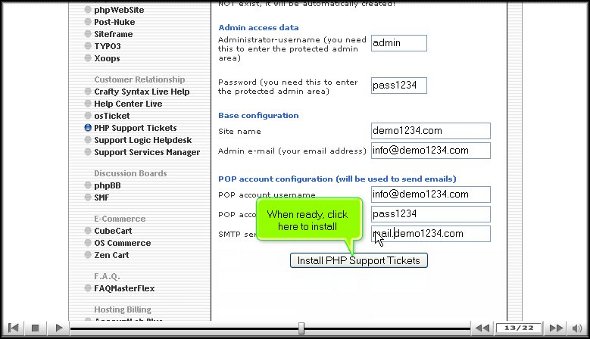
5. On the same page, right at the bottom, you will notice a tab that says install PHP Support ticket. To initiate the installation, you must click on it.

php support ticket

6. To complete the procedure, you must click on finish.

php support ticket

This brings us to the end of the installing a PHP Support ticket tutorial. If you have successfully followed the steps mentioned above, you have installed the application properly.

After the installation, the next step would be to review all the application features and familiarise yourself with their respective uses. Since there is a lot to learn, you must not rush through the learning process; instead, take your time and ensure you understand everything nicely. If you run through the learning process, there are a lot of essential aspects of the application that you may miss out on.

Getting used to the application may take some time, but when you learn how to use the tools, things will be much easier for you in the long run. This application has tons of features that you can use to your advantage. To get the best out of the PHP Support ticket, follow the tips mentioned in this tutorial.

Go to the top of the page. Back to the tutorial

PHProjekt


The perfect procedure to install PHProjekt

Applications from Fantastico are not difficult to handle or install, provided you follow proper guidelines from a good tutorial. Now, if you are looking for an excellent tutorial to teach you to install PHProjekt, you have found the appropriate tutorial. This tutorial will help you get through the installation process without any problems.

Now, for those who may not be familiar with Fantastico, here is an introduction: Fantastico is a top-rated web hosting provider that has been operating for many years. All the applications that Fantastico provides to the users are straightforward to use and install, and in fact, they are very compatible with Cpanel. Fantastico gives you many scripts, ensuring the application’s successful installation on your computer within a very short period.

Let us go into the tutorial and go step by step through installing PHProjekt on your computer.

1. To kickstart the installation, locate a tab that says PHProjekt and click on it immediately.

PHProjekt

2. After that, you will be taken to an installation screen where you have to click on the new installation.

phprojekt

3. You must provide the name of the directory you want to work in.

phprojekt

4. The next screen will ask you to provide a name for the administrator, and you need to provide a password for it.

phprojekt

5. On the same screen right at the bottom, you will notice a tab that says install PHProjekt. You have to click on it

phprojekt

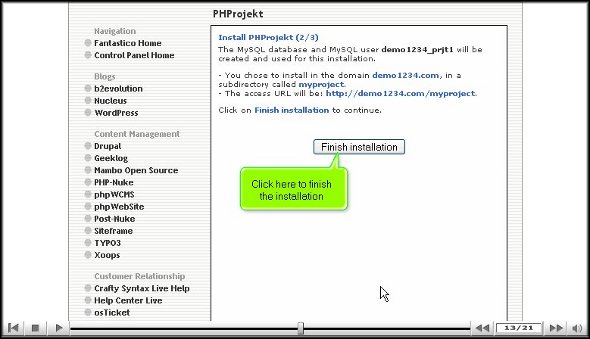
6. To complete the installation procedure, click on finish.

phprojekt

So, with that, we come to the end of the tutorial on how to install PHProjekt. After you are sure that you have been able to install the application correctly, you should initialize the application and start going over the various tools and features. You can do plenty with the tools of this application, so you should take your time and go through them. Do not rush through the learning process; you may miss certain essential aspects. Sometimes, you may feel slightly irritated while using the application, but then you should keep a cool head and continue learning to use the features.

Once you feel comfortable using PHProjekt, you can start tweaking certain application features. The good part about this application is that you can change the settings of specific components for your requirements. This application also has certain features that support eCommerce. Once you use this application, you will notice a substantial improvement in your business operations. So, to get the best out of PHProjekt, you will need to install the application properly. So, you must follow the steps mentioned in the tutorial very closely to get the process right.

Go to the top of the page. Back to the tutorial
PHPNuke


The best way to install PHPNuke

Off late, if you have been experiencing a problem while trying to install PHPNuke on your computer, that is probably because you are not following a proper tutorial. Well, now you do not have to worry; this tutorial is designed to guide you through the installation process. PHPNuke is an ideal application that almost everyone would love on their computer. This application comes with a wide range of tools and features. This application is provided by the reputed web hosting service provider Fantastico.

Fantastico is a company that has been around for quite some time. This company is known to provide some of the best applications ever. The applications from Fantastico are not complicated to use. They all have very user-friendly interfaces. To install these applications successfully, you will have access to specific scripts that will make the job easier and less time-consuming.

Let us get straight to the tutorial on how you can install PHPNuke. The tutorial has been broken down into a few steps mentioned below.

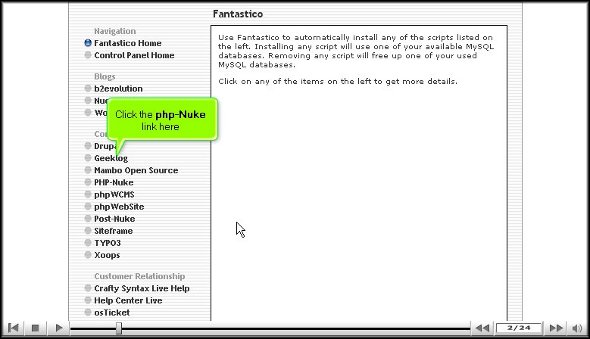
1. When going through the Fantastico interface, you will come across a tab that will say PHPNuke. You must click on this tab immediately to go to the next screen.

phpnuke

2. The next screen is the installation screen; on this screen, you will find a link that says new installation.

phpnuke

3. On the next page, providing the directory name where you want the application installed is compulsory.

phpnuke

4. On the same page, you must type a suitable name for the administrator and a password to go with it.

phpnuke

5. Right at the bottom of the page, you will find a tab that says install PHPNuke, and you need to click on it.

phpnuke

6. To complete the PHPNuke installation, you must click on finish.

phpnuke

Well, that is the end of the tutorial, and if you have been able to go through the steps mentioned above, you have successfully installed PHPNuke. After installing the application correctly on your computer, you should spend a little time learning about the various features and tools provided in the application. There are many things for you to know, so you should not rush the entire learning process, as you may miss out on some crucial aspects.

If you are a new user, you may feel the application is complicated, and it is perfectly fine to feel that way. However, with a bit of patience, you can overcome this frustration.

Now that you know all the functions of the various tools in the application, you should begin configuring the application’s settings for your suitable purpose. Once you start using this application, you will gradually realize that you have benefited in the long run.

Go to the top of the page. Back to the tutorial
Dew-NewPHPLinks


The process to install Dew-NewPHPLinks

Many have complained that they cannot install Dew-NewPHPLinks properly on their computers. This is because they have not been following a proper tutorial. However, the good news is that this tutorial will guide you through a series of manageable steps by which you can successfully install Dew-NewPHPLinks on your computer. Here is a little introduction to Dew-NewPHPLinks in case some of you have never heard of it; this is a beautiful application from Fantastico, a very reliable web hosting service provider. All the applications that are provided by Fantastico are incredibly user-friendly. These applications can be installed on the user’s computer using the scripts provided by Fantastico. These scripts help to save a lot of time during the installation period.

Well, let us get straight into installing it on your computer.

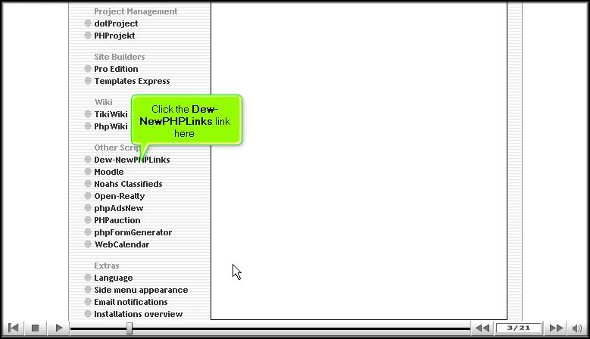
1. To start, you must find a tab that says Dew-NewPHPLinks and click on it.

Dew-NewPHPLinks

2. After you have clicked on it, an installation screen will come up; on that screen, you will have to look for a tab that says new installation. You will have to click on that as well.

Dew-NewPHPLinks

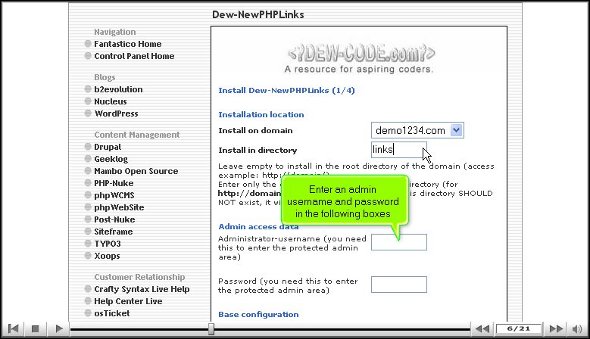
3. On the next page, you must supply the name of the directory you want the application installed.

Dew-NewPHPLinks

4. On the same page, you will be asked to fill in a name for the administrator and a password.

Dew-NewPHPLinks

5. At the bottom of the screen, you will notice a tab that says install Dew-NewPHPLinks. Once you have completed the above steps, click on this link.

Dew-NewPHPLinks

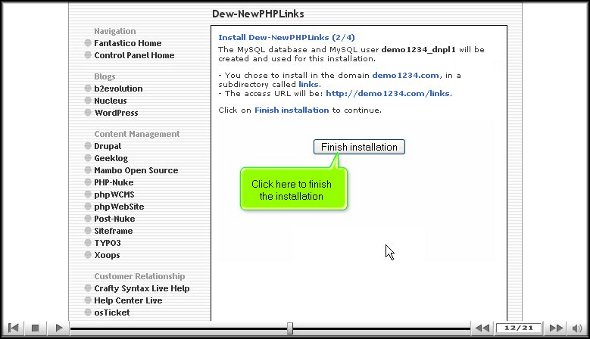
6. To complete the process, you must click on finish.

Dew-NewPHPLinks

With this, we have ended the tutorial, and you have successfully installed the application on your computer. To install the application successfully, you must carefully follow the abovementioned tips. After the installation, you should start looking around and checking out the application’s functions. Dew-NewPHPLinks has beautiful tools that let you do many things. So it is advisable to spend a little time learning how to use the tools’ usage. Do not rush through the learning process because you may miss many essential aspects. You may have difficulty going about the application as a first-time user but do not feel disheartened or get worked up about it. You simply need a certain amount of patience, and things will work out in the end. You can consult other tutorials to help you understand how to use this application.

Now that you feel comfortable learning about Dew-NewPHPLinks, you can start configuring the settings to suit your purpose. This application is handy, so if you install itn your computer, you will benefit fr the long run.

Go to the top of the page. Back to the tutorial
PHPList


How to install PHPList

Installing PHPList on your computer is not a big deal, provided you follow the guidelines of a well-written Tutorial. If you are contemplating installing this fantastic application on your computer, this is the proper tutorial you are reading. If you consult this tutorial, you can install PHPList on your computer without problems.

PHPList is an application provided by a reliable web hosting service provider named Fantastico. Fantastico has been around for many years, providing users with beautiful applications like PHPList. The best part about the applications provided by Fantastico is that they are very user-friendly and have sophisticated tools that give excellent results. You can use these applications in conjunction with Cpanel. Fantastico has an extensive stock of scripts; you can use those scripts to install the applications. In fact, you save a lot of time in using these scripts.

The steps to install PHPList on your computer are listed below.

1. When exploring the interface of Fantastic, you will have to locate a tab that says PHPList. Once you identify this tab, you must click on it right away.

phpList

2. After doing the above activities, you will be taken to an installation screen where you have to click on a link that says new installation.

phpList

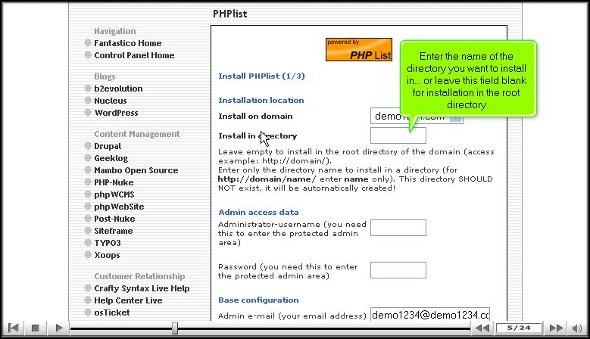
3. Again, you will be directed to yet another page. On this page, you must type the directory name in which the application will be installed. You can also let PHPList install automatically within the root directory.

phpList

4. On the very same screen, you will have to provide a name for the administrator and a password.

phplist

5. On the bottom end of the page, you will find a tab that says install PHPList. You will need to click on that only after you have completed the above steps without fumbling.

phpList

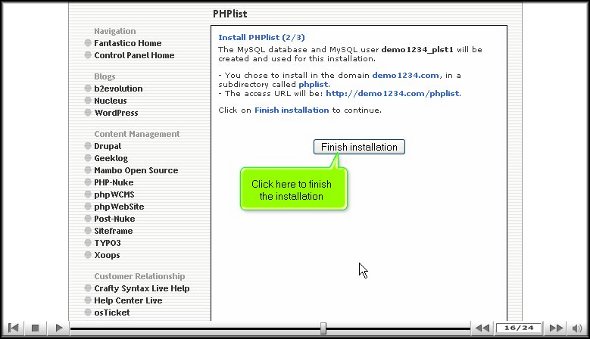
6. To wrap up the installation process, click finish.

phplist

Well, by now, you must have understood that the installation process of PHPList is not challenging. You simply need to follow the steps mentioned in the tutorial word for word, and you will not face any problems. Now that you are sure that the application has been installed correctly, it’s time you look around and check out the features and the various tools of this application. You will have to spend a little time learning how to use the multiple parts to get the best out of the application, so you shouldn’t rush through the learning process.

You will face a lot of trouble when you try to use this application, especially if you are a new user, but you should not get too worked up about it. Try to have a calm and composed approach towards the application; things will work out fine eventually.

Go to the top of the page. Back to the tutorial
phpFormGenerator


The installation of phpFormGenerator

This tutorial is written with the sole intention of educating you on how phpFormGenerator can be installed on your computer without facing any trouble at all. This particular application is handy and is provided by none other than Fantastico, which is a very reliable web hosting service provider. This company is known to offer valuable applications, and the PHP form generator is a perfect example of such an application. This application is compatible with cPanel, which is an added advantage. Fantastico’s applications are very user-friendly, so you will not have difficulty picking up the functions. Fantastico also gives you the chance to use its scripts. The scripts presented in Fantastico are pretty good, and they allow you to install the application within a very short time.

Now, let us get to the steps you need to follow to install phpFormGenerator successfully onto your computer.

1. when you view the interface, Fantastic, you will have to locate the phpFormGenerator tab. After finding it, you have to click on it.

phpFormGenerator

2. An installation screen will appear After you click on the phpFormGenerator tab. On this screen, there is a link that says new installation you must click on that link.

phpFormGenerator

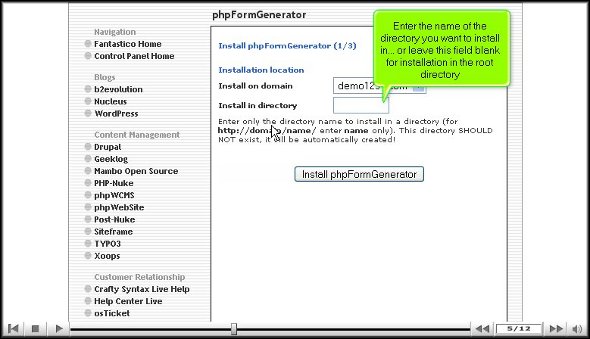
3. After doing the above, you will again be directed to yet another screen where you must mention a directory where the installation process will occur. You are given the option of installing the application in the root directory. On the same page, you must submit a name for the administrator and a password.

phpFormGenerator

4. After completing the abovementioned steps, go to the bottom of the page and click install phpFormGenerator.

phpFormGenerator

5. To complete the installation, click on finish.

phpFormGenerator

So, that pretty much wraps up the tutorial on installing phpFormGenerator. To install the application correctly, you must closely follow the steps mentioned in the tutorial. In fact, you must follow them in the exact order mentioned above.

Now that you have installed the application correctly, you begin by reviewing the features of the particular software. When you study the different elements, you learn about the application and its various uses. When you take your time checking each part repeatedly, you can absorb things better. So, it is advisable not to rush the learning process.

When you feel that you have been able to absorb quite a bit about the software, you can tweak the application’s features to get the best out of it. By now, you probably understand that phpFormGenerator is a handy application. So, ensure you follow all the tips to use the application entirely.

Go to the top of the page. Back to the tutorial

phpWCMS


How To Install phpWCMS

PhpWCMS is a handy application provided by Fantastico. This application lets you do so much more with sophisticated tools. This application is user-friendly, so even a non-technical person can handle it well.

On the other hand, Fantastico is a very reliable web hosting service provider. This company has been around for years, providing some of the best applications ever developed. All the applications are straightforward to handle and install.

The best part is that Fantastico lets you have access to its script-library. You can use these scripts to install the applications within a very short time, and all of the applications are compatible with CPanel. Fantastico has already become a top-rated service provider for the people.

Let us now look at the steps to install phpWCMS on the computer without problems. Pay attention to the steps mentioned below to install PHPWCMS properly.

1. You can begin installing by clicking on the phpWCMS tab.

phpwcms

2. the installation screen for phpWCMS will show soon after you do the above. On this screen, you must click on the link that says new. You will again have to click on this link.

phpwcms

3. On the next screen, you must provide the directory name where you wish to install phpWCMS.

phpwcms

4. You must type the name of the administrator and a particular password.

phpwcms

5. On the same page, when you scroll down, you will see a tab that says install phpWCMS.

phpwcms

6. To complete the installation process of phpWCMS, you have to click on finish.

phpwcms

Once you have managed to go through the above steps smoothly, it simply means that the installation of phpWCMS has been successful. Now, when you are sure that the building has been built correctly, You start by exploring the various tools and features of the application to learn how they are used. You should take sufficient time to get familiar with the tools. Do not rush the learning process; you may miss out on the most critical aspects. You may find it difficult to use certain features in the application initially, but as you spend more time with it, you will gradually get used to it. After you are confident about using the application, you should start configuring the application for your own requirements. The features can be tweaked to a certain extent to suit your purpose.

PhpWCMS is a handy application that has very sophisticated tools. The application has certain features that even support eCommerce features. You can get the very best out of the application provided you install it correctly, and you must pay attention to the tutorial very well. You can consult other tutorials to learn how to use the software’s features.

Go to the top of the page. Back to the tutorial

PhpESP


A tutorial to install PhpESP

The whole purpose of this tutorial is to teach you the correct way to install PhpESP on your computer. PhpESP is a handy application with many excellent tools and features that give you fantastic results. This fabulous application is provided by Fantastico; now, Wild is a reputed company that offers reliable services related to web hosting. Now, all the applications provided by Fantastico are very compatible with cPanel. As a user, you will have full access to the scripts provided by Fantastic to install PhpESP. These scripts reduce the time taken to install PhpESP on your computer.

Since it is assumed that you know how to operate Fantastic, let us get straight to the steps you need to follow to install PhpESP on your computer.

1. By now, you are probably looking at the interface of Fantastico, so while you are at it, you should locate a tab that says PhpESP. Once you have found this tab, you must immediately click on it.

phpesp

2. After that, you will be directed to a page known as the installation page. On this page, you will notice a link called New Installation; you will be required to click this to enter the next phase of the installation process.

phpESP

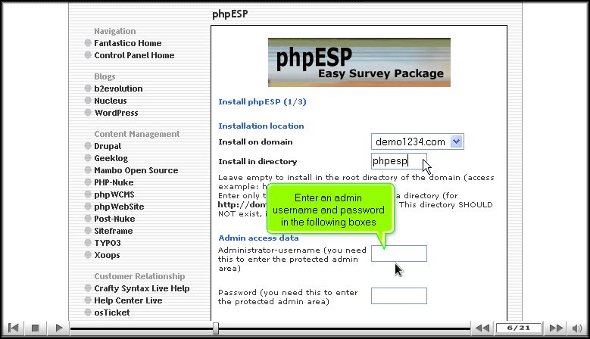
3. The next phase begins with you typing in the directory name where you want to install the application.

phpESP

4. On the same page, you must assign an admin name and password.

phpESP

5. Once you complete all the details above, scroll down the page and click Install PhpESP.

phpESP

6. To finish the process, you can click on finish.

phpESP

With that, we have come to the end of the tutorial, and by now, you have probably even installed the application on your computer. To have a successful installation, you must follow the steps mentioned in this tutorial very carefully and in the exact order.

After you have installed the application, you should take a bit of time and check out the various features of the application. The application has tons of features you can check out, but at the same time, you must not rush the learning process as there

are tons of things you can learn from the application. Once you have spent time learning the application, you will feel confident, and then you can start configuring the application by tweaking the settings to suit your purpose. Initially, you may face particular difficulties in using the application. Still, then, eventually, things will fall into place, and you will soon be able to use the application to your benefit. As a user, you will quickly notice a considerable improvement in the performance of your website. PhpESP is a beautiful application, so you should see to it that it is appropriately installed on your computer, and for that, you should follow the tips given in the tutorial.

Go to the top of the page. Back to the tutorial

PhpCOIN


The correct way to install phpCOIN

PhpCOIN is a beautiful application by Fantastico, another reliable web hosting service provider. Fantastico has been operating for several years and offers numerous applications with tremendous advantages. All the applications are very user-friendly and have easy-to-use interfaces. The applications are highly compatible with the cPanel. As a user, you will have access to a beautiful script library; these scripts will help you install the application quickly. The hands are undoubtedly time savers as they can help you do the work in half the time.

Let us now take a look at the series of steps that you need to follow to install phpCOIN on your computer correctly.

1. You need to look for a tab that says phpCOIN and click on it immediately. Once you click on this tab, you will be taken to the phpCOIN installation page.

Phpcoin

2. On this page, you will have to click on a link that says the new installation, you again have to click on this link, and you will be directed to another page where you have to type in the name of the particular directory in which you want to install phpCOIN.

phpcoin

3. On the same page, you have to assign a name for the admin and provide a password.

phpcoin

4. After filling out the particular details, you can scroll down and press install phpCOIN.

phpcoin

5. To complete the entire installation procedure, you should press finish.

phpcoinphpcoin

Once you have completed the steps mentioned above, it simply means that the installation of phpCOIN has been very successful. For the building to succeed, you need to follow the tips mentioned in the tutorial.

Now, this application has many features and tools that allow you to do various things, so after the installation, you must take the time to review the various tools and features. You must take care not to rush through the learning phase, as there is a lot that you can absorb. You may also consult a different tutorial that will teach you how to use the various tools of phpCOIN.

At the very beginning, you may face a lot of trouble using the application to your benefit, but once you look at the various features, you will get used to it over time. So do not give up on the application, and do not feel disheartened.

So, once you have learned quite a bit about the application, you can start by tweaking the software’s various features. Plenty of other tutorials will teach you how to tweak the components.

By now, it has probably occurred to you that phpCOIN is a handy application, and you can get a great deal from it. So, to install this fantastic application on your computer without any problems, you must follow the tips mentioned in the tutorial.
Go to the top of the page. Back to the tutorial