Phpbb


How to install Phpbb

Phpbb is yet another fantastic application from Fantastico. This application, too, has very sophisticated tools that help you to complete any task within a very short time. On the other hand, Fantastico is a web hosting service provider with this application on its website for you to download. Fantastico has been around for many years and provides fantastic applications to users. This is one reason why Fantastico has become so popular amongst people.

The applications provided by Fantastico are very compatible with CPanel. Fantastic’s applications are user-friendly and yield good results, provided they are correctly utilised. Fantastico also gives you access to some of the best scripts that will allow you to install PhpBB on your computer without any problem.

Let us now look at the steps you can follow to install PhpBB on your computer without any problems. So ensure you follow the steps correctly and in the exact order they are mentioned.

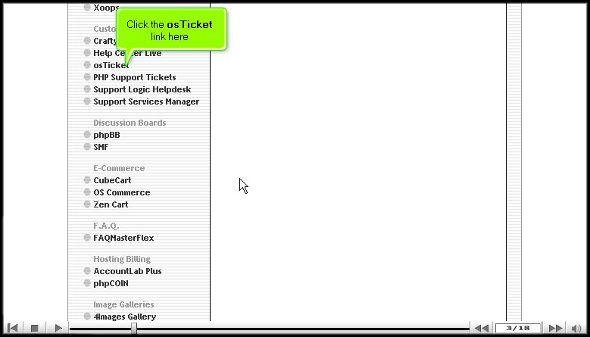
1. Now, when you go through the interface of Fantastico on the left-hand side, you will notice a list of all the various applications that Fantastic offers. In that list, you will have to catch PhpBB. Once you have located that tab PhpBB, click on it.

phpbb

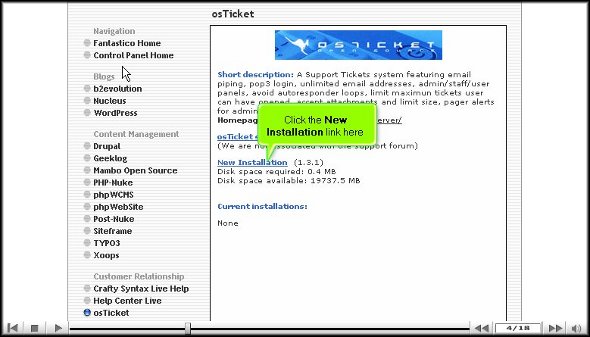
2. Once you have clicked on the tab PhpBB, you will be directed to the PhpBB installation screen, where you will find a link that says new installation. You will have to click on this link.

phpbb

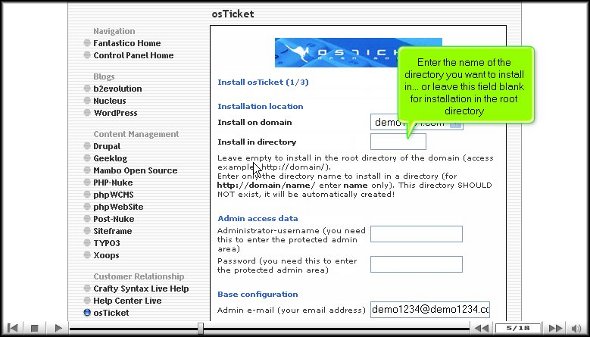
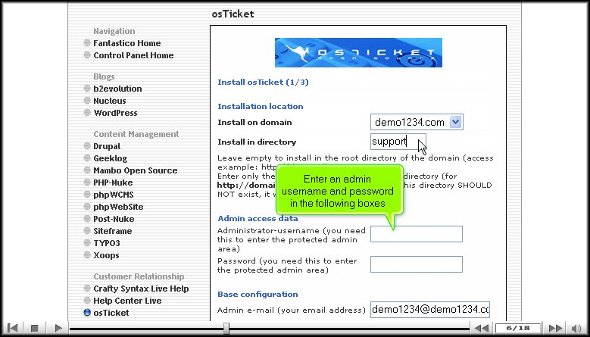
3. You will then be directed to yet another page where you must type in the name of the directory you want to install PhpBB.

phpbb

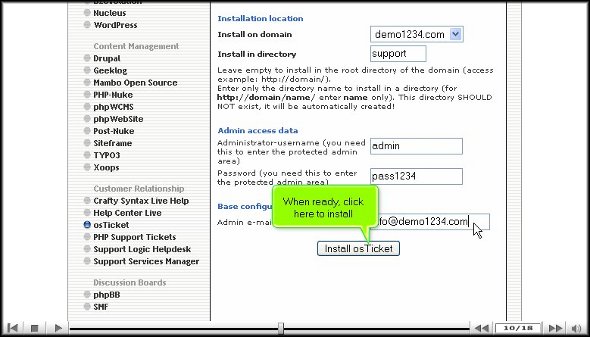
4. On the same page, you must also type in the admin’s name and password. You must also scroll down and click on install PhpBB. This will initiate the installation process.

phpbb

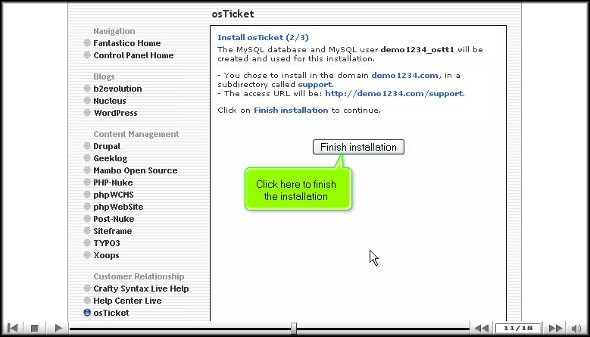
5. To complete the entire procedure, you must click on the finish

phpbbphpbb

Well, those were the steps you must follow to install the application properly onto your computer. You must follow the steps in the procedure mentioned in the tutorial. Once you have completed the steps correctly, you have successfully installed the application.

Once you know the application is installed on your computer, you start by exploring the features and learning their usage. You should not rush through this learning process, as you will miss out on many essential tools and their implementations. So, keep a cool head while learning how to use the application.

Once confident about using the application, you can configure the software per your requirements. You will surely benefit from this application and notice a tremendous improvement in how your website functions. So, follow the tips mentioned in the tutorial, and you should not have any problems using this software.

Go to the top of the page. Back to the tutorial

PhpAuction


A tutorial on how to install Phpauction

This particular tutorial will teach how to install Phpauction on your computer within a very short time. Now, Phpauction is an application provided by Fantastico, a reliable service provider. Fantastico has been operating for many years, giving its users some of the best web applications ever. The applications provided by the company are very user-friendly and come loaded with sophisticated tools. The best part is that the devices can be combined with the cPanel that you are using. Fantastico has a well-equipped script library will allow you to install the application quickly. These scripts are real-time savers, for sure.

It is assumed that you already know how to go about Fantastico’s interface.

1. When going through the interface of Fantastic, you must look for a tab that says Phpauction. Once you have located this tab, you have to click on it.

phpauction

2. Clicking on this tab will direct you to an installation screen. Now, on this screen, you must click on New Installation, which will take you to another page.

phpauction

3. On the next page, you must submit a directory name for installing Phpauction. You also have the auction of installing the application in the root directory.

phpauction

4. On this screen, you must type in an administrator name and a password to go with it.

phpaution

5. Once you have filled out all the details, you can scroll down and click on install Phpauction,

phpauction

6. To complete the installation process of Phpauction, click on finish.

phpauction

So now you are successful in installing Phpauction on your computer. However, to install the application correctly, you must follow the abovementioned steps. Once you are sure the application is installed correctly, you can explore it. Since Phpauction has many tools, you should take the time and go through them carefully, as there are many things you can learn. It is advisable not to rush the learning process as you may miss out on several aspects if you do so.

Initially, you will face difficulties in operating the application, but that does not mean you should get worked up or give up on the application. You should simply have some patience, and things will be fine. You can use some other tutorials to learn about the tools and features of Phpauction.

Once you feel confident about using the application, you can begin tweaking the settings per your requirements. After you have used the application for quite some time, you will notice a significant change in the performance of your website. As mentioned earlier, Phpauction is a critical application with many benefits, so follow the tips in this tutorial to install the application successfully and quickly on your computer.

Go to the top of the page. Back to the tutorial

phpadsnew


The easy way to install phpAdsNew

Here is a tutorial on installing phpAdsNew on your computer without hassle. For those who do not know anything about phpAdsNew, phpAdsNew is an application by Fantastico. This very reliable web hosting company offers valuable applications to users.

Fantastico has been around for many years now and has already become very popular amongst the people. The service provider has a good stock of scripts for users to install the applications. The hands make the installation process less time-consuming. The applications provided by Fantastico will work well when combined with the current Cpanel that you are using.

Since you are reading this tutorial, it can be assumed that you already know how to use the interface.

1. Now, when going through the Fantastico interface, you will notice a tab that says phpAdsNew on the left-hand side of the screen. You must click on it to initiate installation.

phpadsnew

2. After that, you will be directed to an installation screen where you will have to click on a new installation link, and again, you will be taken to yet another page.

phpadsnew

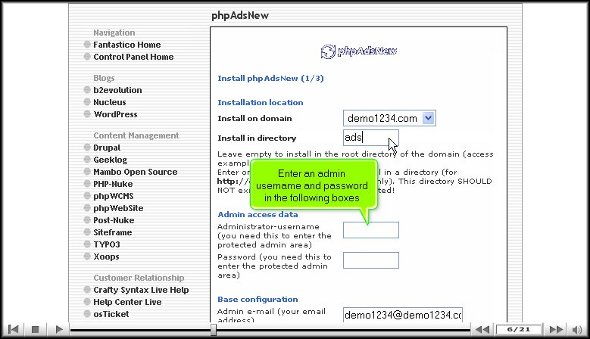
3. On this page, you must provide the directory name you want to install phpAdsNew. You also have the option of installing the application in the root directory.

phpadsnew

4. You are required to provide a name for administration, and you have to give a password.

phpadsnew

5. Once you are done with the above steps, you can click on install phpAdsNew

phpadsnew

6. To finish the entire process of phpAdsNew, you must click on finish.

phpadsnew

With that, we have come to the end of the tutorial. If you have completed the above steps correctly, the installation was successful. Now that you have installed the application, you must start looking at the various features provided and learn their usage. Since this application has

many tools, you should take the time and carefully review each of them to absorb their use correctly. You can consult other tutorials to learn how to use the tools provided by the application.

You may take a while to get used to this application, mainly if you have not used a similar application before. So, if you do not get certain things right, you must not lose hope; you must keep a calm and relaxed mind and continue to explore the application.

After a while, when you feel that you know how to use each tool properly and are confident enough, you can start configuring each device per your requirements. You will notice a tremendous improvement in your website’s performance once you have used this application.

So, to install the application successfully, you must follow the tips mentioned in the tutorial in the order mentioned above.

Go to the top of the page. Back to the tutorial

UK To Block Porn Nationwide


UK To Block Porn Nationwide

UK To Block Porn Nationwide

Do you manage an adult cheap hosting site? Soon, those in the UK will not be able to view it after today’s announcement by British Prime Minister David Cameron. But is this taking things too far? Is he censoring the Internet? And will it even work?

UK To Block Porn Nationwide: Why And How

Cameron is blocking online pornography in order to protect kids from what he calls porn’s “corroding influence.” If you are a new user signing up for the Internet, porn sites will be blocked by default. The only way to change this is to tell the ISP to disable the filters. If you are an existing user, your ISP will contact you. If you do not give them a decision, the filters will be automatically implemented.

The new plan also makes the possession of what Cameron calls “extreme pornography” — video or still images that show simulated rape — illegal, according to the Daily Mail.

“By the end of this year, when someone sets up a new broadband account the settings to install family-friendly filters will be automatically selected,” said Cameron to a child protection group. “If you just click ‘next’ or ‘enter’, then the filters are automatically on.”

UK To Block Porn Nationwide: A Call To Search Engines

Cameron is targeting websites hosting child pornography, looking to shut them down, and has asked search engines to join him in his efforts to keep who he calls “sick people” from logging on to these illegal sites. As a result of his plan, the Child Exploitation and Online Protection Centre (CEOP) is coming up with a list of search terms that are “objectionable.” Also, the US and UK will be teaming up on a task force to go after these sites hosting obscene content.

“I have a very clear message for Google, Bing, Yahoo and the rest,” Cameron said. “You have a duty to act on this — and it is a moral duty. If there are technical obstacles to acting on [search engines], don’t just stand by and say nothing can be done; use your great brains to help overcome them.”

Cameron plans to meet up with reps from the top search engines at some point in October in order to find out how far they’ve come regarding blocking the search terms compiled by the CEOP. Cameron warns, “If the progress is slow or non-existent, then I can tell you we are already looking at the legislative options we have to force action.”

UK To Block Porn Nationwide: Favorable Reactions

Cameron’s announcement has been anticipated for a few weeks, looked upon favorably by Rape Crisis, an advocacy group based in London. They point out that it has been illegal to possess or even publish pornography depicting rape in Scotland, but not in Wales and England.

“We are heartened by the government’s announcement that it will close the loophole in existing extreme pornography legislation,” said Rape Crisis’ Fiona Elvines to the Guardian. “The government today has made a significant step forward in preventing rapists using rape pornography to legitimize and strategize their crimes and, more broadly, in challenging the eroticization of violence against women and girls.”

One opinion is that it doesn’t support age-related controls for online content.

UK To Block Porn Nationwide: Will It Work?

Some don’t think so, such as the Department of Education. The BBC published a letter regarding this issue, and it points out the issue with the filters. Tom Melzer wrote, in an editorial for the Guardian: “To work, the filters would need to prevent users from asking search engines ‘How do I turn off these porn filters?’ And then the questions ‘How do I turn off the filters for questions about turning off filters?’ And so on, forever.”

Regardless, the changes are coming. In a move based on similar motives, Twitter will implement Facebook’s tagging system relying on Microsoft’s PhotoDNA technology in order to weed out offensive photos depicting children. It is the same technology authorities use in order to conduct reverse image searches.

Parental Control to block access

Unfortunately, children under-18s can access inappropriate material on the Internet and without challenge using a virtual private network (VPN). The visitor can also lie while entering birthdays. The free and subscription software mask a user’s location and bypass UK checks altogether. Furthermore, the improvement in the bandwidth speed has enabled to download pornographic material in seconds or a few minutes. Parents  must take the time to learn and access the content deemed harmful available on devices accessible by kids to protect them. The website deemed harmful can be blocked at the router level or the ISP level. Apple (iOS) and Google (Android) publish guides to set up controls on mobile devices.

The UK government admits that attempting to control the online adult content across the Internet is beyond their powers. So, it is parents who have to take this initiative. There are websites and social networks not monetizing and displaying content for artistic purpose contains both adult content images and videos.

DEA (Digital Economy Act 2017): It does not allow a young child to look at pornography. The shopkeeper must ensure to turn them away. Furthermore, it enables UK citizens to offer equivalent protection online.

OSTicket


The procedure to install OSTicket

Now, you may have been searching for a tutorial on how to install OSTicket on your computer. Well, you have certainly stumbled upon the proper tutorial; this particular application from Fantastico has plenty of features that could be used for you. Now, the service provider that gives you this application is called Fantastico. Fantastico is a web hosting service provider that has been around for a couple of years and provides handy applications for hosting purposes.

The good news is that all the applications provided by Fantastico are user-friendly and compatible with the cPanel you use. Fantastico also lets you use scripts from its script library to install applications without much trouble.

Since you are reading this tutorial that will teach you how to install OSTicket on your computer, it is assumed that you already know how to use Fantastico.

1. The first step would be to locate the OSTicket tab on the Fantastico interface. Once you find this tab, you have to click on it.

OSTicket

2. After you click on it, you will be directed to an installation screen, where you have to click on a link that says new installation.

OSTicket

3. After clicking on a new installation, you will be taken to another page where you must mention a directory name in which the ticket will be installed.

OSTicket

4. On this page, you must fill in the administrator’s name and enter a password.

OSTicket

5. Once you finish that, you must scroll down and click on install OSTicket.

OSTicket

6. To complete the process, you have to press finish.

OSTicket

That is about it; you have successfully installed OSTicket on your computer. After installing the application on your computer, you should spend a bit of time getting familiar with the various features. You can learn plenty of things, so try not to rush the learning process, as you can miss out on essential aspects. There are separate tutorials that deal with the features of this application, and you can consult them if you want.

Once familiar with the features, start configuring them as you wish. Now, since you are a new user, you may take some time to get used to the various elements of the application. So do not get worked up if certain things do not work out how you want. Have some patience, and items will be okay eventually. Once you start using the application, you will notice that you have benefited quite a bit. The application has a very easy-to-use interface. So, to get the best out of the application, you must install it properly, and to do that, you must follow the tips mentioned in this tutorial properly. To learn more about the software, also consult other tutorials.

Go to the top of the page. Back to the tutorial

OsCommerce


An easy tutorial on how to install OSCommerce

Before we get into the tutorial to teach you how to install OScommerce on your computer, let us learn about Fantastico. Fantastico is a web hosting service provider that provides excellent applications to users. You can use all the applications provided by Fantastico with the current cPanel. All the applications from Fantastico are very user-friendly and have tons of features you can utilize to achieve great results. Now, you can utilize scripts from Fantastico’s script library to make the installation process more accessible and less time-consuming. By using these scripts, you can make the building process almost automatic.

Now that you are looking at this tutorial on installing the OScommerce application, it is assumed that you already know how to use Fantastico. So now let us look at the steps to install OScommerce on your computer.

1. The first step would be to locate the OScommerce tab on the Fantastico interface.

OSCommerce

2. After that, you need to click on OScommerce; once you click on this, you will be taken to an installation screen where you have to click on a link that says new installation.

OSCommerce

3. Once you click on a new installation, you will be directed to yet another page where you must type in the name of a particular directory in which you want to install the application. You also have the option of installing the application in the root directory.

OSCommerce

4. On the very same page, you will have to provide a name for the admin, and you also have to provide a password.

OSCommerce

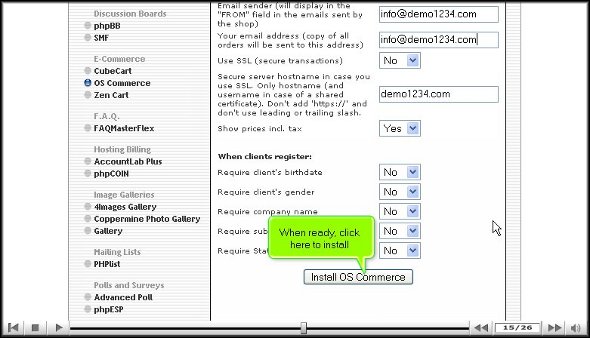
5. When you scroll down, you will notice a tab that says install OS commerce; once you click it, the application will start installing.

OSCommerce

6. To complete the installation process, you must click on finish.

OSCommerce

So you see that installing OSCommerce is not a big deal. You simply have to follow the steps in the order mentioned above. You will install the application well on your computer once you can go through the steps without problems.

After installing the application on the computer, you can look at the various tools provided. In fact, you should spend considerable time learning how to use the multiple features. To absorb things better, you should not rush the learning process. You should maintain a level of patience so that you can learn how to use the application.

After you are familiar with the application, you can start configuring the settings per your requirements. You can consult some other tutorials to learn more about configuring this app. You will take some time getting used to the tutorial software, so try not to get too worked up, keep a cool head and try to get the best out of a beautiful application like OS Commerce.

Go to the top of the page. Back to the tutorial

Open Realty


How To Install Open-Realty without any trouble

Open reality is a handy application from Fantastico. This application has many useful features that yield many benefits in the long run, provided you know how to use it. Fantastico is a web hosting service provider that has been around for many years. The company is known to give beneficial applications. All the applications are very user-friendly and compatible with the cPanel you are using. Fantastico will also provide you with a stock of scripts to install the applications on your computer without any trouble. People all over the world use applications by Fantastico.

Now that you are going through this tutorial on installing Open Realty, it is assumed that you have started up Fantastico.

1. When looking at the interface of Fantastico, you will need to find a tab that says Open realty. As soon as you locate this, you must click on it.

Open Realty

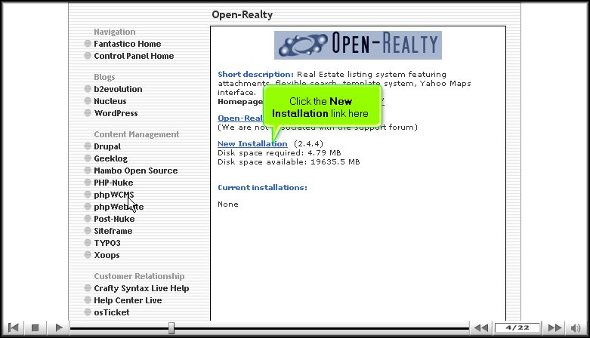
2. After that, you will be taken to an installation screen where you have to click on a new installation link.

Open Realty

3. On the next page, you must mention the directory name where you wish to install Open Realty.

Open Realty

4. enter the administrator’s name and provide a valid password. While ordering a password, type in something that only you will remember.

open realty

5. At the bottom of the same page, you will notice an install Open realty button.

Open Realty

6. To complete the installation process, click on finish.

Open Realty

That is the end of the tutorial, and you have successfully installed Open Realty on your computer. The next step would be to get familiar with the application’s various features. You must go through the multiple parts to absorb their functions. The application has many sophisticated tools to make your work much more manageable. So try not to rush through the learning process, as you can learn many things. You can also consult other tutorials to help you understand the functions of the various tools.

After you have become quite familiar with the various tools of the software, you then start configuring the application depending on your requirements. You take a while before you are comfortable using this application, so it is best to have some patience. It is best to have a calm and relaxed approach to the application. You will notice a vast improvement in the functioning of your website after you have used this application for some time. This application also has certain eCommerce features you can use to benefit. Open-Realty is a handy application, so follow the tips to install the application properly on your computer.

Go to the top of the page. Back to the tutorial

Nucleus


How To Install Nucleus without any problems

The NNucleus is a beautiful application provided by Fantastico. This application has many features that allow you to do many things. On the other hand, Fantastico is a very reliable service provider that gives people services related to web hosting. All the applications provided by Fantastico are very much compatible with cPanel. Fantastico will give you access to a script library that you can use to install the application quickly. These scripts allow you to complete the installation process within a short time. Users worldwide are now using these scripts to install applications by Fantastico.

Now, it is assumed that you already know how to use Fantastico. So now let us look at the steps you can use to install Nucleus on your computer.

1. To start the process, you will need to visit the interface of Fantastico, and then you will have to locate a tab that says Nucleus. You have to press on that tab.

Nucleus 00

2. Once you click on the tab that says Nucleus, you will be taken to an installation page where you have to click on a link that says new installation.

Nucleus 01

3. After that, you must type out a directory name on another page where you want the Nucleus to be installed.

Nucleus 02

4. You will then be asked to type in an admin name and a password.

Nucleus 03

5. On the very same page, right at the bottom, you will see a button called install Nucleus; click on it.

Nucleus 04

6. To finish the installation, you have to click on finish.

Nucleus 05

That brings us to the end of the tutorial. Since you have successfully completed the above steps, it implies that Nucleus has been installed on your computer. Right after the installation, you should spend a bit of time looking at the application’s various features. You must learn a lot, so you must take your time to absorb things better. The best way to learn the application’s features is to have a calm and relaxed approach during the learning phase. You may also feel free to consult any other tutorial to learn more about the features of this application.

Once familiar with the application’s features, you can start configuring the settings per your requirements. You may take time to learn how to use some aspects of the application, but there is no need to get worked up about it. You should be patient, and things will work out fine. Once you have used Nucleus for some time, you will notice that you have benefited from this application.

You have probably understood that this application is very beneficial. Pay attention to the tips in this tutorial to install Nucleus without problems on your computer.

Go to the top of the page. Back to the tutorial

Noah’s Classifieds


How To Install Noah’s Classifieds

To install Noah’s Classifieds, you must consult a proper tutorial, which will lead you through the entire installation process. Noah’s Classifieds is a handy application provided by Fantastico. Fantastico is a very reliable service provider that gives users beneficial applications to the people. All the applications provided by Fantastico are compatible with cPanel. Fantastico has a vast library of scripts that will assist you in installing the application properly. The hands also substantially reduce installation time.

Now that you are viewing this tutorial on installing Noah’s Classifieds, it is assumed that you already know how to go about Fantastico.

1. Now, when viewing the fantastic interface, you must locate the tab that says Noah Classifieds on your left-hand side.

2. Once you have located the tab, you will have to click on it

Noahs Classifieds

3. Once you have clicked on it, you will be directed to an installation screen.

4. Now, on the installation screen, you will notice a link that says new installation.

Noahs Classifieds

5. Once you click on this link, you will be redirected to another page requiring you to type a directory name in which Noah’s Classifieds is to be installed.

Noahs Classifieds

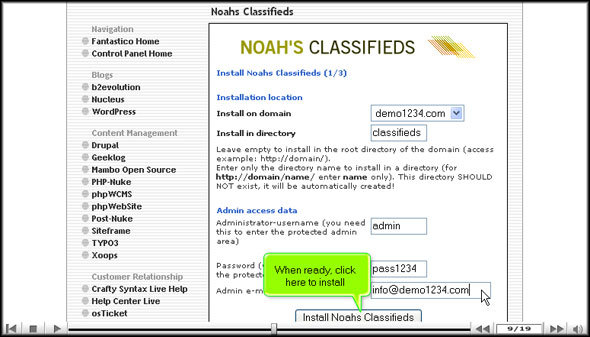
6. On that same page, you must submit an admin name and a password.

Noahs Classifieds

7. To install the application, you will need to scroll down and click on Install Noahs Classifieds

Noahs Classifieds

8. To complete the process, you have to click on finish.

Noahs Classifieds

With that, this brings us to the end of the tutorial on installing Noah’s Classifieds. To get comfortable with the application, you must spend some time and learn what the features do. That is the only way you will learn how to use the tools fully. You can learn many things, so you should not rush the learning process; it will help you absorb all the application functions. Once you have learned enough about the software’s features, you can start configuring the software’s settings for your benefit. This tutorial will help you if you are new to Noah’s Classifieds. So, you must go through all the steps mentioned in the tutorial to install Noah’s classifieds successfully. You must know that this application has a user-friendly interface, so you will not have difficulty using it.

You may take some time to get used to the application, but things will work out eventually, so the best way to get through is to keep a cool head and a relaxed approach towards things.

So make sure that you follow the exact procedure mentioned in the article to install Noah’s Classifieds properly without facing any problems.

Go to the top of the page. Back to the tutorial               

Moodle


How to install Moodle

Now, if you have been searching for a tutorial that will help you install Moodle on your computer without any problems, you have indeed found the proper tutorial to lead the way. However, you must know that Fantastico is the web hosting service provider that provides this beautiful application to users. The company is quite well known and provides very reliable services. Fantastico will let you use its script library to install Moodle quickly without problems. The scripts can help you complete a task within the shortest time possible.

Since you are viewing this tutorial on Moodle, it can be safely assumed that you know how to initialize Fantastico.
1. Start the installation process by clicking on the Moodle tab.

Moodle

2. After you do the above, you will be taken to an installation page where you must click on a new installation link.

moodle

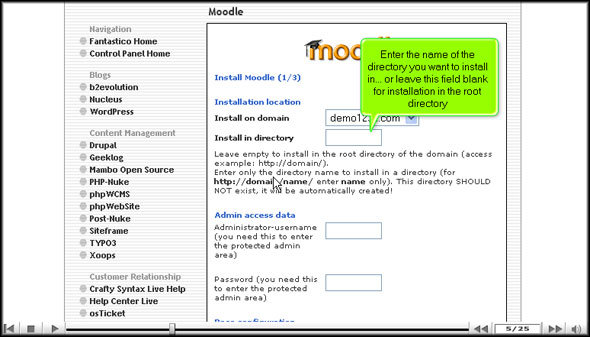
3. You will have to mention the name of the directory where you want to install Moodle.

moodle

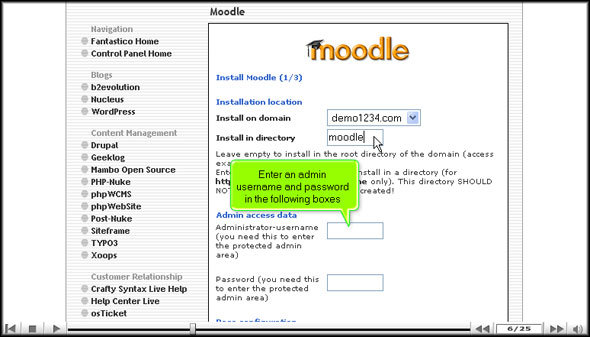
4. You will have to mention the name of the administrator and also mention a password.

Moodle

5. On the same page, you must click install Moodle.

Moodle

6. To finish the process, you must click on the finish

Moodle

This is the end of the tutorial. So that means you can look around and learn about the different features and their functions. You can achieve many things with this application; however, you should really take your time learning about the application. The learning phase is critical, so do not rush; try to pay attention to each detail to absorb things better. You should have a relaxed and calm approach when learning how to use the application’s tools. The application has a user-friendly interface, so you will not have trouble finding your way around.

After you learn quite a bit about the application, you start configuring its settings as you wish. Initially, you may face a little bit of trouble using this application, but in the end, you will get more than comfortable with it and be able to use it very well. Over time, you will notice a good amount of improvement in the performance of your website. This application is entirely compatible with the current Cpanel you are using, and it is also compatible with your eCommerce features.

You have probably understood that Moodle is a handy application everyone should install. In fact, this application is prevalent and is used by people worldwide for its sophisticated features. Ensure you follow each tip mentioned in the article to successfully install Moodle on your computer.

Go to the top of the page. Back to the tutorial