AccountLab Plus


Tips on how to install AccountLab Plus

Well, if you have been looking for a tutorial that will teach you to install AccountLab Plus, you are just in luck, as this tutorial will help you understand how to install AccountLab Plus successfully. If you are new to Fantastic, then the chances are that you have never heard of the application and how to go about things. Well, Fantastico is a hosting service provider which also offers an add-on called Fantastico support. As a user, you can use this with the cPanel that you are using.

You do not have to get too worked up about Fantastico; you can use this with cPanel accounts. This application has a script library that can assist in the automated installation of scripts and some web-based applications. The hands sure help you save a substantial amount of time. Users all around the world are installing these scripts on their computers.

This tutorial already assumes that you know how to initialize Fantastico.

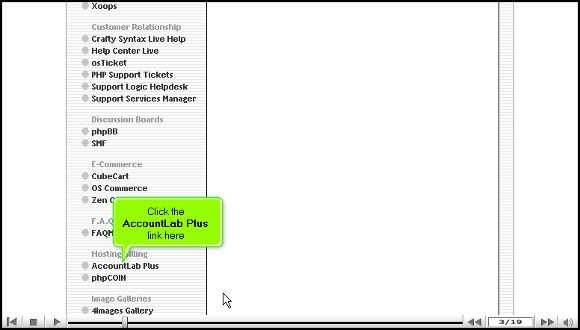
1. start the process by clicking on an AccountLab Plus link. After clicking the link, you will be taken to the AccountLab Plus installation screen.
account lab plus 00account lab plus 01

2. On the installation screen, click on a link that says New installation.

02-aclab

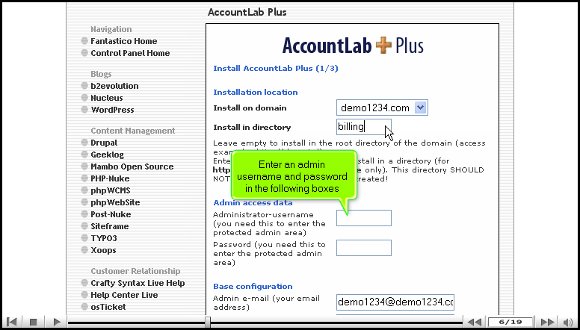
3. After that, you will be directed to a page where you must mention the directory name for installing AccountLab Plus.

account lab plus 02

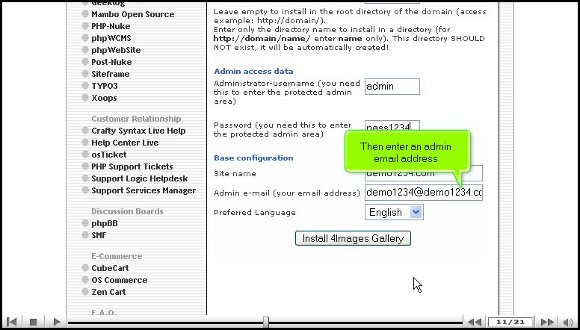
4. On the same page, you must mention an admin name and password.
account lab plus 03

5. You will also have to enter an email address for the admin. You will be required to submit your company’s name and address. You will also have to type in an opening paragraph.

account lab plus 04account lab plus 05

6. After that, click the link to install AccountLab Plus.

account lab plus 06

7. Then click on Install AccountLab Plus.

account lab plus 07

Now that you have completed the above steps, you have successfully installed AccountLab Plus. So, after this, you’re pretty much set to configure the settings according to your requirements.

Once you finish the configuration procedure, you can explore the entire application. This application has sophisticated tools to make your work less time-consuming and more accessible. This tutorial can be beneficial, especially if you are new to Fantastic.

It will take a little time to get accustomed to this application, so the best way to deal with it is to relax. Now, remember that you should not rush things when you are learning the applications; you can understand many things. So when you start using Fantastic, you can take advantage of the open-sourced shopping carts and use E-commerce.

So, by now, you have realized that paying attention to the tips is essential if you want to install AccountLab Plus without facing any problems.

Go to the top of the page. Back to the tutorial

Advances Poll


How to install Advances Poll

If you have to search for a tutorial on installing Advances Poll from Fantastic. Many of you may not have heard of Fantastico or know what it does for you. Well, Fantastico is an excellent hosting service that has a lot of benefits if used the right way. Fantastic is compatible with the current cPanel that you are using. The application has an exhaustive stock of scripts that will install the application automatically on your computer. With these scripts, you can complete the work in half the time. Users all over the world are now using this application all over the world.

If you are looking at this tutorial on installing Advances Poll, you already know how to start the fantastic application.

1. You will first need to locate the Advances Poll button and then click on it.
Advances Poll00
2. After that, the Advances Poll installation screen will pop up, and you will notice a link called New Installation; you will need to click on this link.

Advances Poll01

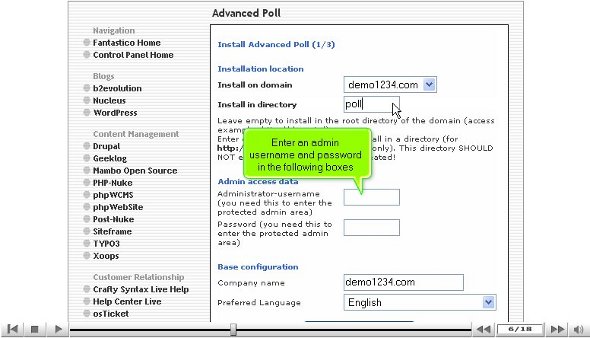
  1. Then, you must type in the name of the directory that you want the application installed in.

Advances Poll02

  1. You will also have to provide an admin name and a password.

Advances Poll03

  1. After that, you must scroll down and click on a button to install the Advances Poll.

Advances Poll04

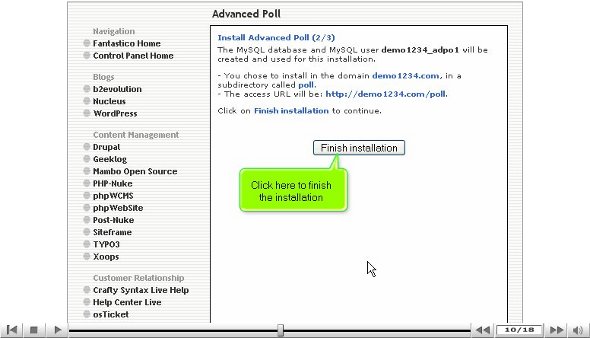
  1. After that, you will be taken to a page where you will notice a finish button. You must click on that to finish the process.

Advances Poll05

So now you have been successful in installing Advances Poll on your computer without any problems at all. So, you must follow the steps properly to get the process right.

After successfully sailing through all of the above steps without any problems, you have installed the Advances Poll. Since the installation is done, you have the liberty to start configuring. After configuring, you can review the various tools and see what they do for you. This tutorial will help you immensely, especially if you are new to installing Advances Poll.

At first, you will take some time getting used to this application, but everything will be fine after a while. The best way to deal with it is by keeping calm and relaxed. You should not rush the learning process as there is plenty that you can understand. You will need to pay a lot of attention to absorb all the software functions, so it is better to have a steady approach towards the learning process. As a user, you will notice how much you have benefited from installing Advances Poll. You can take full advantage of the open-sourced shopping carts and the eCommerce features.

So, by now, you have understood the importance of installing Advances Poll. You may also take the time to go through other tutorials to better understand things.

Go to the top of the page. Back to the tutorial

4image gallery


Guidelines on how to install a 4image gallery

Now, here is a tutorial on how you can install a 4-image gallery in Fantastico. Here is an introduction for those who do not know what Fantastico is all about. Fantastico is nothing but an internet hosting service that is available with Fantastico support, which is another popular add-on and can be bought with the current cPanel. You do not have to worry as a user, as Fantastico is available with cPanel hosting accounts. This is a script library that can carry out the automatic installation of specific scripts and internet-based applications on a website. These scripts definitely help to save time and are being installed on computers all over the world.

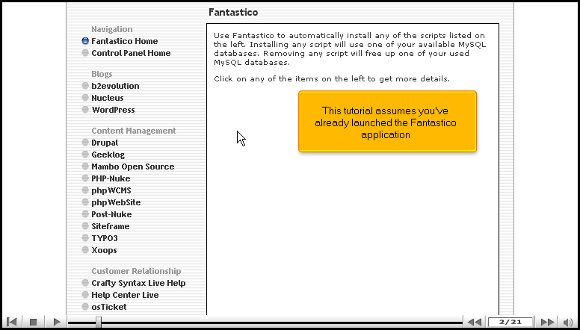
Now, when you are looking at the tutorial, it means you know how to start up the Fantastico application.

1. On your left, you must locate the 4 images gallery tab and click on it. After you click on it, you will be taken to the 4 images gallery installation screen.

00-4imggal01-4imggal

2. On the installation screen, you will notice a link that says New installation; you must click on it. This will then take you to a page withe terms and conditions are mentioned. You will need to agree, and press continue.

02-4imggal03-4imggal

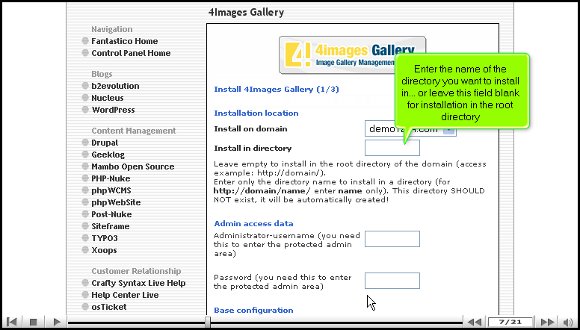
3. After that, you will be taken to a page where you must enter the name of the directory you want to install. You can also leave it blank and install it in the root directory. On that same page, you will notice two other boxes requiring you to enter the admin name and password. You will also have to submit an alternative email address.

04-4imggal05-4imggal

4. When you are done, click on Install. You then have to finish the process by clicking on finish installation.

07-4imggal

Once you have completed the above steps, it means that you have successfully installed the 4image gallery, and you are now ready to start configuring the set-up as per your requirements. After configuring it, you can immediately start looking around and exploring the application directly. The application has excellent tools that make your work so much easier. If you are a new user and have never used this technology, you can go through this tutorial to help you.

You may find this application a little complicated at first, but it is best to stay relaxed and focused when learning to use the various tools. It is better to take your time and not rush the learning process, as you can absorb a dozen things. When using Fantastico, you can take advantage of utilizing E-commerce and shopping carts that are open-sourced.

So make sure that you follow each step very carefully to get things right; you can also feel free to consult other tutorials.

Go to the top of the page. Back to the tutorial

How to Start An Adult Hosting Company


Start An Adult Hosting Company

Adult Hosting Company

So, you want to start an adult hosting company. You figure that there’s a good amount of cash in the industry, and you want a slice of that pie. Why shouldn’t you? You’re entitled! Just don’t make the same mistakes that so many other adult hosting companies make. In fact, follow these tips instead.

Adult Hosting Company: Tips to Remember

1. Know your audience : Let’s face it. You’re not aiming for church goers with an adult site. So, don’t advertise in the wrong place. When it comes to adult content, the best way to get the word out is to advertising on blogs and in magazines that are in the same line of business.

2. Keep it cheap : Adult website owners don’t want to pay top-dollar for hosting. This might seem like a generalization, but it’s also the truth. Your clients will be looking for cheap hosting options. Offer plans that fit the bill. For added revenue, you can cross or upsell.

3. Draw the line : You’re going to offer hosting for adult content, but you have to draw that line somewhere. There’s a debate over whether or not web hosting companies should be moral companies too, so I’m not going to get into that here. I will tell you that some people – even adult website owners — will be turned away if you let anyone open up shop using your hosting company.

4. Watch Google : Google is cracking down on some underage sites. While web hosting companies aren’t responsible for content clients create, you don’t want to get a bad reputation. Keep your nose clean, and avoid becoming the Pandora of the adult hosting industry.

5. Network and attend events : What kinds of events? Do I really need to spell it out? There are lots of trade show events that can be attended and plenty of cards that can be handed out. Make sure to visit these events in order to network.

There’s some stiff competition when it comes to the adult hosting realm. In order to stand a world apart, make sure that you aren’t offering services or marketing your adult hosting company just like all the rest.

Faq Master Flex


Install FAQ master flex in the easiest way possible.

You may have been looking for a tutorial to teach you how to install FAQ master flex on your computer without any problem. Well, the good news is that your search has ended, as this tutorial will present straightforward steps to install this application from Fantastic on your computer within a short period.

For those of you who are probably hearing the name Fantastico for the first time, Fantastico is a very reliable hosting service provider that gives users beautiful applications. Users of Fantastico will also have access to the beautiful applications which can be used with the current cPanel. Fantastico also has a vast script library that lets you install any application quickly.

Since you are looking at this tutorial on how you can install FAQ master flex, it is assumed that

If you are looking at this tutorial on installing Advances Poll, you already know how to start the Fantastico application.

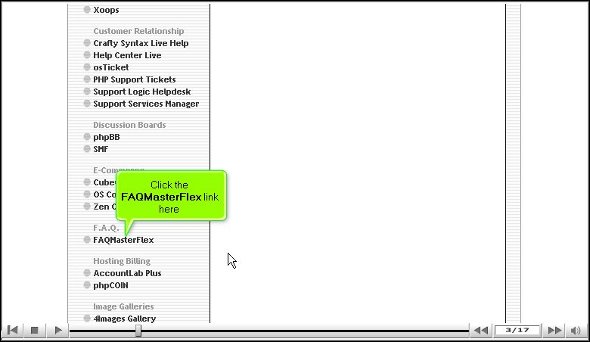
1. Firstly, when viewing the interface of Fantastico, you will notice a link that says FAQ master flex.

FAQ Master flex

2. Once you have located it, you have to click on it, and the next minute, you will be taken to an installation screen.

3. On the installation screen, you can notice a link that says the new installation; you must click it.

FAQ Master flex

4. On the next screen, you must provide the directory name you wish to install.

FAQ Master flex

5. After that, enter the administrator’s name and password.

FAQ Master flex

6. On the very same page, right at the bottom, you will notice a tab that says install FAQ master flex, and you need to click on it.

FAQ Master flex

7. To complete the installation process, click on finish.

FAQ Master flex

So that is about it. With this, we have reached the end of this tutorial, and FAQ master flex has been installed on your computer very successfully. You can install the application well when you can complete the above steps without any problems. You can now start tweaking the various tools and features as you wish.

Now, this application has many features that you will enjoy using to the fullest, so you have to pay attention during the learning phase. A relaxed and calm approach during the learning phase will help you absorb the application better. As a user of the application, you will notice that you have greatly benefited from its usage. FAQ master flex is indeed an excellent application.

In the beginning, you may have some difficulty understanding how the different features work, but eventually, everything will work out just fine. Just make sure you go through every tip mentioned in the tutorial to install the application smoothly on your computer.

Go to the top of the page. Back to the tutorial

Are the Days of Adult Hosting Numbered?


Are the Days of Adult Hosting Numbered

Google recently announced plans to eliminate child pornography from the web by setting up a new picture-sharing database. This database would make it simpler for child watch groups (and other companies) to report on potential child pornography sites throughout the Internet.  google censorship Are the Days of Adult Hosting Numbered

Once investigated, Google would take these sites down immediately.

While there’s no doubt that child pornography sites (and the hosts that allow these sites) should be taken down, the proposed Google action raises some cautionary flags as well.

Are Adult Hosting Sites Doomed?

Some critics of the Google database plan have voiced concern that the elimination of child pornography sites will lead to the shutdown of all pornography sites. This might include adult hosting sites, and sites that show adult explicit materials – a sort of Pleasantville-Internet, if you will—a place where nothing offensive would remain.

Google reps haven’t gone on record with any direct responses to these fears, but they are real fears all the same. If Google can wipe out any site on a whim, where would the “Internet clean-up” end? For obvious reasons, Google is receiving plenty of support for getting rid of sites that are suggestive of child pornography, but the fear that this will lead to further censorship is certainly there.

Are the Days of Adult Hosting Numbered: Will It Be An All-Out War?

Child sites that show abuse or pornography are illegal, and that’s why Google can shut these sites down. The backlash might even reach to hosting companies that allow these sites to operate (it’s not unheard of). But, attempting to shut down adult pornography sites and adult hosting sites is another thing altogether.

The future may look like a battlefield if the concerns that Google will go after a slew of sites turns out to be a reality. Cheap hosting sites allowing explicit sites to operate may be at the crux of that battle. It could be the end of adult hosting sites – or, it might just bring about the demise of Google.

Are you concerned that this type of censorship will go too far? Are the Days of Adult Hosting Numbered?

Photo courtesy of danielchalef via Flickr Creative Commons.

IP deny managed in cPanel


Now, if you are looking for a tutorial that will teach you to use the IP deny managed in cPanel, you are looking at the right article. This article will guide you through the entire process through a series of easy steps. However, let us first learn what cPanel is all about. This is fantastic software with plenty of good features that an ideal software is meant to have. The interface of this particular software is loaded with graphically automated tools. These tools help the users go through their business operations smoothly and allow them to manage the servers without facing any problems.

IP deny managed in cPanel: Since you are reading this tutorial, it can be assumed that you already know how to log in to cPanel and that you are logged in.

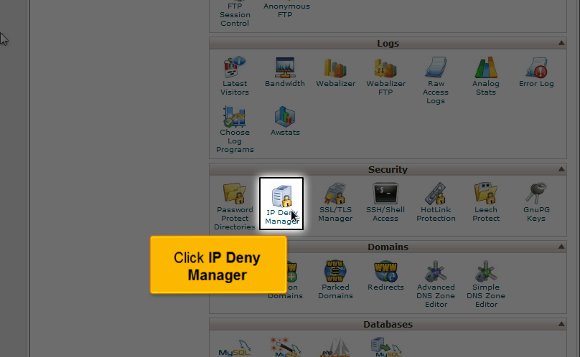
1) Firstly, you must locate an option called IP deny manager; once you have found it, you must click on it.

ip deny manager IP deny managed in cPanel

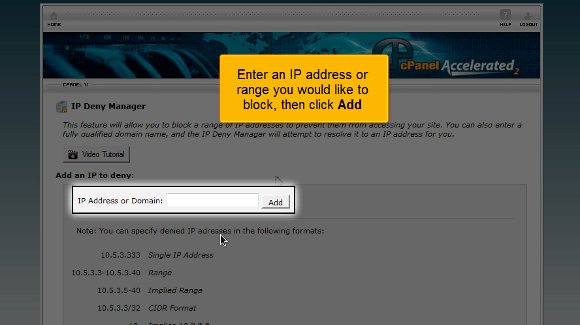
2) After that, you must fill in the IP address you wish to block(IP deny managed in cPanel) and click the option Add. At this stage, you have successfully blocked anyone who uses that particular IP address. You even have a list of all the IP addresses you have managed to secure.

ip deny manager

3) IP deny managed in cPanel: Now you must look for an unblock option to clear any IP address.

ip deny manager

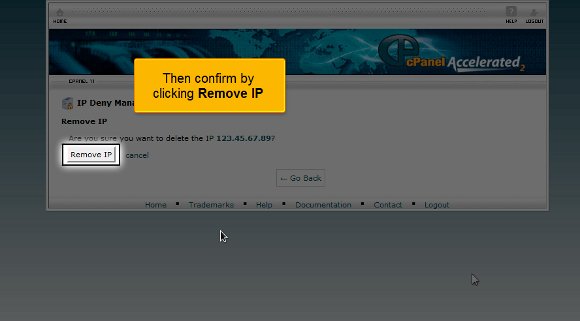
4) IP denial managed in cPanel: You must confirm by clicking on Remove IP. After this, the particular IP address has been removed from the block list forever.

ip deny manager

This brings us to the end of the tutorial that will teach you to use the IP deny managed in cPanel. So, at this point, you have all the knowledge to block any IP address from accessing your website. So now you can simply visit the interface on your cPanel and start going through all the features immediately. You can get started by accessing the shopping carts and multiple domains, configuring your emails and accessing the databases.

You must also know how to log out; this should not be tough. You simply have to locate the log-out tab and click on it. It is not too difficult to operate the various features on cPanel; all you need is patience to absorb what the software offers. You do not need to rush the learning phase as it is essential, and you can learn many things. In fact, you can take the time to learn and pick up items at your own pace. It would be wise to have a relaxed approach towards things; this will help you in ways you cannot even imagine. You are free to look at other tutorials, but remember, if you are new to this, you will take time to adjust to the software’s features.

Setup a cron job in cPanel


How To Setup a Cron Job in cPanel

This tutorial perfectly teaches you to set up a cron job in cPanel. This tutorial has all the steps for you to understand correctly. There is no technicality involved in it. Now, tho, if you are unfamiliar with cPanel, you must know that this software is quite helpful in facilitating business operations. The interface of this software is quite user-friendly and is packed with loads of features that help the users look after their servers.

  1. Setup a cron job in cPanel: First, you must find the Icon that states Cron jobs and then simply click on it.
Setup a cron job in cPanel

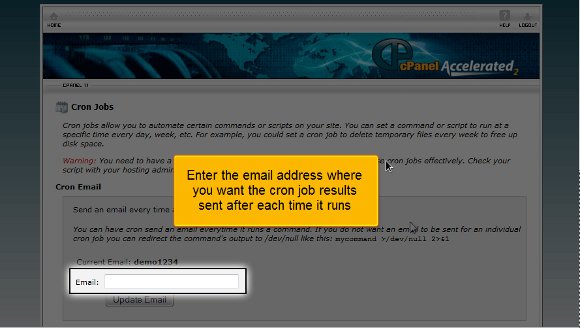
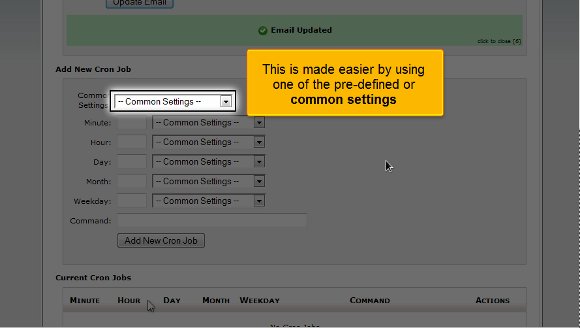
2) Setup a cron job in cPanel: After that, you must fill in the email address you wish the cron job outcomes to be sent every time it runs. Here, you must also define the exact procedure and how often you want the cron to be implemented. All the fields will be filled automatically if you choose a standard setting. You will also have a better understanding of each individual field.

cronjob
cronjob

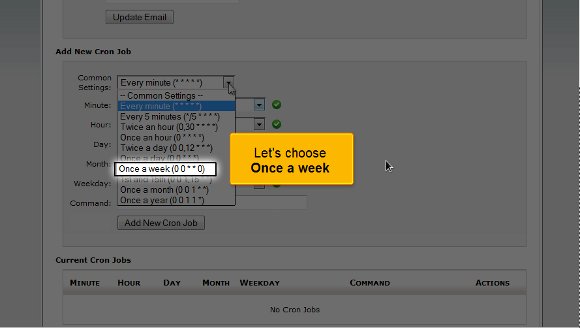
3) Setup a cron job in cPanel: Choose the option once in a week

cronjob

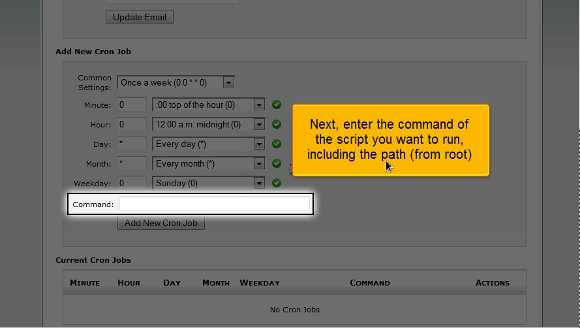
4) Setup a cron job in cPanel: After that, you must enter a particular command of any script you wish to implement, including the path.

cronjob

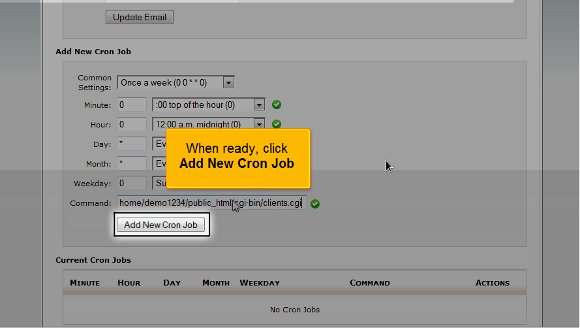
5) Setup a cron job in cPanel: When you are fully ready, you must click on Add a new cron job

cronjob

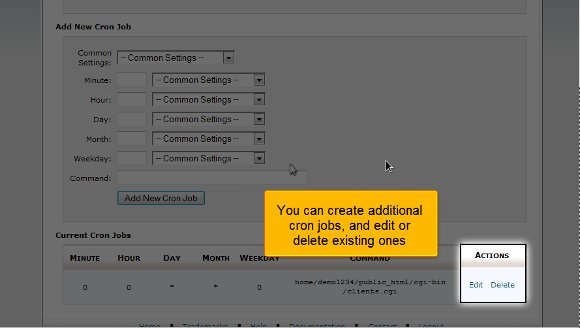
After you have completed the above steps successfully, the cron job has been implemented and is visible here. Here, you can create additional cron jobs or even delete certain existing ones.

cronjob

We have ended the tutorial, and you have the knowledge to set up a cron job in cPanel. After this, you can go back to the interface and review the other features. Logging out of the interface is probably one of the easiest things to do. So, by now, you have realized that the tips mentioned in the tutorial are not that tough to follow. With patience, you can easily understand what the software offers you. You must pay extra attention during the learning phase to absorb things quickly and utilize them well. So, keeping a cool head and a relaxed mind will help you understand the various features of this software. The software has many features that can yield excellent results if appropriately utilised at the right time and place. So, if you follow the tips in this tutorial, you will have no problem using the software to your benefit; you simply need some patience. If you are using this software for the first time, you will face failure the first couple of times, but that is no reason why you should feel discouraged.
You may also look at other tutorials to learn more about this beautiful software. The best way to know anything about this software is to consult a tutorial such as this.

Create Custom Error Pages in cPanel


How To Create Custom Error Pages in cPanel

Well, if you are looking for a way to learn to create custom error pages in cPanel, you have definitely found the right article. This article is not just an ordinary article but a tutorial that will explain how to create custom error pages in cPanel in some straightforward steps without getting too technical at any point in time. cPanel is a handy software that has a wide plethora of features. The tools found in the software facilitate smooth business operations over the Internet. The software’s primary function is to help the users manage the servers very well.

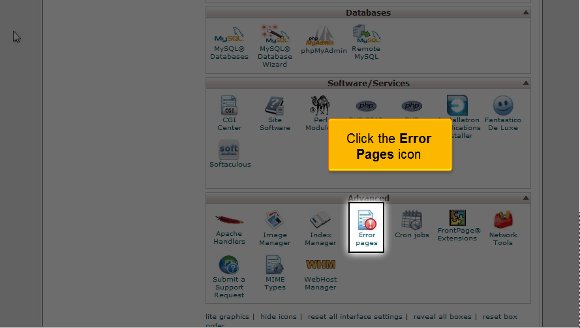
1) You must begin by locating the icon that says Error pages; once you have found it, you must click on it. Now, you should remember that there are many ways to carry out the customization, but in this particular tutorial, we will go with the 404 error page option.

Create Custom Error Pages in cPanel

2) Now, bearing the above point in mind, you will have to click the link that says 404.

custom error pages

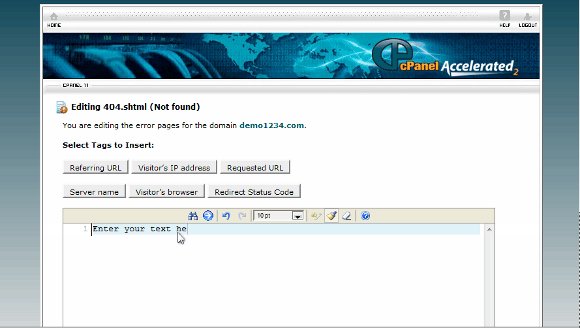
3) This is where you can create custom error pages in cPanel. You can use more than one tag to add customization.

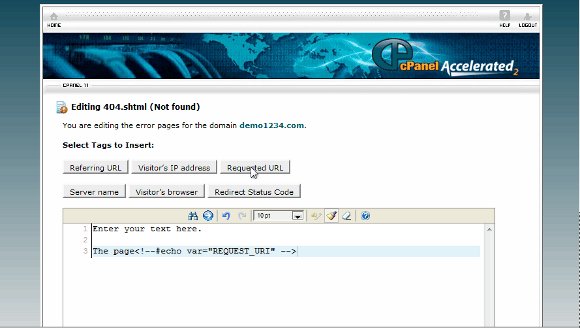
4) You can utilize the HTML tags on your page to match the set-up of the error page you created.

custom error pages

5) create custom error pages in cPanel: You are ready to create your very own custom 404 page.

custom error pages

6) create custom error pages in cPanel: When you are done, click save.

custom error pages

Create custom error pages in cPanel: When you have cleared the above steps, your 404 error pages have been created. You can also add your touch of customization. Well, this is where the tutorial ends.
Now, you can return to the cPanel interface and start by reviewing all the available features. Now, since there are so many features, you should take the time to go through them properly.

Now, you must know how to log out from the interface; the good news is that it is not difficult. You simply have to locate the log-out tab and click on it. You may have also realized that the tips mentioned in the article are not challenging to follow. You just need time to go through the details and understand what the software is all about. So, when you are in the learning phase, you should not rush the process as you can get a grip on things a little bit better. So, having a calmer and more relaxed approach to things is better. You may also take a look at some of the other tutorials. A tutorial is an excellent way to learn new software aspects. To get the best out of this software, you should follow the tips given in the tutorial, and soon, you will be able to master the software.
The Index Manager in cPanel


How To Use Index Manager in cPanel

Before you start using the index manager in cPanel, you must read this tutorial that will guide you through the entire process so you can achieve good results effortlessly. Now, if you are a newcomer to this software, you should learn specific facts about this software. The panel is considered to be handy software. This software has some advanced tools that permit you to complete any activity via the Internet very smoothly. This software is also used to manage the servers very well.

Now let us look at the process of how you can use the index manager in cPanel

To start things, locate the index Manager icon and click on them.

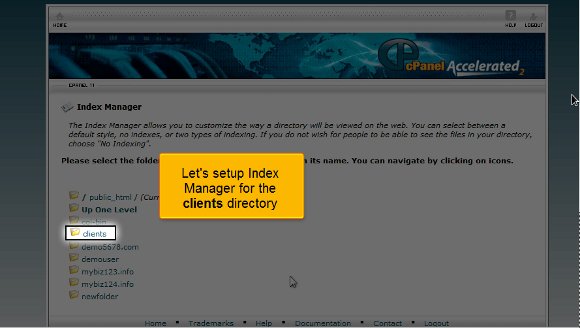
After that, you must select a directory you wish to begin with; after that, you must click on Go. At this point, you will see that the manager will permit you to control the directories on your website. The index manager provides very high security that will not display any content.

How to configure the Index manager in cPanel for clients directory There are four methods that you can choose from

1) If you go for the default system, the contents of the.

Index Manager in cPanel

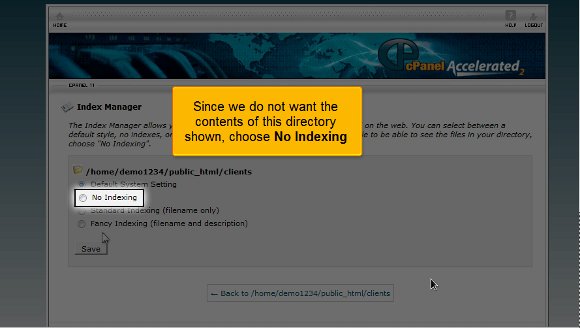
2) The no-indexing system will not display the directory’s contents.

index Manager

3) Standard indexing will prevent the browsers from viewing the contents in the directories that may not contain any image file.

index Manager

4) Fancy indexing is another method that prevents the directory’s contents openly.

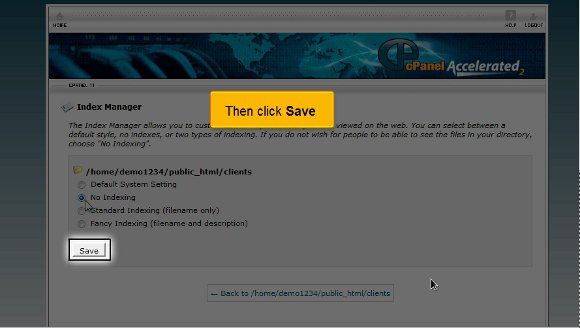
a) Since you do not wish the contents of the directories to be displayed openly, you must choose the No indexing option.

index Manager

b) After completing the above option, click the save option.

index Manager

So you have successfully configured the index manager in cPanel; once you have done this, no outsider can view any of the contents within the directory. So you see that there is not much technicality involved here. You can configure the index directory protection for any directory that you want.

Now, you can simply go back to the interface of your cPanel, and you can start using all the features. Before you get too deep into the parts, read this tutorial well and try to understand each toll’s function. cPanel is a beautiful software with fantastic results, provided you know how to use it well.
To exploit the software to the fullest, you have to absorb all of the features, and for that, you have to devote sufficient time to looking over all the parts well. It is not tough to drink the points mentioned in the tutorial. You just need to have a lot of patience and a relaxed approach to things before starting.

Follow the tips mentioned in the article, and you should have no problems using the index manager in cPanel.