Learn to Use File Manager in cPanel effectively!


How To Use File Manager in cPanel

The File Manager is basically the “en suite” web application of cPanel that’s used for managing and manoeuvring the files on your personal computer. Essentially, the File Manager permits the user to administer his website via “HTTP” more willingly than an ‘FTP’ tool or any other 3rd party application. Using the File Manager in cPanel, one can create or delete files, upload, remove, edit, copy, move, compress/extract files, change file permissions, and organize files in folders. Even though cPanel File Manager is not as refined as most FTP tools, it offers all the essential functionality required to manage your website. File Manager is a speedy and trouble-free way to steer through your files on the website.

For the most part, users feel comfortable using the file manager tool of the cPanel. Generally speaking, cPanel endows numerous ways your files can be manipulated in the File Manager.

Steps to use File Manager in cPanel for various operations

The demo given here has been done by assuming that the user had already logged in to the cPanel. To facilitate login to the cPanel, just type your domain “URL” in your browser window and add “/cPanel” at the end of the URL.

When you log into your cPanel, you will be taken to the home page. On the home page, you can find various sections to perform different unique operations.

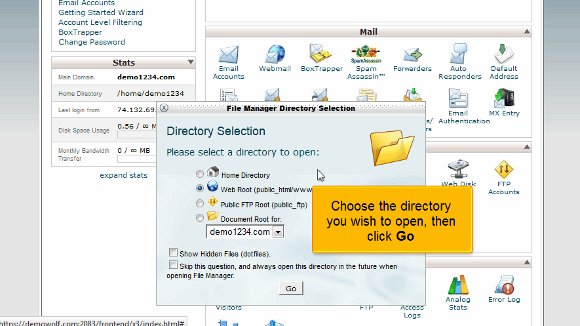
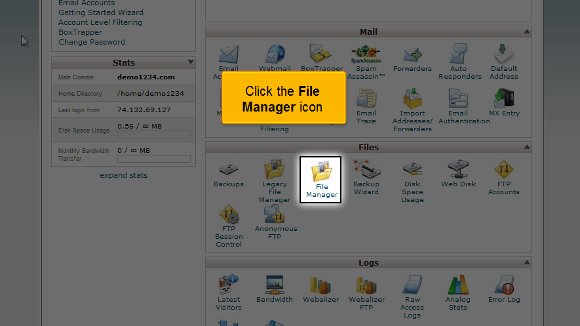
  1. Click the ‘File Manager’ icon under the’ Files’ section. You will be taken to the “Directory Selection” by clicking the file manager icon. Now, you will notice a dialogue box that asks where you wish to log in. To go immediately to your “public_html” folder with your account files, choose “Web Root”.
File manager
cPanel file Manager

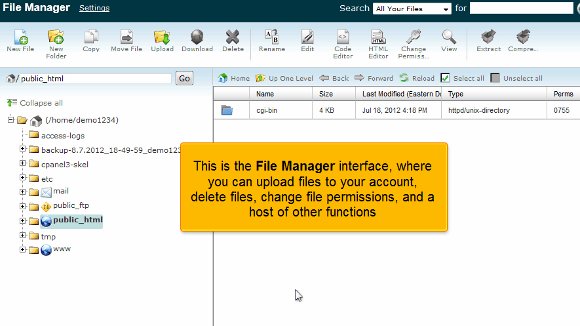
2) Click the ‘Go’ button on the bottom. Now, you will be taken to the ‘File Manager’ interface where you can do several functions such as, upload all the files to your account, change the file permissions, delete files etc. Basically, the left section of the cPanel File manager is the “Directory Listing”. On the left side of the files manager interface, you can find a collapsible listing of all the folders (directories) available in your account. Now, click a folder on the left side. In our case, the ‘public_html’ folder is been clicked.

05-public_html

3) Now, on the right side, you can find a list of all folders & files inside the folder that is chosen on the left side. This right section is basically the “File Listing”. So, your website files (html pages, gif images, etc) should go into the ‘public_html’ folder.

06-public_html-cgi

4) Hence, click on the “public_html” folder now.

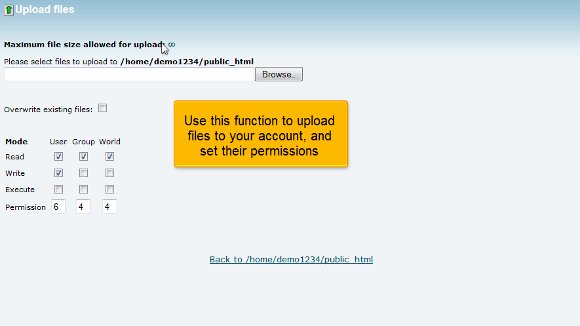
5) Now, click on the “Upload” button above on the top of the File manager tool bar. You can make use of this function to upload files to your account and to set their permissions.
cPanel

6) As a next step, we are going to create a new folder which is quite simple as generating a new file. In the cPanel file manager, click on the “New Folder” button that is placed on the File Manager tool bar. Basically, the New Folder button generates a new folder in which your files can be stored.

new folder

7) As soon as you click on the “New Folder” button, a dialogue box will pop up. Type the New folder name (in this case “newfolder’) in the space provided to describe the location where it needs to be created. Then, click the “Create New Folder” button. Now, you can see that the new folder has appeared in your preferred location.
file manager

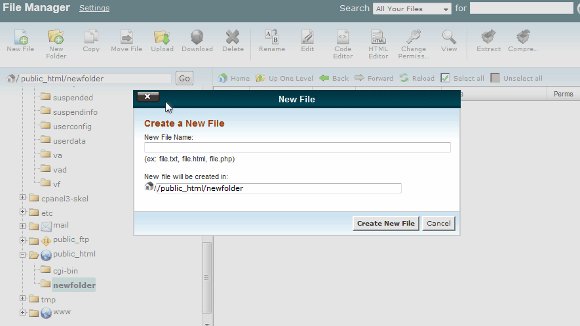
8) Now, in order to create a new file, click on the “New file” button above on the tool bar of the ‘File Manager’ interface. Basically, the New File button generates a new file with a “user-defined” file extension.

9) Now, a dialogue box will pop up. Enter the new file name (in this case “newfile.html’) in the space provided. Please remember to enter the right extension. Select a specific destination where the file needs to be saved. Now click on the “Create New file” button. Voila!! The file is successfully created.
cpanel file manager

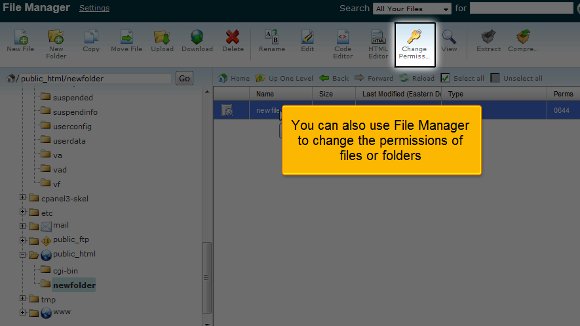
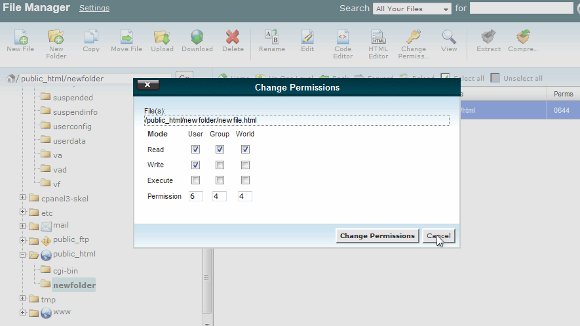
10) In the same way, you may also use cPanel File Manager interface to change the permissions of your files/ folders. Just click on the “change permission” button on the ‘File Manager’ tool bar to do so.
cPanel
cpanel

On the whole, the cPanel File Manager interface makes the process of managing the files & folders in your account into a simple one when you actually don’t have an access to an FTP tool. Hope this demo has clearly explained the process of using File Manager in cPanel!

Right Procedures to Backup Your Website in cPanel


Proper Procedures to Take Data Backup of a Website From cPanel

It is always suggested that you back up your website files before making the most significant changes. Backing up a website is a crucial part of regular accounts & any databases utilized by maintenance. In essence, the Backups region bestows a fundamental interface to download and store all or just a few of your website’s files, forwarders, filters and databases. This tool may be helpful for more skilled users who want to speed up the backup process.

In cPanel, there are 2 dissimilar methods through which you can create Data backups of your account with the help of the “”Backup Wizard””. You can create and download a single Data backup file of your whole account, which consists of all your files & databases, or you can generate & download a Data backup of these items in isolation.

One can generate a backup of his/her website very quickly. With the help of the cPanel Backups functionality, account backups can be done successfully for your hosting account. If your account is under 500MB, you can complete a Data backup version with a single mouse click. On the other hand, if the performance is enormous (more than 500MB), the complete automatic bacBackup files & databases must be backed up individually. First and foremost, you should understand the requirements of your website and decide what needs to be backed up or restored accordingly.

Steps to BacBackupwebsite in cPanel

The demonstration presented here has been done by assuming that the user has already logged in to his cPanel and is ready to learn about the website’s data backup procedures. To login to the cPanel, type your domain “”URL”” in your browser window and add “”/cpanel”” at the end of the URL.

You will be taken to the home page as soon as you log into your cPanel. You can find different sections on the home page to perform various unique operations.

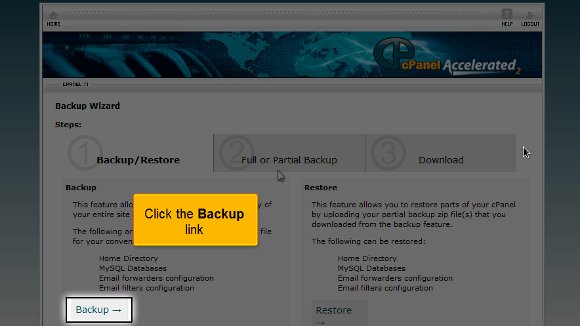
1) Go to the ”Files” section and click the “”Backup Wizard”” icon. (The Backup Wizard is an intelligible interface that can generate a Data backup of the entire website, a fractional backup, or let a website restore from the previous bacBackupved. The Backup Wizard may be very helpful to new users). Immediately, you will be taken to the chief backup screen, where you can backup or restore your files in your hosting account. You will find three options in the backup screen: Backup/restore, Full or partial backup, and Download.

backup

2) In the backup screen, click on the “”Backup”” link that can be found at the bottom of the page.

cpanel backup
cpanel

3) Here, you will be provided with the only choice of backing up a part of your hosting account. However, you need to create a full backup. For this reason, click the link that says “”Full Backup””.

backup cpanel

4) As soon as you click the “”Full Back up”” link, you’ll’ be taken to the page where a complete backup can be done. Now, choose your preferred backup destination from the dropdown box. In this case, we have selected the “”Home Directory”” as our backup destination.

backup restore

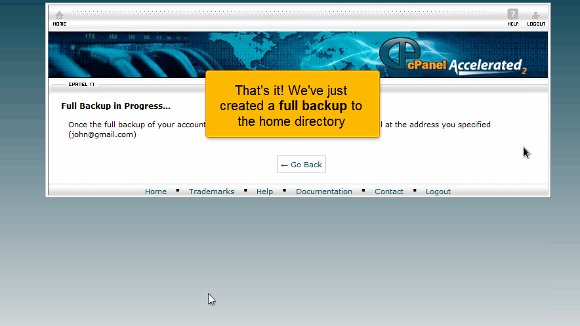
5) Now, click on the “”Generate Backup”” link at the bottom of the page. Great! We have just generated a full backup to our preferred destination (in our case, the Home directory).
backup

6) Now, click the “”Go back”” button to visit the ”Full Back” page again.

cpanel backup

7) Now, to download a copy of the bacBackup on your computer, click the link below the subheading “”Backups Available for Download””.

backup

8) save this to your computer by clicking “”Save file””. Now, we have successfully created a full backup.

backup

9) Similarly, restoring your files also includes simple and straightforward procedures. To do so, go to the Home page again.

restore

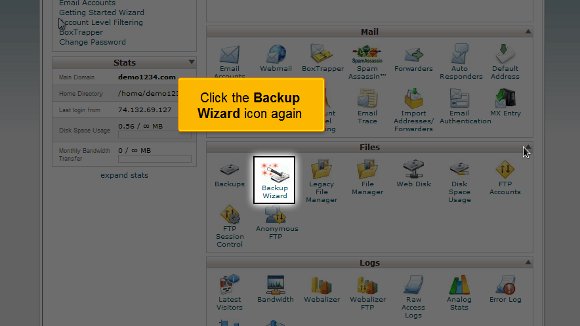
10) On the home page, Click the “”Backup Wizard”” icon under the Files section again.

backup restore

11) Now, click the “”Restore”” button on the Backup Wizard page. You will be taken to the cPanel Restore Wizard page now.

restore

12) In the Restore wizard page, you will receive several restoring options such as Home directory, MySQL databases, email forwards, and files. Select a specific type of restore that you wish to do. In our case, we are choosing to restore to the Home Directory.

cpanel restore

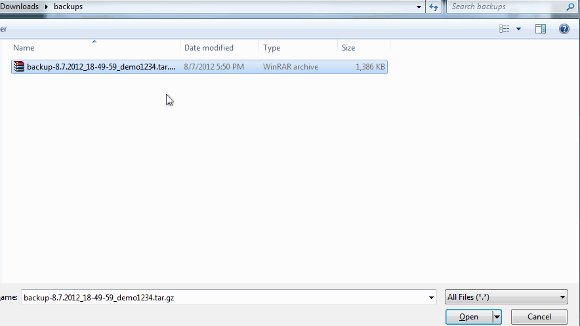
13) To click the browse button and the home directory Data backup, click the browse button.

cpanel restore
backup

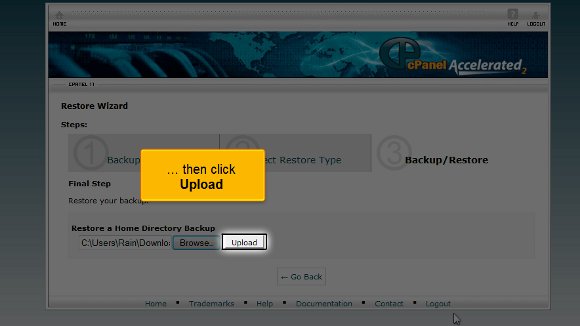
14) After locating the home directory Data backup, click the ”Upload” button.

restore

That’s’ it!! Your files have now been successfully restored!

Now, you know the proper methods to generate a Data backup with the help of cPanel and to restore files from a backup.

Update Your cPanel Contact Information


How To Update Your cPanel Contact Information

At heart, cPanel is a web hosting control panel based on “Unix”. cPanel bestows a graphical interface & other automation tools that are premeditated to abridge the website’s hosting process. Simply put, cPanel is user-friendly website management software premeditated for administrating specific domains and hosting accounts on a “Virtual Private Server (VPS)” or any other dedicated server. As a result, the end users can be in command of everything from eliminating/including email accounts to managing “MySQL” databases. In the bargain, cPanel can also be used in cooperation with the “Web Host Manager (WHM)” to include domains to a server, generate personal accounts, perform basic system & control panel maintenance and administer various features in hosting.

Configuration of cPanel:

Fundamentally, cPanel uses a “3 tier” configuration that bequeaths competencies for the website possessors (end-users), re-sellers and administrators. It also offers the vital ability to manage various website and server management characteristics through a typical web browser.

GUI:

The “Graphical User Interface”, shortly known as ‘GUI’ is a vital aspect of cPanel that donates tremendous accessibility to the end users. Besides GUI, cPanel also has ‘API-based’ admittance that permits web hosting groups, 3rd party software vendors and developers to computerize the standard system management processes.

The most “up-to-date” cPanel version can even handle the installation of ‘Red Hat Enterprise Linux (RHEL)’, ‘CloudLinux’ and ‘CentOS’.

Step-by-step procedures to update your contact information in cPanel:

In cPanel, one can manage numerous administrative/organizational tasks for a website. One such administrative task is updating a person’s contact information and preferences.

Readers should understand that the following demonstration has been provided by assuming that a particular user had already logged in to the cPanel and is now ready to discover the proper procedures for updating his/her contact information in cPanel.

Follow the ‘step-by-step instructions’ carefully to update your contact information and preferences:

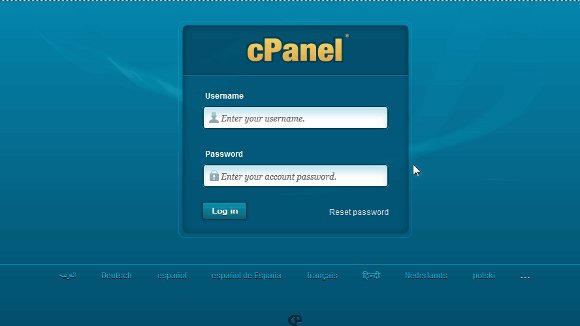
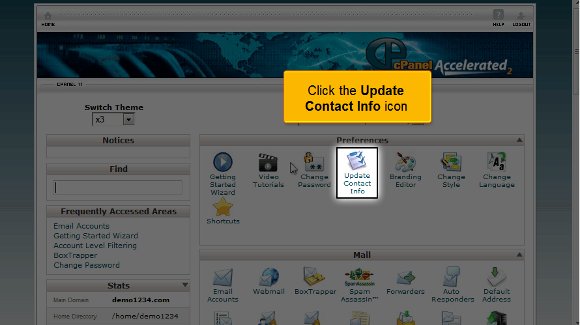
1) As soon as you enter the username & password in the cPanel login page, you will be taken to the cPanel home screen. In the cPanel home screen, you will see an “Update contact info” icon in the “Preferences” box.

cpanel

2) Now, click on the “Update contact info” icon.

contect info

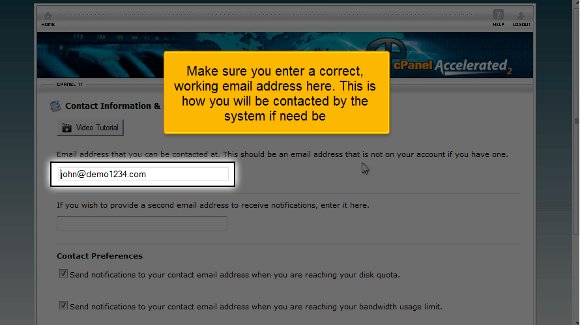
3) As soon as you click on the “Update contact info” icon, you will be taken to the “Contact information & Preferences” page. Here, you will find 3 sections. The first and second sections are for entering your primary and secondary email addresses, whereas the last is for entering your contact preferences.

4) First, fill in your primary email address in the provided space. Note that the email address that you are entering here must be the one that is not on your account. Ensure you have entered the correct (working) email ID, as you need to make necessary contacts with the system.

contect info

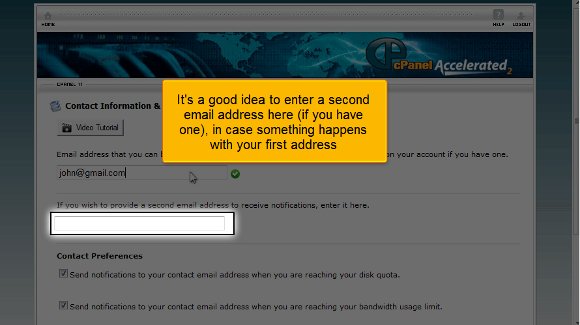
5) Generally, Users are recommended to enter a secondary email address in case of human error occurrences in the primary email id. So, move on to the next section and enter your secondary email address in the space given below. Nevertheless, make sure that you enter a valid email address here.

contect info

6) After entering the second email address, move to the third section, “Contact preferences”. In point of fact, this section is to understand the users’ preferences. Principally, this section is to identify whether a user would like to get notifications (through the contact email address) as soon as he/she reaches his/her disk quota, email account quota or bandwidth usage limit. So, if you prefer to get the notifications on these features, say ‘yes’.

cpanel contact info

7) After entering all the essential information, double-check once again to see whether you have entered the correct information in all the sections.

8) Now, click the “Save” button at the end of the page.

cpanel contact info

Great Job!!! You have updated all your contact information and preferences ingeniously. Also, you can confirm this by reading the statement – “Your contact information and preferences have been updated” at the end of the page. In future, when you reach the predetermined bandwidth & storage limits, you will be notified through proper email communication.

Users can follow the step-by-step instructions to update and maintain their contact information and preferences in cPanel.

Change the Primary Language in cPanel


How To Change the Primary Language in cPanel

No wonder cPanel is the chief control panel interface in the entire web hosting industry in the present day. cPanel is the solitary hosting control panel that is commercially obtainable. It is the only product trusted by the leading hosting contributors in the United States of America. Principally, cPanel uses a “graphical interface” that abridges the administration of a website to the highest degree. If truth to be told, cPanel shortens the tricky features of countless website management tools by offering users a user-friendly ‘front-end’ interface. cPanel helps you easily administer your FTP accounts, the vital files on your website, email accounts, sub-domains, add-on domains, and MySQL databases. In addition, it also donates statistics for your website.

In this tutorial, let’s learn about the different procedures to change the primary language in cPanel.

Read below to unearth the ‘trouble-free’ ways to change the language in cPanel without much hassle.

Step-by-step procedures to change the primary language in cPanel:

The following demo was presented, considering the user had already logged into his cPanel.

1) When you enter the username and Password, you will be taken to your cPanel home screen, where you can see the “Preferences” box on the apex of the home page.

2) Select the “Change Language” icon in the preferences box.

3) Click the “Change Language” icon

cPanel language Primary Language in cPanel

Change the primary language in cPanel:

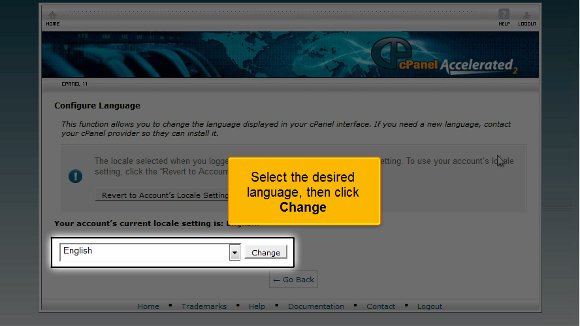
4) you will be taken to the “Configure Language” page. This function is provided to help you change the primary language that’s exhibited in your control panel interface.

5) Here, you will notice a dropdown box in which several languages in the world are listed.

6) choose your preferred language from the language dropdown box. In this demo, we changed the language from English to “Spanish (espanol)”.

cPanel language

7) Select the Spanish language from the dropdown box and click the “Change” button.

cPanel language

8) Cool!! You have successfully changed the primary language in cPanel from English to Spanish.

9) To confirm the primary language in cPanel change, click the “home” button to visit the home page.

10) On the home page, if you steer from end to end of your cPanel, you will be able to observe that the (original) primary language (English) has been changed to the recently selected language (Spanish).

11) OK now! To change the primary language back to the original one (in our case, English), you just have to repeat the entire process again. Simple right!!

12) go ahead and click on the “Cambiar Lenguaje” (Change Language) icon in the “Preferencias” (Preferences) box.

13) For a second time, you will have to select the original language, “English”, from the language dropdown box and click on the “change” button. That’s it!! Your primary language is now changed to “English”.

14) To confirm whether the language has been changed to English, click the home button and visit the home screen.

15) On the home page, if you manoeuvre from the first to the last of your control panel, you will discover that the language (Spanish) has been changed to English again.

Now, you have become skilled at changing the primary language in Cpanel. Tag along the step-by-step instructions given above to play around various languages in your cPanel.

Change Your cPanel Style


How TO Change Your cPanel

cPanel, also known as the control panel, is basically a graphical “web-based” control panel that lends you a hand in managing your website & hosting account rapidly and effortlessly. cPanel is essentially a website administration program that can administer diverse features of your website. cPanel offers you an absolute administration over a cosmic number of functions by reshuffling several functional processes, for example:

  • Generating databases
  • Administrating website files
  • Creating autoresponders and email accounts
  • Set up software on your website

cPanel has quickly developed into the most ‘well-liked’ web hosting control panel that sprints millions of websites all over the globe. In essence, cPanel was created to bestow both website owners & servers the essential control on their properties. Whether a user is administrating a single or 100’s of websites and/or servers, the idiot-proof “point-and-click” interface of cPanel will let the user modify his/her web-hosting practice that best suits his/her requirements.

In this tutorial, you will learn about the proper methods to change your cPanel style.

Step-by-step instructions to change your cPanel style:

The following demo assumes that the user has already logged into his/her cPanel account.

1) The moment you log into your cPanel, you will be taken to the home screen, where you can find the “Preferences” box on the top.

2) In the Preferences box, an icon will be called “Change styles”.

3) Click the “Change styles” icon.

00-change-style

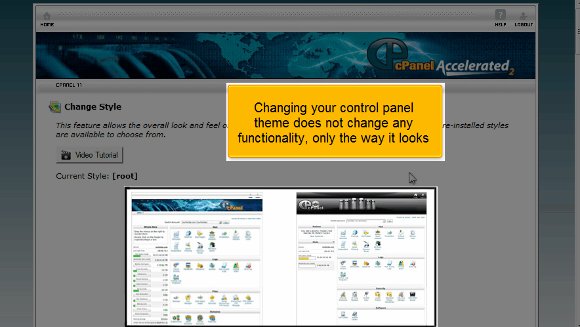
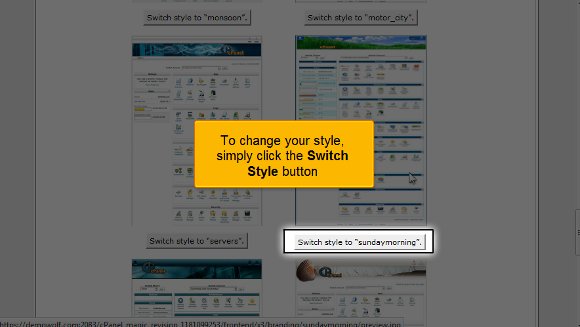
4) you will be taken to the page where you can change your cPanel style. Fundamentally, changing your cPanel style will not affect the core functionality of your cPanel. On the other hand, it just affects the “feel and appearance (look)” of cPanel. Also, some styles affect the association of your cPanel icons. One can select from an array of cPanel styles such as “[root]” style, “black ice” style, “blue_lagoon” style, “business2business” style, “clocks” style, “crimson_smoke” style, “fall theme” style, “mobile” style, “monsoon” style, “motor_city” style, “servers” style and “sundaymorning” style.

01-choose-style

5) select your favourite cPanel style and click that “switch style” button. For example, if you wish to change your cPanel style to “Sundaymorning” type, then click the button that says “switch style to “Sundaymorning”.

02-switch-style cPanel Style

6) Voila!!! You have successfully changed your cPanel style to “sundaymorning” style. This can be confirmed by reading the statement “Your style has been changed” on the screen.

7) To verify whether your cPanel style has been changed to your preferred style mode (in this case, “sundaymorning”), click the home button that is on the top of the screen.

8) In the home screen, you will notice that the appearance (look) of your panel has been changed to “sundaymorning”.

03-change-style

9) Now, in an attempt to change your cPanel style back to its original style (“[root]”), you just have to repeat the whole process once more.

10) Click the “change style” icon on the preferences box.

04-change-default

11) Now, you will be taken to the “change styles” page, where you can find an array of cPanel styles.

12) Click the button “Switch style to “[root]”.

05-switch-default

13) Great!! Your cPanel style has been successfully changed to its original “[root]” style.

06-default-style

14) You can confirm the style change by visiting the home screen.

Awesome!! Now, you know the proper procedures to change your cPanel style professionally. Follow the steps above to play with different style changes in your control panel.

Create desktop shortcuts for cPanel


How  To Create Desktop Shortcuts for cPanel

At the outset, your web hosting control panel (cPanel) may appear obscure to you. For this reason, we have offered you some helpful video tutorials to ease learning several functional operations in cPanel. Primarily, Shortcuts will generate a speedy technique to access your cPanel interface (or) webmail by developing a shortcut. A shortcut is an exclusive ‘icon’ on your browser or desktop that will access a preferred aspect or application with just a click of your mouse. One can set up a shortcut by holding, dragging or clicking on the links to a page of your browser or desktop toolbar. Doing so will automatically add the shortcut to your desktop or toolbar.

The following tutorial will show you the easy ways to create shortcuts to pages within your cPanel to add them to your desktop bookmarks and browser to make it rapid and straightforward to reach the pages you use the most regularly.

Various Steps to Setup Desktop Shortcuts for Your cPanel

Once logged in to your cPanel, you can continue setting up desktop shortcuts for the web hosting control panel and webmail. In reality, cPanel shortcuts are the essential links that can be added to your browser or desktop’s toolbar. This is considered a simple and straightforward technique to work with your cPanel. One can also set up cPanel shortcuts to access his/her webmail unswervingly.

This demo is presented by assuming that the user has already logged into his/her cPanel account and is ready to learn the proper procedures to set up desktop shortcuts.

1) Desktop shortcuts for cPanel: After logging in to your cPanel, you will be taken to the home screen, which bestows access to all essential cPanel functions. On the home screen, click the “Shortcuts” icon that can be found under the ‘Preferences’ category. The data enclosed within the Preferences box illustrates the features placed in the cPanel interface. These vital features consist of standard cPanel settings and a setup wizard.

desktop shortcuts for cPanel

2) Desktop shortcuts for cPanel: When you click the “Shortcuts” icon, you will be navigated to the page where you can access the shortcuts in cPanel. To be precise, you will be taken to the “Shortcuts page”, where you can find a list of available shortcuts.

cPanel add shortcuts

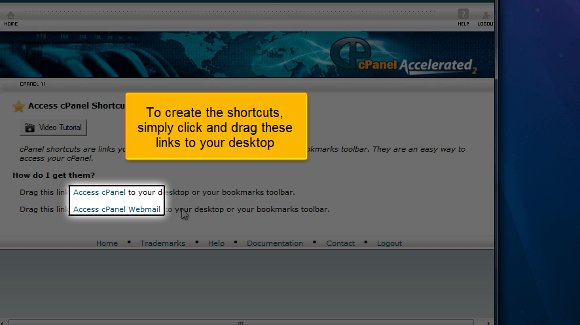
3) Desktop shortcuts for cPanel: Now, all you have to do is just click & drag the 2 links (“Access cPanel” and “Access cPanel webmail”) that are provided on the “Access cPanel Shortcuts” page to your desktop.

cPanel

4) Desktop shortcuts for cPanel: Check whether you can find the two shortcuts for cPanel, ‘control panel’ and ‘webmail’ on your desktop. Once you get them on your desktop, it’s just a matter of one click on the shortcuts to quickly access the page(s) in your browser.

cpanel shortcuts

Groovy!! You know the simple procedures to set up desktop shortcuts for your cPanel. Tag along the steps given above to create shortcuts in cPanel. Remember that your cPanel or control panel is an authoritative tool to control several aspects of your website. So, go through all our helpful video tutorials that guarantee an unfussy use of your cPanel.

Email Filters in cPanel


How To Setup Email Filters in cPanel

If you pay attention to this tutorial, you will learn how to set email filters in cPanel. Many of you may not know what a cPanel is, so let us learn a little bit about cPanel first. Firstly, cPanel is quite an exciting software that allows users to utilise sophisticated and automated tools that permit any user to conduct smooth business operations using the internet. cPanel is a software often used to manage servers and monitor other factors related to any website.

Since you are looking at a tutorial that deals with the setup of email filters in cPanel, it can be assumed that you already know how to log in to the application.

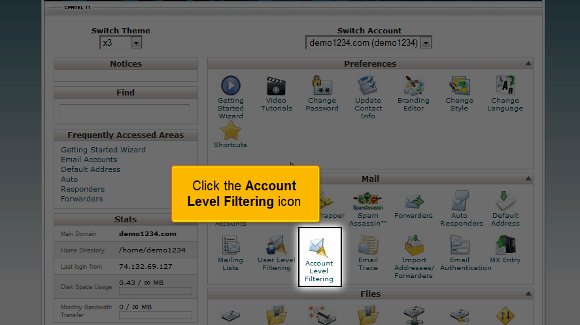
1) First, you have to click an icon that says account level filtering

email filter

2) After you have done the above, you have to now click on an option that says Create a new filter

new mail filter

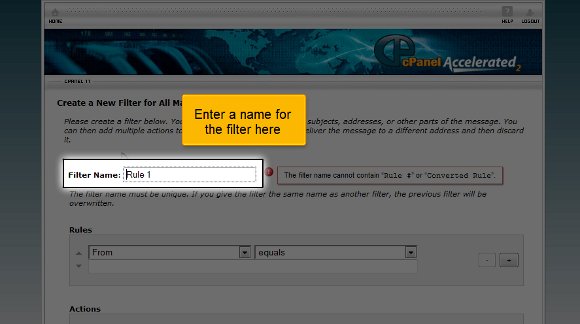
3) You have to put in a name for the filter that you have created

mail filter rule

4) You also have to mention a specific rule here

email filter

5) Afterwards, you must go for an option that says the To field contains the text, which should be the folder name. So, this particular action will ensure that the email is delivered to the folder mentioned above with a designated term.

email filter

6) Lastly, you click on the tab that says create

email filter
email filter

So now you have been successful in creating a filter. From this point, you will have the liberty to edit all the existing filters. This is where the tutorial ends, and now you have the knowledge to help you set up email filters in cPanel.

You can now go back to your cPanel interface and check the settings. In fact, you should take some time to study the other tabs relating to the filter feature on your cPanel. Now you must know how to log out; okay, this is easy. You just have to look for the logout tab, which should be at the top of the page. You should not have too much trouble understanding the tips mentioned in this tutorial, and by

now, you have also noticed that there are no technicalities involved in the whole thing, just a few easy steps for you to follow. You simply need to have a cool head and a little patience. You shouldn’t rush the learning phase. Go over each point until you have the whole thing worked out. You may find something complicated as a beginner, so do not get agitated or stressed out. Things will fall into place eventually. So relax and try to get a grip on things, which will help you in the long run. You may also feel free to look at other tutorials teaching how to set up email filters in cPanel. So follow the tips carefully.

How To Change cPanel Password


 How To Change cPanel Password

If you want to learn how to change your cPanel password, then you should go through the tips mentioned in this tutorial. Now, let us first introduce cPanel to those who have no idea. Well, cPanel is an efficient software that uses very sophisticated features that allow users to carry out their business activities smoothly without any problems. So you see that cPanel has become an essential component of daily activities.

1) Here are the tips you can follow to change your cPanel password.

2) by now, it is assumed that you can log into cPanel. So let’s get started.

cpanel

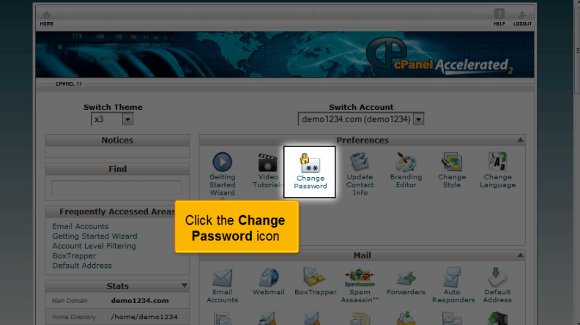
3) Click on the icon that says Change password.

change Password

4) You must enter your current password.

cPanel Password

5) After that, you must confirm your password by typing it again.

cPanel Password

6) After that, you must click on change your password.

chage password

So that is it with this tutorial. You can now use this to create a password to log in. Try setting an unusual password, something that only you will remember.

So now you can simply go back to your cPanel interface and check out its various features. You must also devote some time to looking at some of the other tabs provided. The most important thing you should know is how to log out from the interface; it’s not something to worry about. All you have to do is simply locate the logout tab in the top corner. So, I may have understood by now that this tutorial is not complicated to understand. You merely have to have some patience to go over certain aspects carefully. So try not to rush the learning period, as you will be able to absorb things properly. You can learn all the elements at your own pace. You need not hurry through it.

In the end, you can also take your time and look at other tutorials for tips. However, if you are using cPanel for the first time, you do not have to get worried. You can consult this tutorial that will guide you through the process, and eventually, learn how to use it properly and get good results quickly. A tutorial will always teach you how to use software correctly. cPanel is a prevalent software, and people worldwide use it for its simplicity and user-friendly interface. In fact, you can start using the software immediately after its installation process. The software facilitates almost any business operation using the internet the fastest way possible. So now that you know this software has a lot of benefits, you should start using it right away, but before you do, make sure you have gone through this tutorial very well, as it will help you in the long run.

Webmail From Within Cpanel


Webmail from Within Cpanel

So, read on if you are looking for a tutorial to teach you to use webmail from within cPanel. This tutorial will guide you through simple steps to access webmail using cPanel. However, before we get into the technical side, it is best to learn about cPanel. To begin with, cPanel is a prevalent software that lets users utilize very sophisticated features to carry out business operations smoothly. So you can understand that cPanel has occupied an essential part of our daily lives. Follow the guidelines given below to get the best results possible.

It is assumed that you know the procedure to log in to cPanel.

1) First, you must locate the icon that says Email Account. You can use this link to access the webmail within your main account. However, we will discuss an alternative method.

webmail

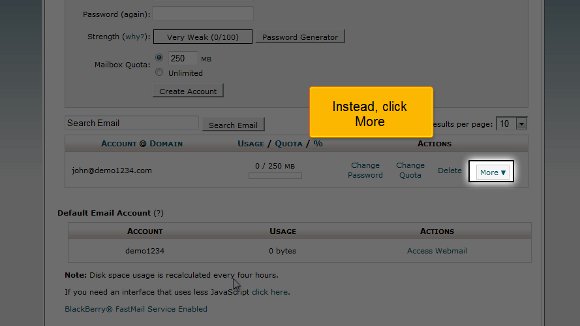
2) What you can do is click on the option more.

webmail

3) After that, you will find an option called Access Webmail, and you must click on that.

webmail cPanel

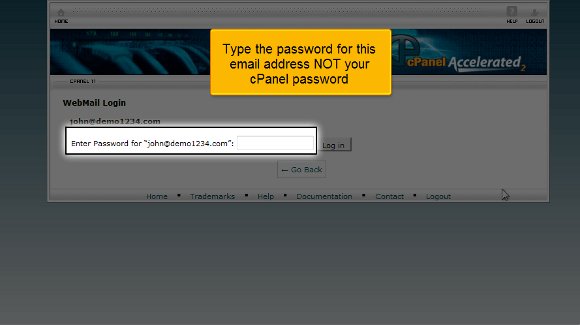
4) You must fill in the password for the particular email account and not the password for your cPanel.

cPanel Webmail

5) You can now click on login

webmail email

6) Now, you must click on a particular option called Horde. On this specific screen, you will see your inbox; you can even write a new message.

webmail email
webmail inbox
webmail message

7) After you are done with the webmail, you can click on Log-out.

webmail cPanel

So this is where the tutorial ends, and now you know exactly how to use webmail from within cPanel.

So, by now, you can see the interface of your cPanel, so you can get started immediately by going through the various settings. In fact, you should look at the different tabs at your own pace, as there are multiple things to learn.

Okay, the next thing you need to know is how to log out from the interface. Well, that should be a breeze; try locating a log-out tab on top of the page and click on it, and the job’s done. If you pay attention, you will notice that this tutorial

is not challenging to understand. You just need a decent level of patience to absorb things correctly. Another advice is to to try not to hurry through the learning process, as you may miss out on some essential aspects.

You may also take the time to look at some other tutorials that will teach you to use webmail from within cPanel. If you are new to using this software, you have no reason to get worried. This tutorial will guide you through the entire process step by step. In fact, you should go through the tips in this tutorial and start using cPanel right away.

Enable Spam Protection in Cpanel


How To Enable Spam Protection in Cpanel

If you are looking for a way to learn how to enable spam protection in cPanel, then you are indeed looking at the proper tutorial. Before we proceed, it would be good if you knew more about cPanel. cPanel is a helpful software that allows users to use sophisticated tools that will enable them to smoothly carry out all the operations regarding your business. So, by now, you have understood that a cPanel is very important when looking after the servers and going through the other factors related to any website.

Let us look at the steps you must follow to enable spam protection in cPanel.

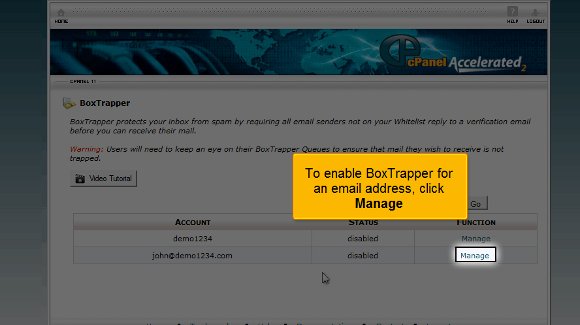
1) First, locate an icon that says Box Trapper and click on it. This adds protection to your inbox from any spam. Now, the contacts not on your list will have to reply to verification mail before they can send you any mail.

spam protection

2) To ensure that the box trapper is enabled on an email, click on manage.

spam protection

3) After that, you must turn on the button.

spam protection

4) Once you have done the above, the box trapper will be enabled for the email; then you need to click on go back.

cPanel

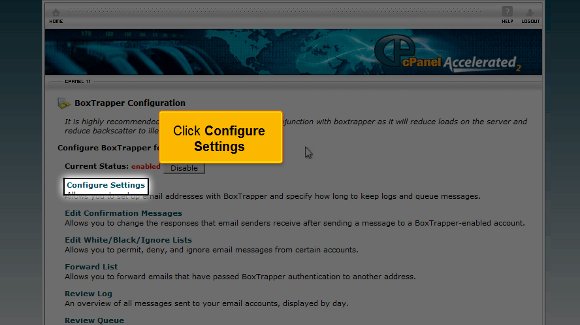
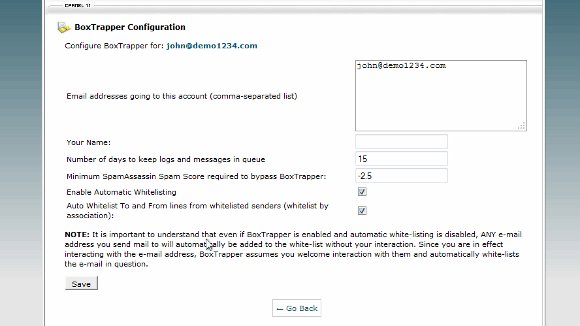
5) The next important step is when you will have to configure the settings in the box trapper. For this, you will have to click on Configure Settings.

cPanel
spam protection

6) After that, you must click on the edit confirmation message tab. This will allow you to edit the confirmation messages.

spam protection
spam protection
spam control

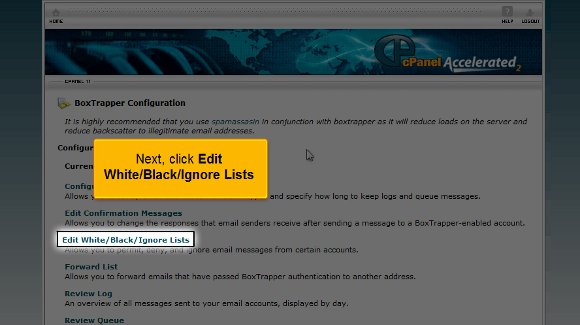
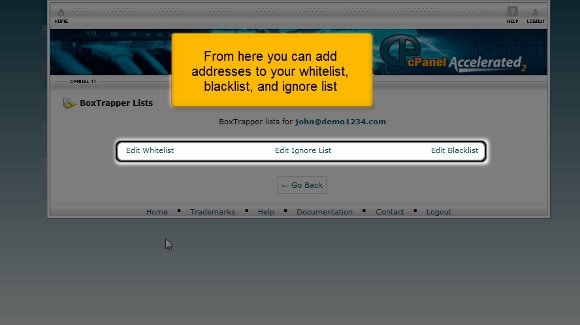
7) Next, click on Ignore lists, black or edit white. This option will allow you to divide your contacts into people you want to keep in touch with or people you wish to ignore. Once you set this up, you will notice that the spam has dramatically been reduced.

cpanel protection
spam protection

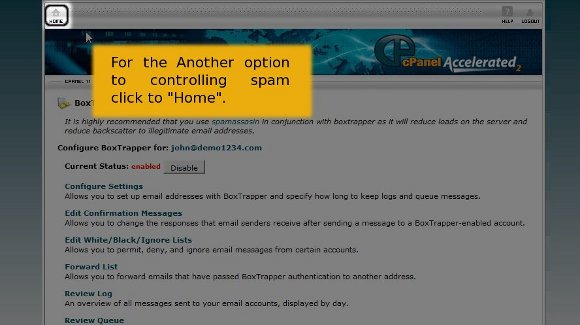
8) Click “Home” to the other option for controlling spam.

spam control

9) You should also click on Spam Assassin.

cpanel

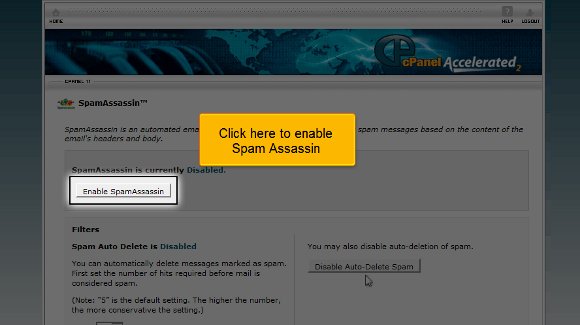
10) Click on “Enable SpamAssassin” to  Enable it.

spam control

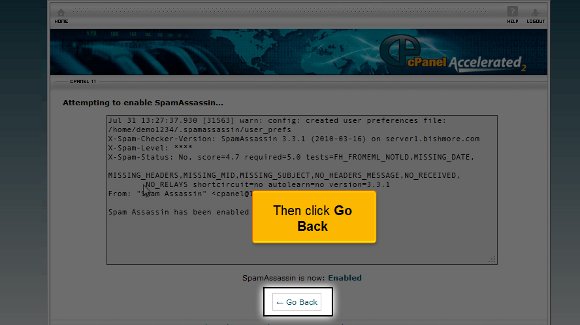
11) Then you must also click on Go back

cpanel

12) After that, you must configure the spam assassin

spam control

With this, we have come to the very end of the tutorial. So now you have full knowledge that will enable you to enable spam protection in cPanel. You must use Spam Assassin and Box Trapper to reduce spam. Using both will give your account maximum protection by keeping spam at bay.

So now your spam protection is enabled to the fullest, and you can take the time to look around. You should also take the time to look at some of the other tabs. To learn more about the cPanel, you should have a lot of patience and not rush the learning process. In this way, you can get a better grip on this. So follow the tips in this tutorial very closely.