How To Update Your cPanel Contact Information
At heart, cPanel is a web hosting control panel based on “Unix”. cPanel bestows a graphical interface & other automation tools that are premeditated to abridge the website’s hosting process. Simply put, cPanel is user-friendly website management software premeditated for administrating specific domains and hosting accounts on a “Virtual Private Server (VPS)” or any other dedicated server. As a result, the end users can be in command of everything from eliminating/including email accounts to managing “MySQL” databases. In the bargain, cPanel can also be used in cooperation with the “Web Host Manager (WHM)” to include domains to a server, generate personal accounts, perform basic system & control panel maintenance and administer various features in hosting.
Configuration of cPanel:
Fundamentally, cPanel uses a “3 tier” configuration that bequeaths competencies for the website possessors (end-users), re-sellers and administrators. It also offers the vital ability to manage various website and server management characteristics through a typical web browser.
GUI:
The “Graphical User Interface”, shortly known as ‘GUI’ is a vital aspect of cPanel that donates tremendous accessibility to the end users. Besides GUI, cPanel also has ‘API-based’ admittance that permits web hosting groups, 3rd party software vendors and developers to computerize the standard system management processes.
The most “up-to-date” cPanel version can even handle the installation of ‘Red Hat Enterprise Linux (RHEL)’, ‘CloudLinux’ and ‘CentOS’.
Step-by-step procedures to update your contact information in cPanel:
In cPanel, one can manage numerous administrative/organizational tasks for a website. One such administrative task is updating a person’s contact information and preferences.
Readers should understand that the following demonstration has been provided by assuming that a particular user had already logged in to the cPanel and is now ready to discover the proper procedures for updating his/her contact information in cPanel.
Follow the ‘step-by-step instructions’ carefully to update your contact information and preferences:
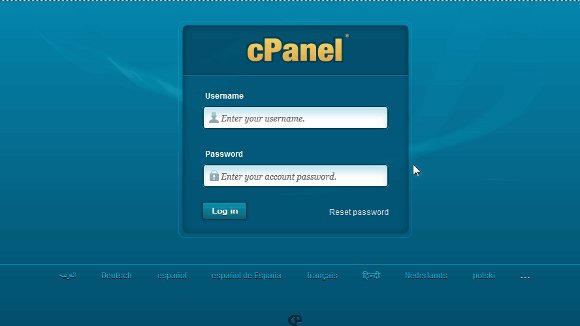
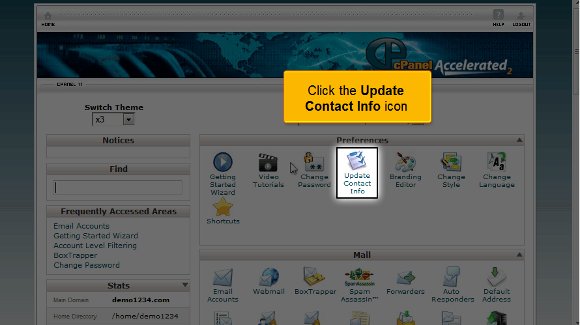
1) As soon as you enter the username & password in the cPanel login page, you will be taken to the cPanel home screen. In the cPanel home screen, you will see an “Update contact info” icon in the “Preferences” box.
2) Now, click on the “Update contact info” icon.
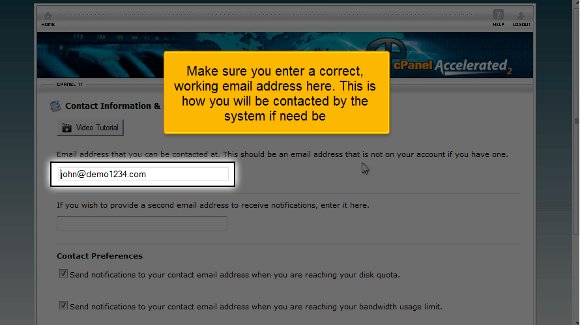
3) As soon as you click on the “Update contact info” icon, you will be taken to the “Contact information & Preferences” page. Here, you will find 3 sections. The first and second sections are for entering your primary and secondary email addresses, whereas the last is for entering your contact preferences.
4) First, fill in your primary email address in the provided space. Note that the email address that you are entering here must be the one that is not on your account. Ensure you have entered the correct (working) email ID, as you need to make necessary contacts with the system.
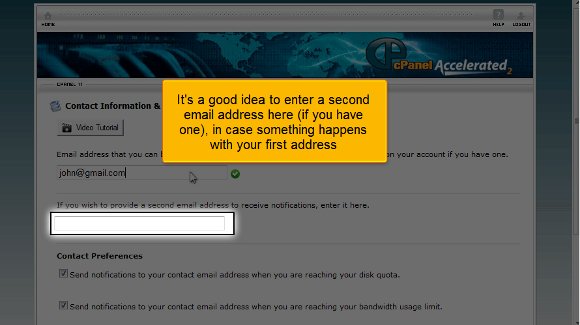
5) Generally, Users are recommended to enter a secondary email address in case of human error occurrences in the primary email id. So, move on to the next section and enter your secondary email address in the space given below. Nevertheless, make sure that you enter a valid email address here.
6) After entering the second email address, move to the third section, “Contact preferences”. In point of fact, this section is to understand the users’ preferences. Principally, this section is to identify whether a user would like to get notifications (through the contact email address) as soon as he/she reaches his/her disk quota, email account quota or bandwidth usage limit. So, if you prefer to get the notifications on these features, say ‘yes’.

7) After entering all the essential information, double-check once again to see whether you have entered the correct information in all the sections.
8) Now, click the “Save” button at the end of the page.

Great Job!!! You have updated all your contact information and preferences ingeniously. Also, you can confirm this by reading the statement – “Your contact information and preferences have been updated” at the end of the page. In future, when you reach the predetermined bandwidth & storage limits, you will be notified through proper email communication.
Users can follow the step-by-step instructions to update and maintain their contact information and preferences in cPanel.

 Ananova
You must be logged in to post a comment.