Geeklog


Procedure for How To Install Geeklog

Now, you may have spent a lot of time looking for a good tutorial that will help you install Geeklog. If you have not found one by now, there is no need to feel disheartened, as this tutorial provides straightforward tips on installing Geeklog on your computer. Here is an introduction for those who may not know much about Geeklog. Geeklog is an application provided by Fantastico. Fantastico is a reputed hosting service provider that gives users some of the best applications. All of the applications offered are compatible with Cpanel. The service provider also has an exhaustive stock of scripts that help install the applications quickly. These scripts are used by people all over the world.

The tutorial already assumes that you know how to use Fantastico. So, let us now look at the steps to install Geeklog.

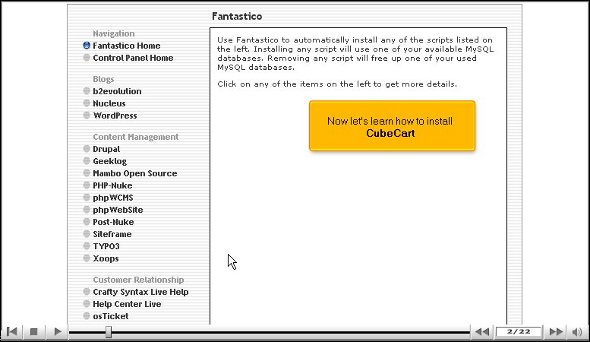
1. To begin the installation process, click on the Geeklog tab on the left-hand side of the interface.

geeklog

2. After doing this, you will be taken to an installation screen where you have to click on a link that says New installation.

geeklog

3. You have to define a directory name, or else you can install the application in the root directory.
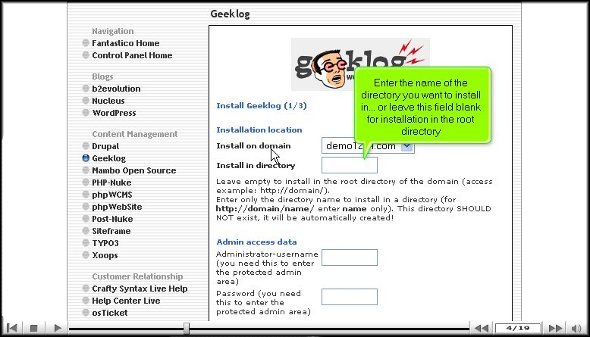
geeklog

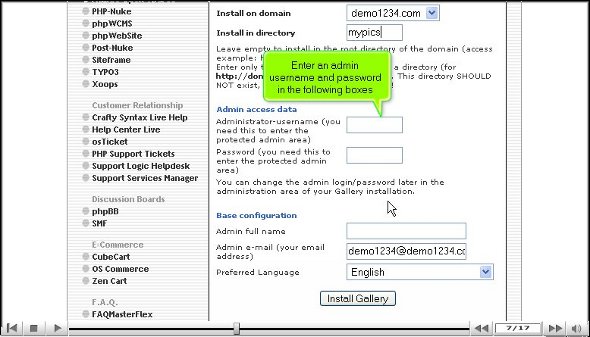
4. You will be required to submit a password and an administration name
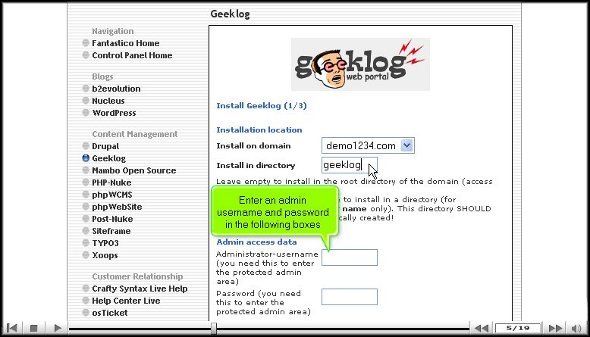
geeklog

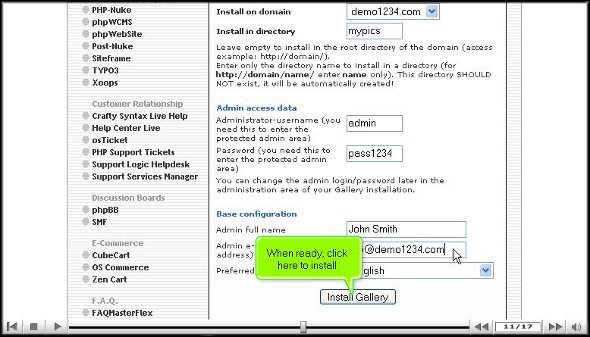
5. On the same page, right at the bottom, you will notice a tab that says install Geeklog
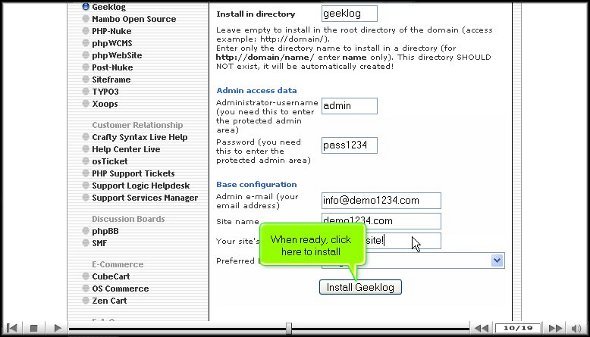
geeklog


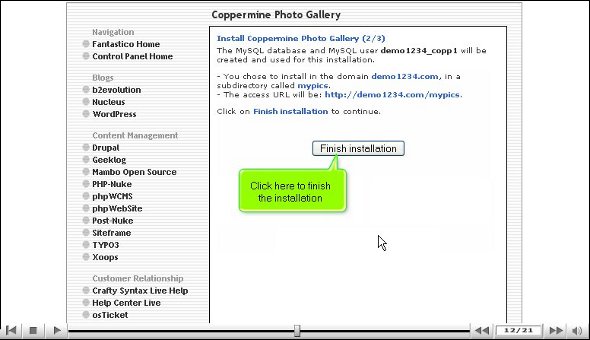
6. To finish the installation process, you can click on Finish
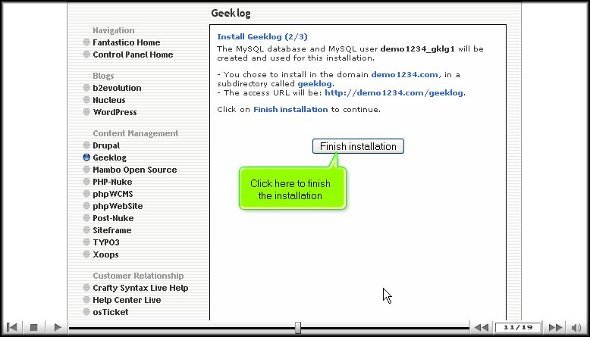
geeklog

Well, that is the end of the installation process, and you can now look at the application’s various features. You must follow all the steps mentioned to install the application correctly on your computer.

When you successfully complete the steps mentioned above, it implies that the application has been installed without much trouble. This application has many features you can configure per your personal requirements. However, before you get to the part where you start configuring, it would be better to spend a certain amount of time learning about the various features and their uses. You can always consult this tutorial or some other to help you in the process of learning. However, it would be wise not to rush through the learning process; you should not run through it. Taking your time will help you absorb the various features of the application. Using this application over time will help you realize that you have benefited significantly. This application has plenty of features that support eCommerce and open-sourced shopping carts.

So, it is evident that Geeklog is a handy application, and having it installed on your computer will benefit you. You may also feel free to consult other tutorials that will teach you to install Geeklog.

Go to the top of the page. Back to the tutorial

Gallery


Installing a gallery application from Fantastico is easy.

You may have looked for countless tutorials to teach you how to install Gallery, but not all are good. However, you do not have to worry; this tutorial is proper. It lays down some easy steps to follow to install this application from Fantastico. Now, for those of you who have not heard of Fantastico, you should know that Fantastico is a very reliable service provider for web hosting. This service provider also gives the users various applications they can install on their computers. Note that all applications offered by Fantastico are compatible with the current version of cPanel.

This tutorial assumes that you already know how to use Fantastic.

1. You can begin the process by locating the Gallery tab on the Fantastico interface. You will then have to click on it.

gallery

2. Clicking the Gallery tab will take you straight to the installation screen, and there is a link called New Installation, which you again have to click.

gallery

3. You will then have to provide the name of a directory where you want the application installed; you can also let the application install in the root directory.

gallery

4. After the above step, you must provide a password and an administration name.

gallery

5. At the bottom of the page, you will notice an install Gallery tab; you have to click on that.gallery05

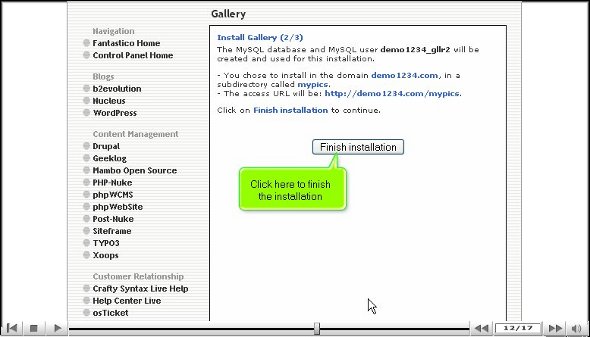
6. To finish the installation process, you simply have to click on the tab that says finish.

gallery

So, with that, we have come to the end of the tutorial, and now you can view the application’s features.

If you have followed the above steps, then it can be assumed that you have been able to install Gallery the right way. So, after you are done with the installation process, you can start by exploring the application; you can go through each feature to see what it does.

You can also spend some time tweaking the application’s features per your preference. Before you get to the configuring part, you should spend some time reviewing and learning about the features. This application has many features. You try not to rush through the learning process as there are tons of things that you can absorb things properly. This particular tutorial will help you out quite a bit.

As a new user, you may feel a little frustrated trying to use this application for the first time, but you should try to keep a cool head and have a relaxed approach while trying to learn to use this application. After some time, you will notice that you have benefited from using this application.

By now, you have probably realized that the application is perfect, so follow all the steps mentioned in the tutorial to install Gallery correctly on your computer.

Go to the top of the page. Back to the tutorial

Drupal


The perfect way to install Drupal

People have complained about not being able to install Drupal very well and have termed it a faulty application. However, you do not have to worry; this tutorial is perfect for people like you. In case you do not know, Drupal is an application provided by Fantastico, a service provider that gives people reliable services. The good news is that Fantastico’s applications are very compatible with the current Cpanel you are using. Fantastico also gives you many scripts that you can use to install Drupal without any trouble. These scripts help you save a lot of time.

Now that you are looking at a tutorial that will teach you how to install Drupal, it is assumed that you already know how to use Fantastico.

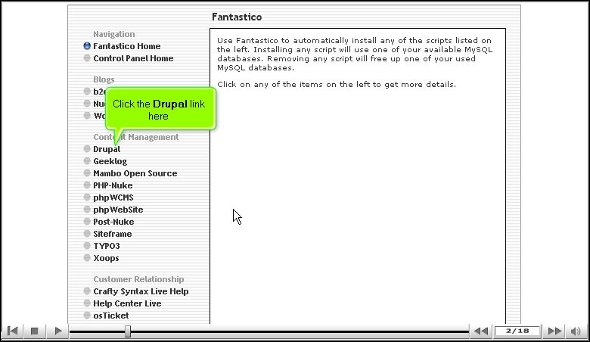
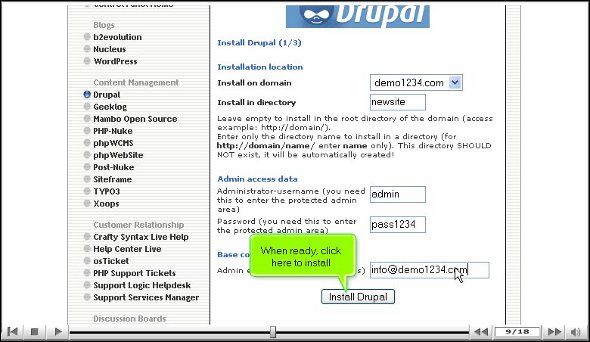
1. When looking at the interface of Fantastico, you will notice a Drupal tab. You have to click on it. You will be taking the screen when you click on it.

Drupal

2. On the installation screen, you will find a link that says new installation. You again have to click on it.

Drupal

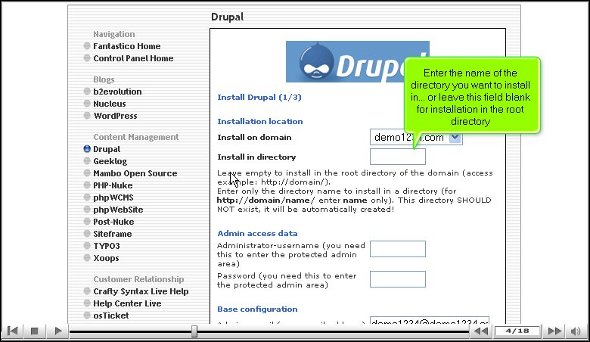
3. The next step would require you to type in the name of a directory in which you want your application to get installed.

Drupal

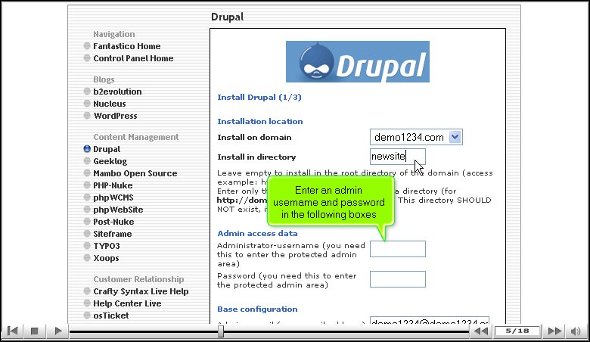
4. You also have to type in a name for the administrator and a password.

DrupalDrupal

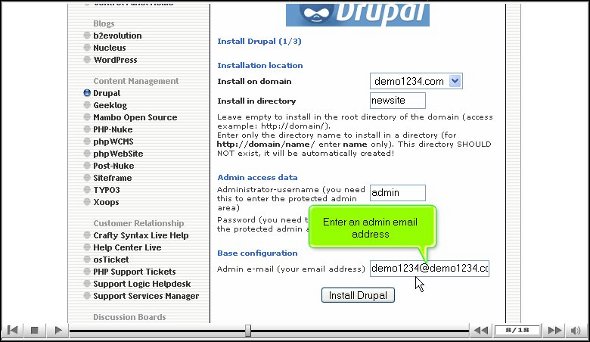
5. At the bottom of the page, you will notice a link that says install Drupal; you must click on it.

Drupal

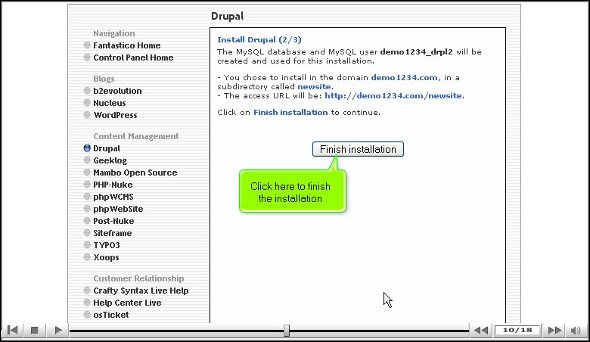
6. To finish the installation process, you must click on finish.

Drupal

Well, that brings us to the end of the tutorial on installing Drupal on your computer.

Now that you have successfully gone through the above steps quickly, it can only mean one thing: you have installed Drupal without facing any problems. The best part about this application is that you are given the liberty to tweak the features of the applications as per your own demands. The application has a very user-friendly interface.

Drupal has a wide variety of tools that perform many different functions. So, take the time to review each of them and ensure you understand what they do. So, you should take your time during the learning process. If you are a newbie tostalling Drupal, this tutorial will significantly help you.

Initially, you may have some difficulty in using the application. Still, when you start spending some time with it, you will eventually get used to the application, and you will be able to use it to your advantage. So try to keep calm and relaxed while using this application.

To install the application, you must carefully follow the steps mentioned in the tutorial. Drupal is indeed an excellent application.

Go to the top of the page. Back to the tutorial

SEO: 8 Considerations


SEO: 8 Considerations

If you’re looking to boost your cheap hosting web site’s visitor count, you cannot ignore search engine optimization (SEO). It is highly important these days, ensuring the people who would most benefit from your product or information can see it listed on that first page of results in the search engine.

1287372_seo_3

dotProject


The correct way to install dotProject

If you have been searching hard for a tutorial that will guide you on how to correctly install dotProject without making any mistakes whatsoever. Well, you have stumbled on the proper tutorial to teach you. Before we get into the installation process correctly, we should probably learn something about Fantastico, which provides us with fantastic applications, of which dotProject is a beautiful example. Mall, the applications are compatible with the cPanel installed on your computer. Fantastico gives you a wide range of scripts to help you install DotProject easily on your computer.

Since you are reading this tutorial on dotProject, it can be safely assumed that you know how to use Fantastic. So, let’s start learning how we can install dotProject.

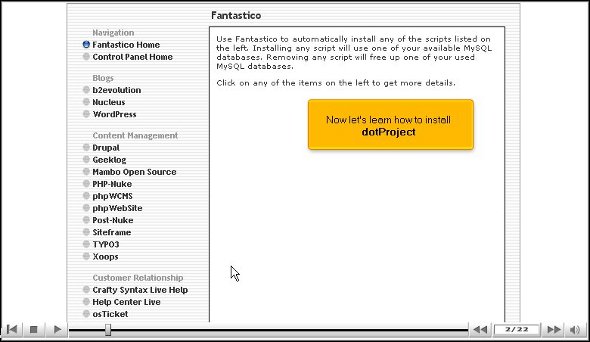
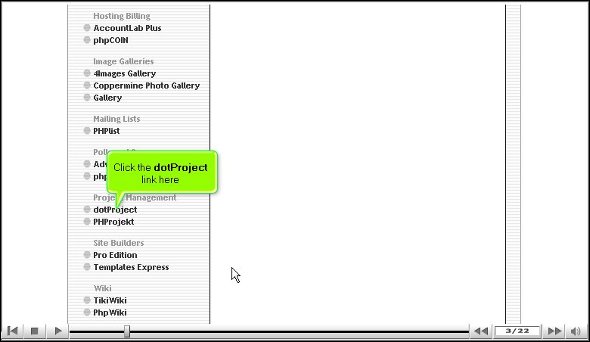
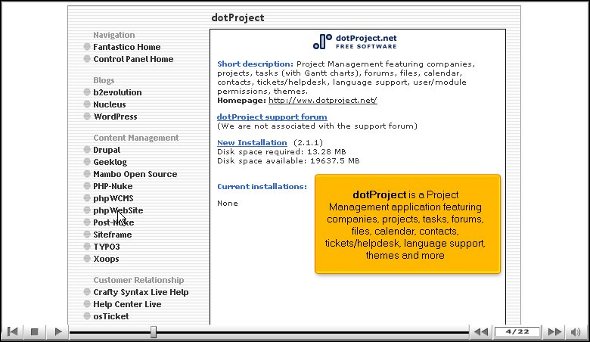
1. When looking at the interface of Fantastic, you should try to locate a button called dotProject.

dot projectdot project

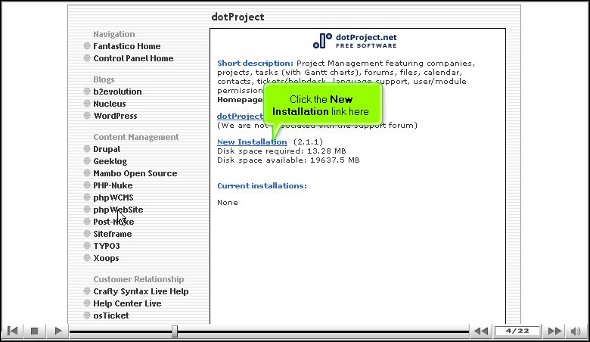
2. Once you click on this button, you will be directed to an installation screen and have to click on the link that says new installation.

dot projectdot project

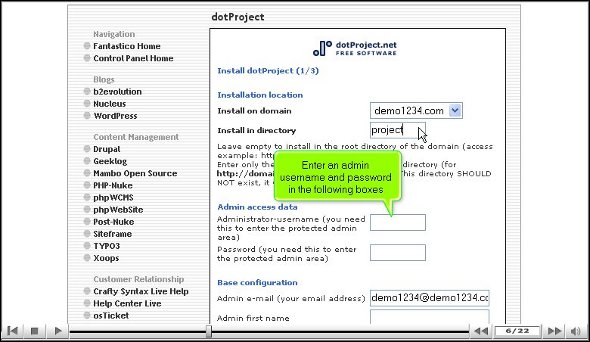
3. After that, you must supply the directory name where you want the application installed.

dot project

4. You will then have to provide an admin username and a password that is easy to remember.

dot project

5. Once you are done, you can scroll the page and click on a link that says install dotProject.

dot project

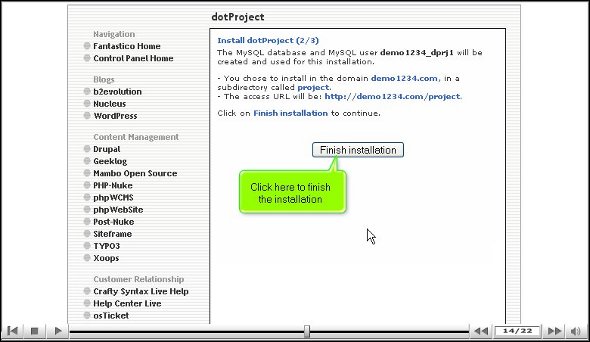
6. To complete the process of installation, you have to click on the finish link

dot project

So that’s about it; we have come to the end of the tutorial. If you have completed the above steps, it simply means that you have installed the application very successfully. Now that you have installed the application, it is time for you to tweak the settings as you wish. To tweak the features, first, you must review them individually and understand what each one does.

To understand what each feature or tool can do, you must not rush the learning process as you can absorb many things. The more time you spend with the application, the more you learn about it. Initially, you will take some time trying to handle the various features of this application but do not lose hope if you fail the first couple of times. If you take your time and follow every step in this tutorial, you will not have difficulty installing the application on your computer. After you use this application, you will notice that you have benefited a great deal from this application. As a user, you can take full advantage of the eCommerce features and the shopping carts.

You may consult any number of tutorials to understand the goodness of this application. However, you must follow the tips given in this tutorial to install the application successfully.

Go to the top of the page. Back to the tutorial

CubeCart


All about CubeCart installation

You may have been searching for a tutorial on installing CubeCart. If you are new to Fantastic, here is an introduction to familiarize yourself. Fantastico is nothing but a very reliable hosting service provider. This service provider provides you with many internet-based applications with their own features. As a user, you can access an add-on called Fantastico support. This particular add-on is very much compatible with the cPanel that you are using at the moment. Fantastico will give you many scripts to assist you in the smooth installation of CubeCart. Users all around the world are now using these scripts for their benefit.

When you are reading this tutorial, it can be assumed that you are already familiar with Fantastico and its uses.

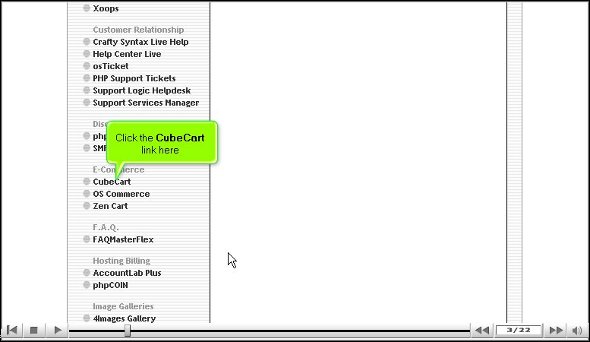
1. First of all, you have to start by clicking on the CubeCart link

cube cartcube cart

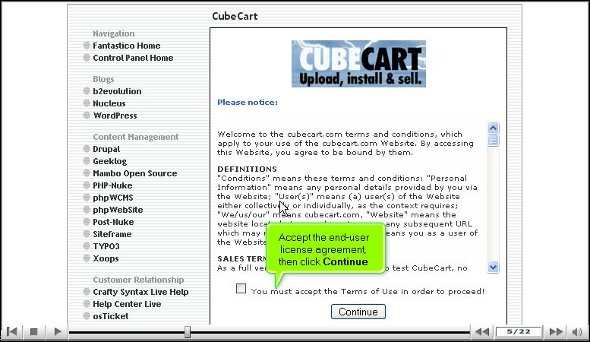
2. After you have done that, you will be directed to an installation screen; you will have to click on the new installation.

cubeCart04cube cart

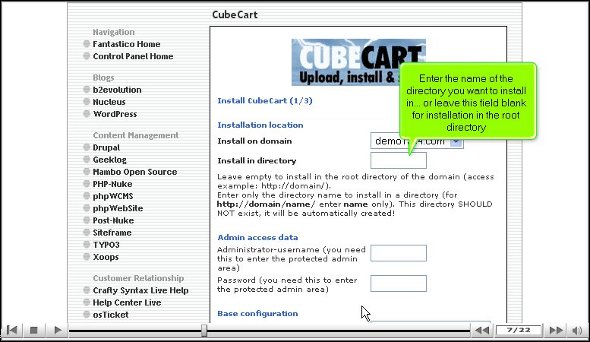
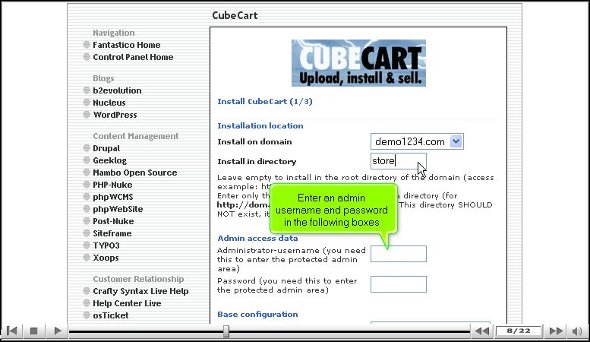
3. Once you finish the above steps, you must provide the directory where you want to install CubeCart.

cube cart

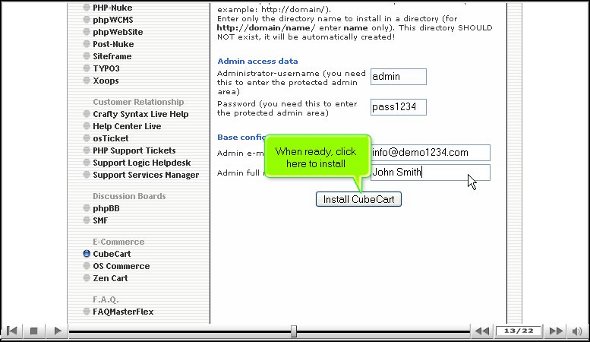
4. After that, you will need to provide a name for the admin and a password to go.

cube cart

5. You can then scroll down and click on Install CubeCart.

cube cart

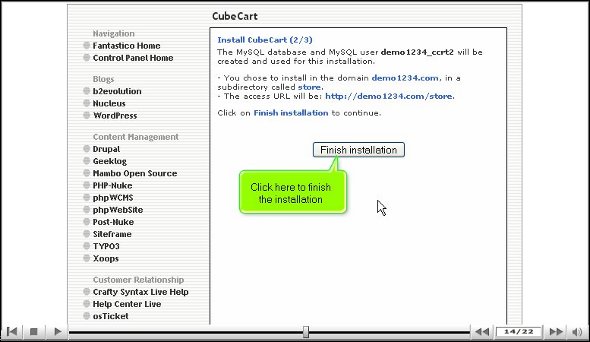
6. After that, you can finish the installation by clicking on the finish.

cube cart

This brings us to the end of the tutorial. So, if you have gone through the steps mentioned above, it simply means you successfully installed CubeCart on your computer without much problem. So, now that you have installed the application, you can tweak its features per your requirements. You can then explore the application’s features; this will help you become familiar with the interface. This tutorial will help you learn much about installing CubeCart and its features.

You must remember to pay special attention to the learning process as this application has many features that you can use for your benefit. So, take your time and not rush through the learning phase. Initially, you face some trouble using the applications, but it is better to stay calm as you will get accustomed to using them eventually. Ensure you go through each part repeatedly until you understand and absorb them very well. This applicatioapplication’s is very user-friendly, so you will not have difficulty locating any tools for your work.

So, repeat the installation process steps again and again until you understand how to install the application on your computer. You can also look at other tutorials to get a good idea.

Go to the top of the page. Back to the tutorial
Crafty Syntax Live Help


Easy steps to install Crafty Syntax Live Help

This tutorial will teach you how to install Crafty Syntax Live Help from Fantastico without problems. Many of you may not know what Crafty Syntax Live Help is. It is nothing but chat software that will allow you to track what is going on on your website. Fantastico is the hosting service provider that provides this application. The application has a wide range of features, not to mention the countless benefits that come with it. The application will be compatible with the current version of cPanel that you are using. Fantastico comes with a wide range of scripts. These scripts help install Crafty Syntax Live Help.

Now, it is assumed that you know how to initialize Fantastico. Below are listed steps to install Crafty Syntex without facing any problems.

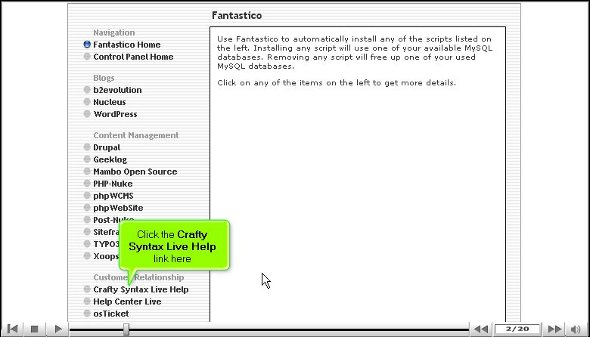
1. Firstly, on the interface of Fantastico, you will have to locate a tab called Crafty Syntax Live Help; after you have found it, you will have to click on it.

 crafty syntaxcrafty syntax

2. You will then be taken to an installation page; you must scroll down and click on New Installation.

crafty syntax

3. Then, another page will appear where you must mention the directory where you want to install Crafty Syntax Live Help.

crafty syntax

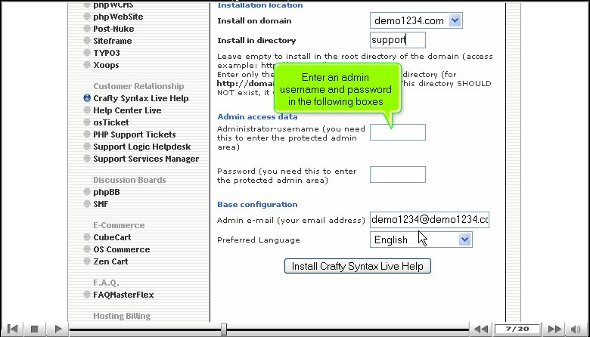
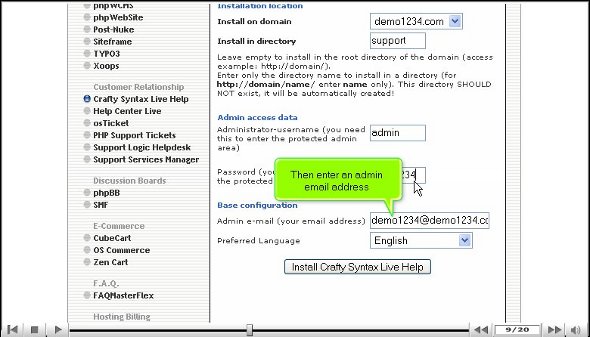
4. you must mention the administrator’s name, password, and email on that same page.

crafty syntaxcrafty syntax

5. After filling out every detail, you have to scroll down and click on Install Crafty Syntax Live Help.

crafty syntax

6. click the tab that says finish to finish the procedure.

crafty syntax

If you have followed the steps correctly, then it means that you have installed Crafty Syntax Live Help the correct way. After the installation, you are not done yet; you will have to tweak the application’s features per your requirements. After you have finished configuring the application

After you are done configuring, you can start going through the various tools and see what they do for you. This tutorial will help you immensely, especially if you are new to installing Advances Poll. This application has many features that you can use for your benefit. So, you will have to spend a lot of time learning how to use the various features and tools to get the best out of the application. It is best to not rush the learning process, as it will help you absorb everything about the application. So remember to have a very calm and relaxed approach towards using this application for the first time. Sometimes, certain things will go wrong, but do not get worked up about it. Just be calm, and things will work out just fine.

You must make sure that you follow each step very clearly so that you can install Crafty Syntax Live help without facing any problems at all.

Go to the top of the page. Back to the tutorial
Coppermine Photo Gallery


How to install Coppermine Photo Gallery

You may have been searching for a tutorial on installing the Coppermine photo gallery. However, this tutorial is more direct and helpful than any other. Many of you may be new to Fantastico and not know its functions properly. Fantastico is an excellent hosting service with a wide range of features and benefits. As a user, you will have access to Fantastico support, an add-on compatible with the Cpanel you are using currently. You will also be allowed to use a script library that will help you install the Coppermine photo gallery automatically. These scripts are indeed a time saver.

Since you are reading this particular tutorial, it is assumed that you know a little about fantastic and its various uses.

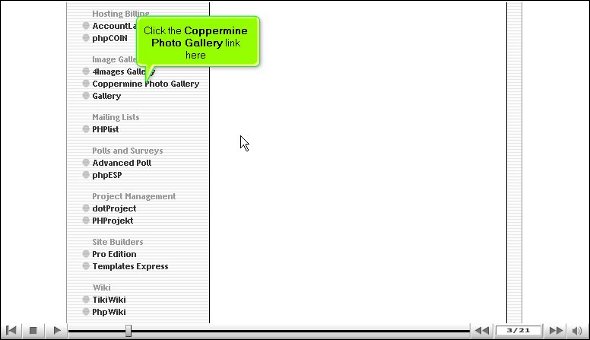
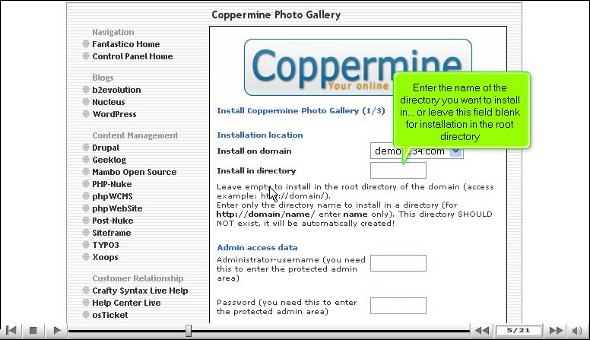
1. To begin the process, locate a tab that says Coppermine photo gallery; after that, you will have to click on it.

coppermine photo gallerycoppermine photo gallery

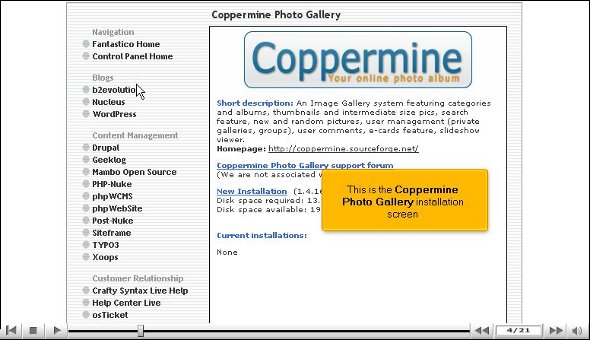
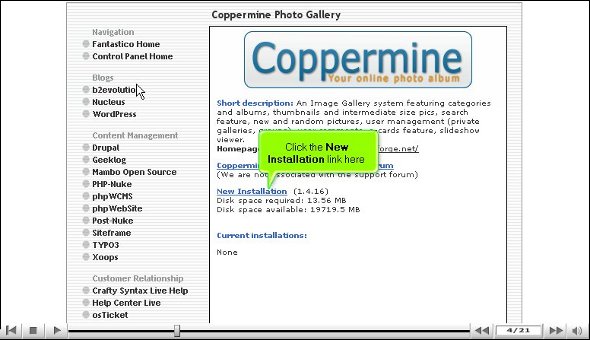
2. You will then be taken to an installation page, where you will notice a tab that says new installation. You must click on that.

coppermine photo gallerycoppermine photo gallery

3. After that, you will be directed to a page where specific rules and regulations will be mentioned, and you have to click agree.

coppermine photo gallery

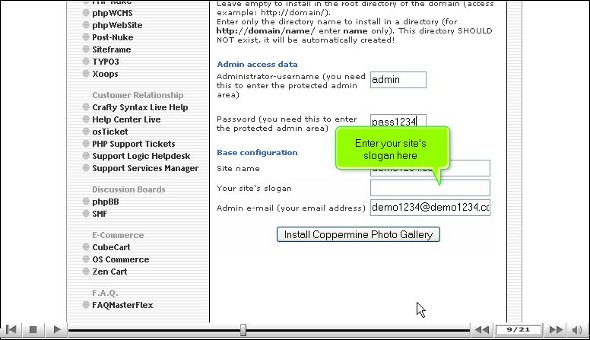
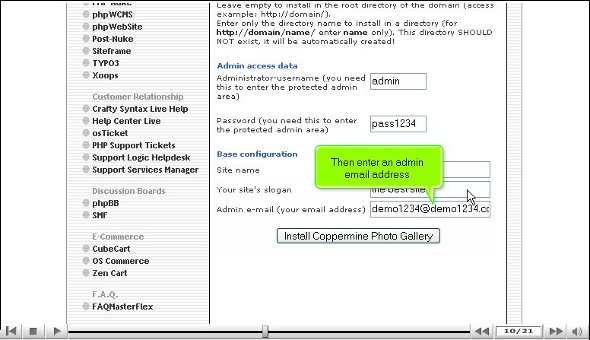
4. On the next page, you must mention the name of a directory where you would like to install the applications. You can also install the application in the central or root directory. You will also have to provide a name for the administrator and mention a password.

coppermine photo gallery

5. You also have to mention another email address

coppermine photo gallerycoppermine photo gallery

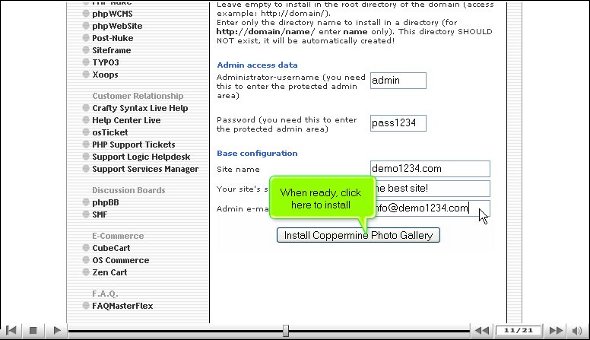
6. After that, you must scroll down and click Install.

coppermine photo gallery

7. Then, you will be taken to a page with a tab called finish, and once you click on that, you are pretty much done.

coppermine photo gallery

After you manage to go through the steps mentioned above, it implies that the installation is a success. After this, you can tweak the application’s features per your own requirements. Once you are done configuring the application, you can start exploring all the other features and tools that this application has. This tutorial can immensely help if you are new to this application.

As a new user, you sometimes feel frustrated trying to use the features; you can be assured that it is only temporary as you will get used to it soon. However, you must remember that during the learning process, try to pay attention to all things that will come your way, as there is a lot that you can absorb. So try not to rush things, as it will benefit you in the long run. While using this fantastic application, you will also have the chance to use the open-sourced shopping cart and the features related to eCommerce.

So, you must understand every step in the tutorial for installing the Coppermine Photo Gallery.

Go to the top of the page. Back to the tutorial
B2Evolution


Complete guide on how to install b2evolution

You may have been searching for an excellent tutorial to teach you how to install b2evolution. Many of you may not be very familiar with Fantastico and how the various features work. To begin with, Fantastico is a service provider that provides web hosting services. Now, the good part is you can use an add-on called Fantastico support with the services. This add-on can be used with the current cPanel that you are using. You will also have access to a sound script library that will help you install b2evolution automatically on your computer. Using these scripts can surely help you save time; people all around the globe are now using these scripts.

If you are consulting this tutorial, then it is assumed that you already know how to initialize Fantastico.

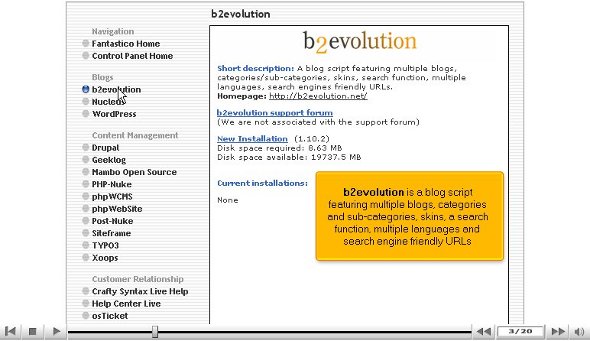
1. Now, you must locate a button that says b2 evolution and click on it.

b2evolution

2. After that, you will be taken to the b2evolution installation page. On this page, you will notice a new installation link; click on it.

b2evolutionb2evolution

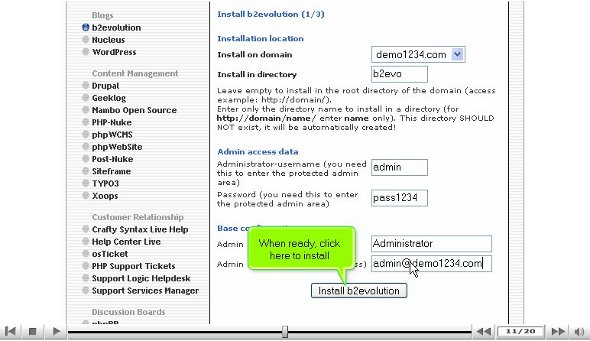
3. After that, you must type a directory name in which you want to install the application.

b2evolution

4. You are also required to type in an admin name and password; you must also give an admin nickname.

b2evolution

5. After that, you must scroll down and press a tab that says install b2evolution

b2evolution

6. You must click on finish to complete the process.

b2evolution

With that, we have completed the installation process successfully, and now you are set to start using the applications immediately. However, you must follow the steps correctly to complete the installation process. So you can get started right away.

If you have successfully gone through the above steps without fumbling at any point, you have installed b2evolution successfully without any problems. After the installation process, you will need to configure the application as per your requirements. After configuring, you can go through the various tools and their uses. The tools that come with this application are very sophisticated, and you can accomplish your goals very quickly. This particular tutorial will immensely help you, especially if you are a new user using Fantastico for the first time.

Initially, you may feel that the application is a bit tough to use, but you will get used to it with time. This application has tons of features, so you should take your time and pay attention to every detail. A relaxed and calm approach during the learning process can help you absorb things much faster. Using this application, you can fully utilise the e-commerce and open-sourced shopping cart features.

However, to install b2evolution to the fullest, you must follow the steps carefully; to understand this better, you may also consult other tutorials.

Go to the top of the page. Back to the tutorial

AccountLab Plus


Tips on how to install AccountLab Plus

Well, if you have been looking for a tutorial that will teach you to install AccountLab Plus, you are just in luck, as this tutorial will help you understand how to install AccountLab Plus successfully. If you are new to Fantastic, then the chances are that you have never heard of the application and how to go about things. Well, Fantastico is a hosting service provider which also offers an add-on called Fantastico support. As a user, you can use this with the cPanel that you are using.
You do not have to get too worked up about Fantastico; you can use this with cPanel accounts. This application has a script library that can assist in the automated installation of scripts and some web-based applications. The hands sure help you save a substantial amount of time. Users all around the world are installing these scripts on their computers.

This tutorial already assumes that you know how to initialize Fantastico.
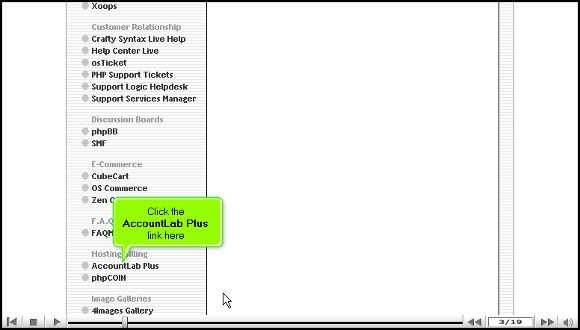
1. start the process by clicking on an AccountLab Plus link. After clicking the link, you will be taken to the AccountLab Plus installation screen.

account lab plus 00account lab plus 01

2. On the installation screen, click on a link that says New installation.

02-aclab

3. After that, you will be directed to a page where you must mention the directory name for installing AccountLab Plus.

account lab plus 02

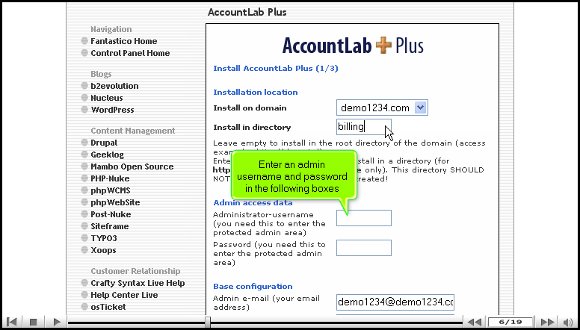
4. On the same page, you must mention an admin name and password.

account lab plus 03

5. You will also have to enter an email address for the admin. You will be required to submit your company’s name and address. You will also have to type in an opening paragraph.

account lab plus 04account lab plus 05

6. After that, click the link to install AccountLab Plus.

account lab plus 06

7. Then click on Install AccountLab Plus.

account lab plus 07

Now that you have completed the above steps, you have successfully installed AccountLab Plus. So, after this, you’re pretty much set to configure the settings according to your requirements.

Once you finish the configuration procedure, you can explore the entire application. This application has sophisticated tools to make your work less time-consuming and more accessible. This tutorial can be beneficial, especially if you are new to Fantastic.
It will take a little time to get accustomed to this application, so the best way to deal with it is to relax. Now, remember that you should not rush things when you are learning the applications; you can understand many things. So when you start using Fantastic, you can take advantage of the open-sourced shopping carts and use E-commerce.

So, by now, you have realized that paying attention to the tips is essential if you want to install AccountLab Plus without facing any problems.
Go to the top of the page. Back to the tutorial