Java won’t install properly, again? Before you throw your computer out the window, there are some troubleshooting steps that you can take to try and fix the issue. Here are five top Java troubleshooting tips that will help you remain calm and fix that Java problem!
How To Install TikiWiki without facing any problems
Now, TikiWiki is not a very difficult application to install on the computer. All you have to do is follow the steps mentioned in the tutorial, and you will face no problem. TikiWiki is a beautiful application by Fantastico, a reliable web hosting service provider.
All the applications provided by Fantastic are straightforward to use and handle. These applications are pretty compatible with cPanel. Fantastico provides handy scripts that make the application process easy and less time-consuming.
Let us look at the steps you must follow while installing TikiWiki on your computer. Since you are going through this tutorial, you already know how to use Fantastico’s interface.
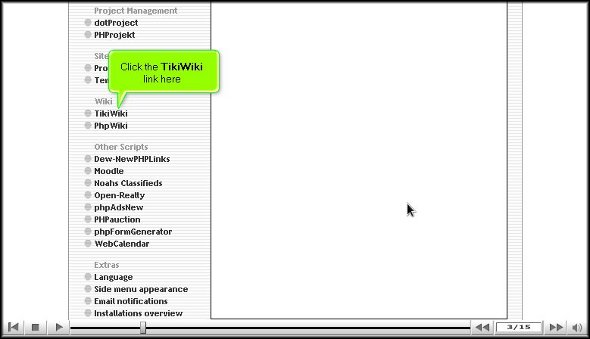
1. To start the process, you will have to click on TikiWiki
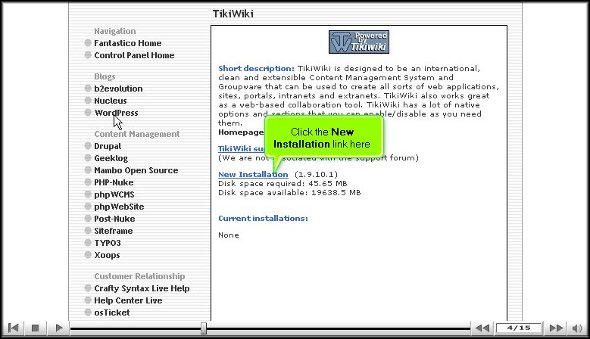
2. Once you have clicked on this tab, you will be taken to an installation screen and have to click “new installation.”
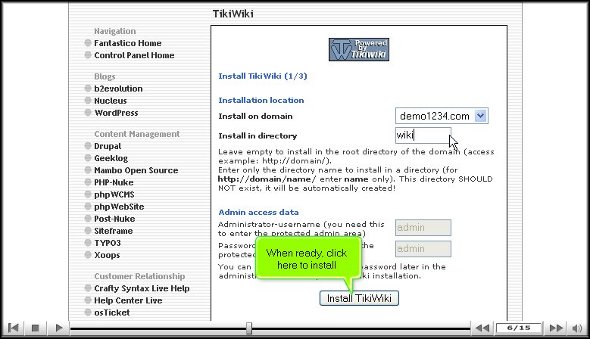
3. After that, you will be taken to another screen where you must type in the name of the directory where you wish to install TikiWiki.
4. After completing the above, you can click install TikiWiki.
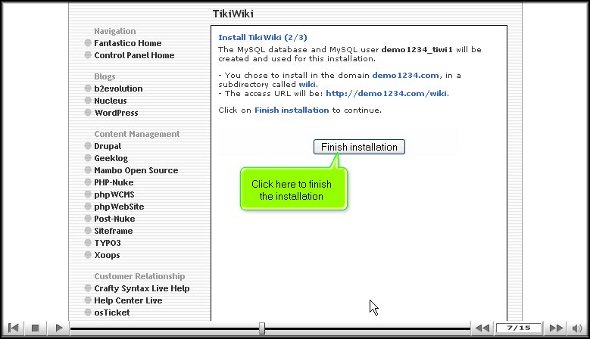
5. To complete the installation process, you must click on finish.
With this, we have reached the end of the tutorial. Now, you can use the admin name and password to log into your account. This application has many features and tools that can let you perform various activities. It would be best to go through the application interface to learn how to use it well. It would be wise not to rush through the installation process as you will miss out on the essential aspects of the application. You may consult some other tutorials to learn about the various tools and their usage,
If you happen to be a new user, you may find it a little tricky to go about the interface, but once you spend a little time, things will work out just fine. Together, you will need to have a lot of patience and stay calm. The best part about this application is that you can tweak certain features as per your requirements, so once you are confident about it, you can start configuring the settings. Once you start using this application, you will notice a drastic change in the performance of your website within a short period.
So you understand that TikiWiki is a handy application provided by Fantastico, so to bring out the best from the application, it has to be installed correctly. So, ensure you do exactly as mentioned in the tutorial to complete the process correctly.
The process of installing the Support Logic Helpdesk
Support Logic Helpdesk is an application that Fantastico provides. This application has many useful features and easy-to-use tools that permit you to do many activities. Fantastico is a company that has been providing very reliable services in the field of web hosting for many years now. The applications provided by Fantastico are straightforward to use as they have very user-friendly interfaces. These applications are also specific to install. The good news is that all the applications are compatible with cPanel.
Now, Fantastico gives its users specific scripts that allow them to install the applications quickly. Now, if you are looking for a tutorial on installing the Support Logic Helpdesk on your computer, you are looking in the right place. This tutorial will teach you how to install this fantastic application through easy-to-follow steps.
Let us now look at the steps to install the Support Logic Helpdesk.
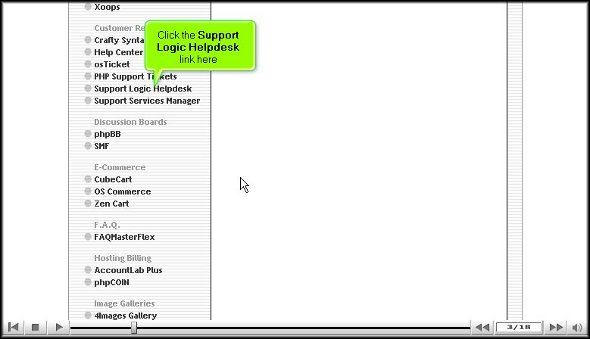
1. First, you must look for a tab that says Support Logic Helpdesk and then click on it.
2. Once you click on the above link, you will be directed to an installation screen; now, you will notice a connection there that says new installation, and you have to click on it.
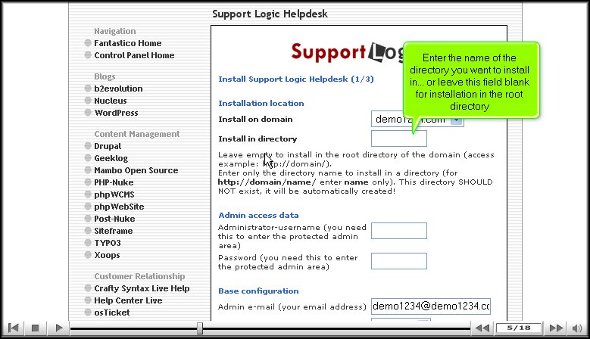
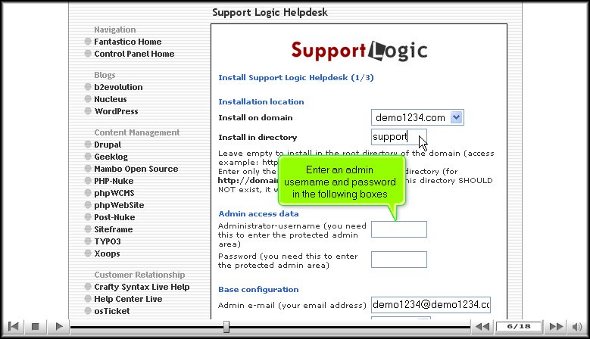
3. The next screen will require you to submit more details, such as a directory name in which you want to install the application.
4. On the same screen, you must assign a name for the admin and submit a password.
5. Once you have submitted all the details, click Install Support Logic Helpdesk.
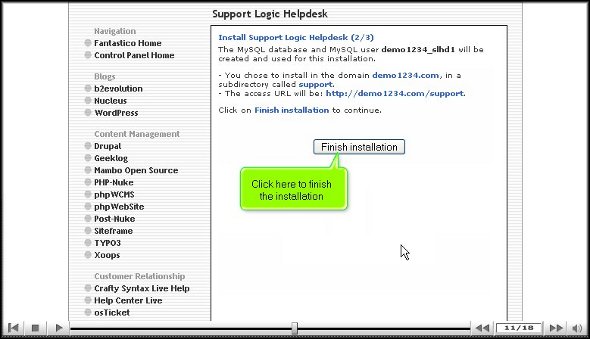
6. To complete the installation process, click on finish.
With that, we have come to the very end of the tutorial on how you may install the Support Logic Helpdesk on your computer. After completing the installation, you can look around and explore the application. This application has sophisticated tools that will let you perform various activities quickly. There are a ton of things that you can learn. It is best when you do not rush the learning process. You can consult other tutorials on how to use the various tools in the application.
Initially, you may feel that the application is challenging, but if you take a little time and go through the interface, you will get used to it quickly. The best part about this application is that it has certain features that can be configured per the client’s client’s requirements. You can consult several tutorials on configuring these applications, too. Just try to be patient, and you can use this application quickly. As a user, you will soon understand that you have benefited from this application for some time. So start using the Support Logic Helpdesk today without any hesitation at all.






 Ananova
You must be logged in to post a comment.