WebCalender


Easy installation of WebCalender

To install WebCalender, you need to follow proper steps, and this tutorial is designed to present to you the steps you need to follow if you want to install WebCalender on your computer.

WebCalender is a handy application provided by Fantastico. This application has advanced tools and useful features that allow you to perform many activities. Fantastico is a reputed web hosting service provider that has been operating for many years now. This service provider gives its users a host of applications compatible with c Panel; the applications are also straightforward to install and have user-friendly interfaces. Fantastico lets the users access its stock of scripts; these scripts help the users install the applications quickly.

Now, let us go over the steps that you will be required to follow to install Web Calendar on your computer.

1. Now, when going through the interface of Fantastico, you must locate a tab that says Web Calendar; you must click on this to be taken to an installation screen.

webcalendar

2. you must click on the new installation on the screen.

WebCalender

3. After this, you will be directed to yet another screen where you will have to provide a directory’s name, and on the very same screen, you will have to give a username for the admin and password so that you can log in to the application.

WebCalender

4. The next step would be to provide the full name for the administrator’s Username and Password.

WebCalender

5. At the bottom of the screen, you must click on Install WebCalender

WebCalender

6. To complete the process, you must click on finish.

WebCalender

This brings us to the end of the tutorial; now, you can log into the application and go through the present features and tools. Reviewing the various tools until you have absorbed everything would be best. You should not rush the process, as you miss certain essential things.

It is no secret that as a first-timer, it may be a bit of a challenge to understand the use of the tools provided in the application. So do not get worked up if you fail to understand certain things; you can feel free to take the help of other tutorials to learn about the various features and their uses. Since this application has a user-friendly interface, you will not have much trouble understanding how to use it.

After you have managed to understand the usage of each tool of the application, you can then start configuring the features as per your purpose. So, you see that this application has many benefits and can vastly improve the operations of your website. So, to get the best out of the application, you must install it correctly.

So, follow the guidelines mentioned in this tutorial to get the installation process right.

Go to the top of the page. Back to the tutorial

Learn to Use File Manager in cPanel effectively!


How To Use File Manager in cPanel

The File Manager is basically the “en suite” web application of cPanel that’s used for managing and manoeuvring the files on your personal computer. Essentially, the File Manager permits the user to administer his website via “HTTP” more willingly than an ‘FTP’ tool or any other 3rd party application. Using the File Manager in cPanel, one can create or delete files, upload, remove, edit, copy, move, compress/extract files, change file permissions, and organize files in folders. Even though cPanel File Manager is not as refined as most FTP tools, it offers all the essential functionality required to manage your website. File Manager is a speedy and trouble-free way to steer through your files on the website.

For the most part, users feel comfortable using the file manager tool of the cPanel. Generally speaking, cPanel endows numerous ways your files can be manipulated in the File Manager.

Steps to use File Manager in cPanel for various operations

The demo given here has been done by assuming that the user had already logged in to the cPanel. To facilitate login to the cPanel, just type your domain “URL” in your browser window and add “/cPanel” at the end of the URL.

When you log into your cPanel, you will be taken to the home page. On the home page, you can find various sections to perform different unique operations.

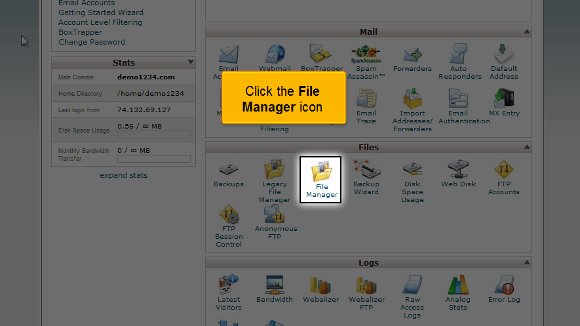
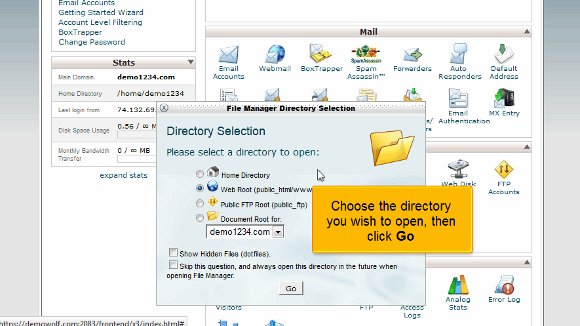
  1. Click the ‘File Manager’ icon under the’ Files’ section. You will be taken to the “Directory Selection” by clicking the file manager icon. Now, you will notice a dialogue box that asks where you wish to log in. To go immediately to your “public_html” folder with your account files, choose “Web Root”.
File manager
cPanel file Manager

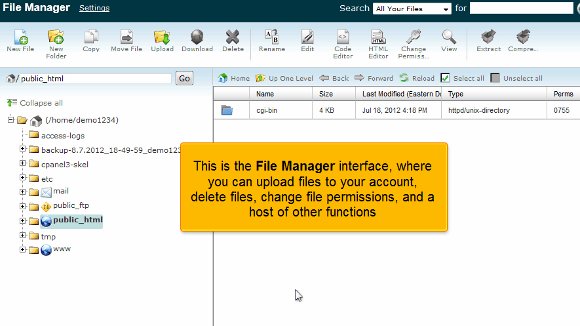
2) Click the ‘Go’ button on the bottom. Now, you will be taken to the ‘File Manager’ interface where you can do several functions such as, upload all the files to your account, change the file permissions, delete files etc. Basically, the left section of the cPanel File manager is the “Directory Listing”. On the left side of the files manager interface, you can find a collapsible listing of all the folders (directories) available in your account. Now, click a folder on the left side. In our case, the ‘public_html’ folder is been clicked.

05-public_html

3) Now, on the right side, you can find a list of all folders & files inside the folder that is chosen on the left side. This right section is basically the “File Listing”. So, your website files (html pages, gif images, etc) should go into the ‘public_html’ folder.

06-public_html-cgi

4) Hence, click on the “public_html” folder now.

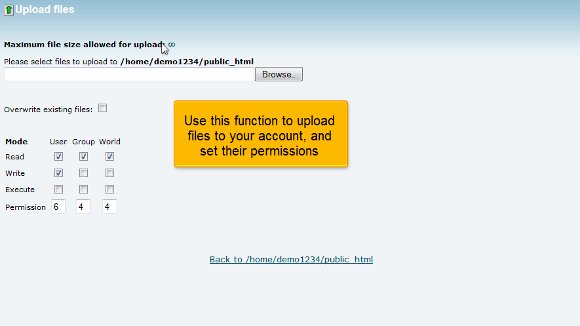
5) Now, click on the “Upload” button above on the top of the File manager tool bar. You can make use of this function to upload files to your account and to set their permissions.

cPanel

6) As a next step, we are going to create a new folder which is quite simple as generating a new file. In the cPanel file manager, click on the “New Folder” button that is placed on the File Manager tool bar. Basically, the New Folder button generates a new folder in which your files can be stored.

new folder

7) As soon as you click on the “New Folder” button, a dialogue box will pop up. Type the New folder name (in this case “newfolder’) in the space provided to describe the location where it needs to be created. Then, click the “Create New Folder” button. Now, you can see that the new folder has appeared in your preferred location.

file manager

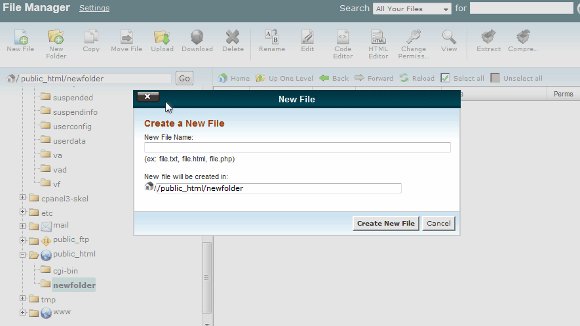
8) Now, in order to create a new file, click on the “New file” button above on the tool bar of the ‘File Manager’ interface. Basically, the New File button generates a new file with a “user-defined” file extension.

9) Now, a dialogue box will pop up. Enter the new file name (in this case “newfile.html’) in the space provided. Please remember to enter the right extension. Select a specific destination where the file needs to be saved. Now click on the “Create New file” button. Voila!! The file is successfully created.

cpanel file manager

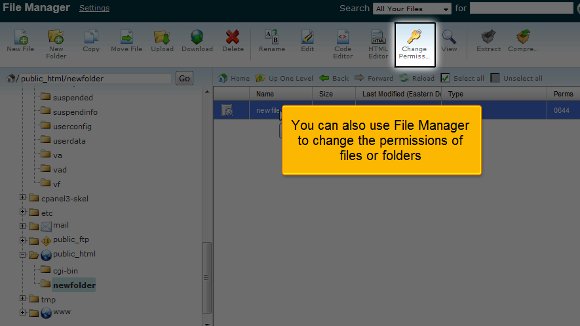
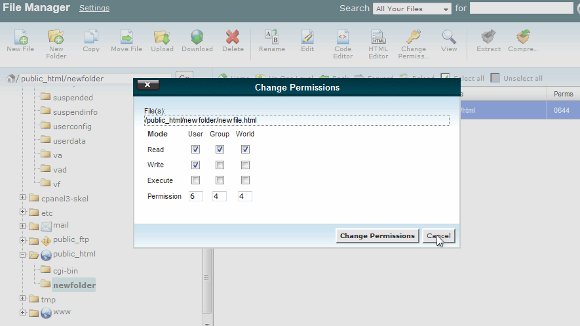
10) In the same way, you may also use cPanel File Manager interface to change the permissions of your files/ folders. Just click on the “change permission” button on the ‘File Manager’ tool bar to do so.

cPanel
cpanel

On the whole, the cPanel File Manager interface makes the process of managing the files & folders in your account into a simple one when you actually don’t have an access to an FTP tool. Hope this demo has clearly explained the process of using File Manager in cPanel!