In essence, FTP represents “File Transfer Protocol”. File transfer protocol is managing the files related to your website. cPanel has an FTP server that is user-friendly and pre-configured already. If you own a website, your FTP access must be configured previously. You can quickly log in through FTP using your cPanel account username & password.
Also, you can systemize FTP accounts for supplementary users. Initially, you have to create a user’s account. After that, a particular user can log into your website with the help of an FTP client like Cyberduck or FileZilla. For instance, if a user attempts to log into the FTP website using a client/customer, he/she has to format the username like username@instance.com, where “instance.com” symbolizes the domain name. If you provide the login information in this fashion, your server can possess numerous FTP accounts across several websites.
How to Create Additional FTP Accounts in cPanel
To log in to your cPanel account, just enter the website ‘URL’ and add “/cpanel” at the end of the ‘URL’. Now, you will be taken to the login screen. Here, enter your web hosting username & password to access your cPanel.
The demonstration given below assumes that the user has already logged in to the cPanel and is ready to discover how to set up additional FTP accounts.
1) Once you are inside the cPanel home page, click on the FTP accounts icon that can be found under the Files section. This is the place where one can manage their FTP accounts. You will be taken to the FTP accounts page. FTP accounts let you access your website’s files through a protocol.
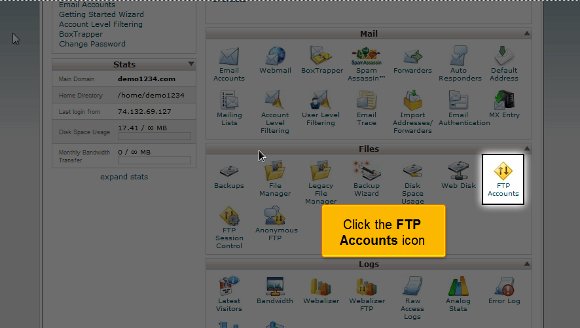
2) enter a unique login ID in the Login space to generate a new FTP account.

3) Now, enter a password and confirm a password one more time for the new account. Make sure that you use a secure password. A secure password should not possess dictionary words and should only contain numbers, symbols and letters. Also, remember that the passwords should have a minimum of 5 characters.

4) Indicate the FTP account’s home directory. The Directory field describes the peak level of your directory access that shall be fixed to your new FTP account. In the directory box, if you leave “/demouser”, then the user of this FTP account may only possess access to the “/demouser directory” and all the other folders under it. In an attempt to offer access to the user to the entire website, you have to delete all except the forward slash “/”.
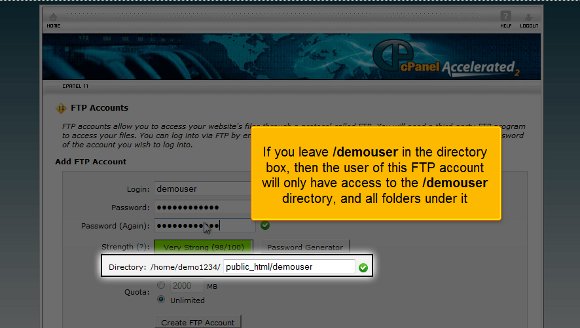
5) The Quota field below the Directory field establishes the disk space allocated to the FTP account. You may also provide a specific quota limit on this FTP account if needed.

6) When you are ready, click the “Create FTP Account” button at the bottom of the page.

Voila! You have created a new FTP account in cPanel now. From this point, you can modify the password of your FTP account, adjust the quota level, or completely delete an account overall. So, now you know how to generate extra FTP accounts in cPanel from this tutorial.




 Ananova
You must be logged in to post a comment.