How To Change cPanel Password
If you want to learn how to change your cPanel password, then you should go through the tips mentioned in this tutorial. Now, let us first introduce cPanel to those who have no idea. Well, cPanel is an efficient software that uses very sophisticated features that allow users to carry out their business activities smoothly without any problems. So you see that cPanel has become an essential component of daily activities.
1) Here are the tips you can follow to change your cPanel password.
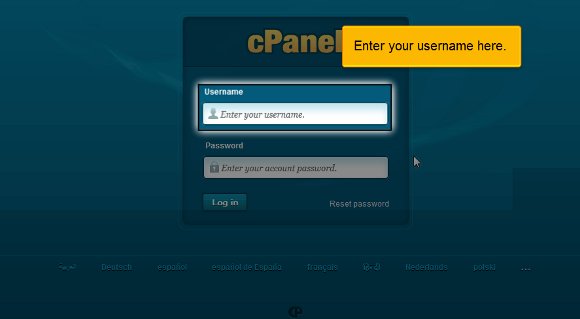
2) by now, it is assumed that you can log into cPanel. So let’s get started.

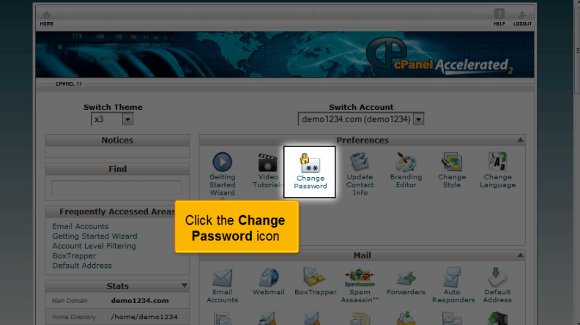
3) Click on the icon that says Change password.
4) You must enter your current password.

5) After that, you must confirm your password by typing it again.

6) After that, you must click on change your password.

So that is it with this tutorial. You can now use this to create a password to log in. Try setting an unusual password, something that only you will remember.
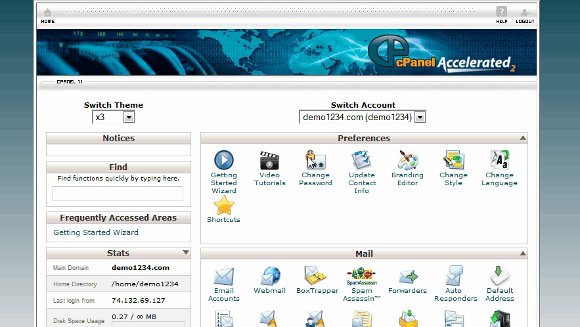
So now you can simply go back to your cPanel interface and check out its various features. You must also devote some time to looking at some of the other tabs provided. The most important thing you should know is how to log out from the interface; it’s not something to worry about. All you have to do is simply locate the logout tab in the top corner. So, I may have understood by now that this tutorial is not complicated to understand. You merely have to have some patience to go over certain aspects carefully. So try not to rush the learning period, as you will be able to absorb things properly. You can learn all the elements at your own pace. You need not hurry through it.
In the end, you can also take your time and look at other tutorials for tips. However, if you are using cPanel for the first time, you do not have to get worried. You can consult this tutorial that will guide you through the process, and eventually, learn how to use it properly and get good results quickly. A tutorial will always teach you how to use software correctly. cPanel is a prevalent software, and people worldwide use it for its simplicity and user-friendly interface. In fact, you can start using the software immediately after its installation process. The software facilitates almost any business operation using the internet the fastest way possible. So now that you know this software has a lot of benefits, you should start using it right away, but before you do, make sure you have gone through this tutorial very well, as it will help you in the long run.





 Ananova
You must be logged in to post a comment.