Password Protect a directory in cPanel.
Password-protecting a directory limits the right of entry to specific components of your website by compelling incoming visitors to enter a valid username and a password. This password process is also known as an “Authentication” procedure.
When using this feature, steer through the directories by clicking the folder icon adjacent to the directory name. By clicking the name guide, you will choose the guide for password protection. In the same way, any other subdirectories that are inside the selected directory will also be Password-protected by this process.
Steps to Password protect a directory in cPanel.
To log in to your cPanel account, just enter the website ‘URL’ and add “/cpanel” at the end of the ‘URL’. Now, you will be taken to the login screen. Here, enter your web hosting username & password to access your cPanel.
The demo here assumes that the user has already logged in to his cPanel. So, let’s move on to Password-protecting a directory, as visitors require passwords to view web pages inside.
1) Once inside the cPanel, scroll down the page to spot the “Password Protect Directories” icon under the Security section. Click on the “Password Protect Directories” icon. A dialogue box for “Directory Selection” appears.

2) Pick the directory with which you want to begin and click the ‘Go’ button. Now, you will be taken to the “Password Protect Directories”.

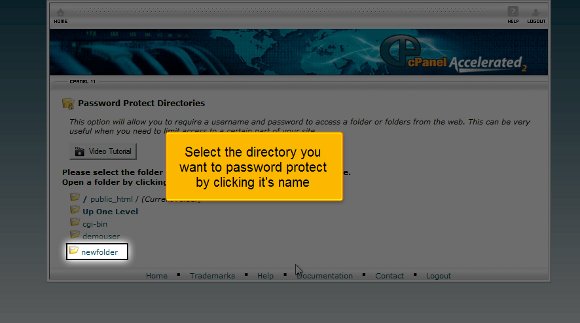
3) Choose the directory you wish to password-protect by clicking the name of it. In our case, we are choosing the “newfolder” directory. You will be taken to the section that’s titled “Security Settings”.
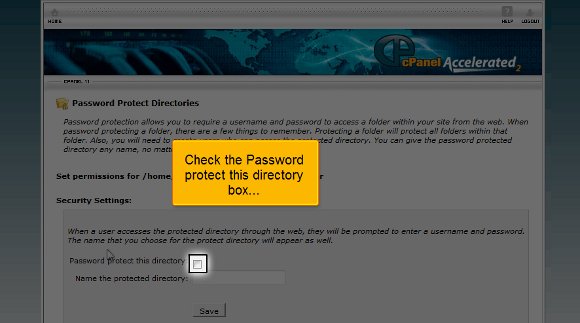
4) Now, check the 1st check box titled “Password protect this directory”. Now, go to the “Name the protected directory” entry box and enter a name for the directory. In our case, the name “newfolder” is entered. This is the name all visitors will notice. The term can appear as anything, regardless of the directory’s name.
5) Click the ‘Save’ button. The directory is protected; a password is needed to enter it through a browser.

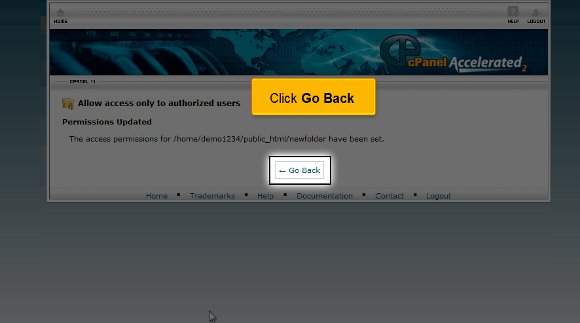
6) Since a confirmation page follows this, Click the “Go Back” button whenever you are ready. We should generate one or more users and allocate passwords to access the directory. Obviously, all users can use the same username & password. However, you may add additional users, which you can do whenever possible.

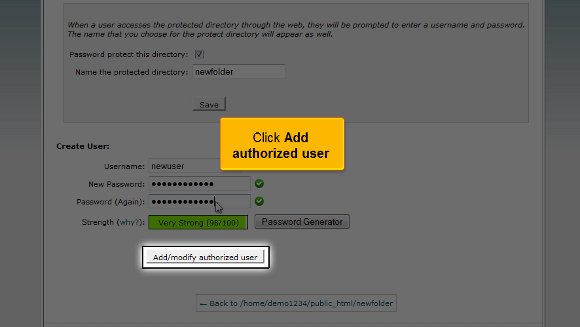
7) Now, scroll down to the section that’s named “Create User”. In the Create User section, enter your visitors’ username to access the directory contents. In our case, the username is given as “newuser”. This new user’s name will be added to the list box under the heading “Authorized Users”, where it can be taken away later on.

8) After that, enter the new PPassword in the space given and confirm the new PPassword once more. Pay heed to the password strength meter and always attempt to achieve a Very Strong result.

9) Click the ‘Add/modify authorized user’ button to add the username & password. Now, the protected directory has 1 user who has access to it. A confirmation page follows, finely pointing to the username & Password you just added. Repeat the same process for all the other users you wish to grant access to.

10) Click on the “Go back” button now to add more users (if needed). In the PpPassword-protect directories page, you can view the active users for this directory and add or delete users from this page whenever you wish.
Okay!! We have reached the end of the tutorial. Now, you know how to password-protect directories and assign users to passwords from this video tutorial.

 Ananova
You must be logged in to post a comment.