
The Ananova team will tell you how to use the features of a cPanel easily. There are many features available in cPanel, which somehow increases the complexity for an average user, and most of the users don’t know the features available in cPanel.
Here at Ananova, you will get to know each and every feature of cPanel:
1. Let’s start with the first row, with a heading named Preferences. In this row, you will find
the Getting Started wizard, change password, update contact info, change style, change language and shortcuts.
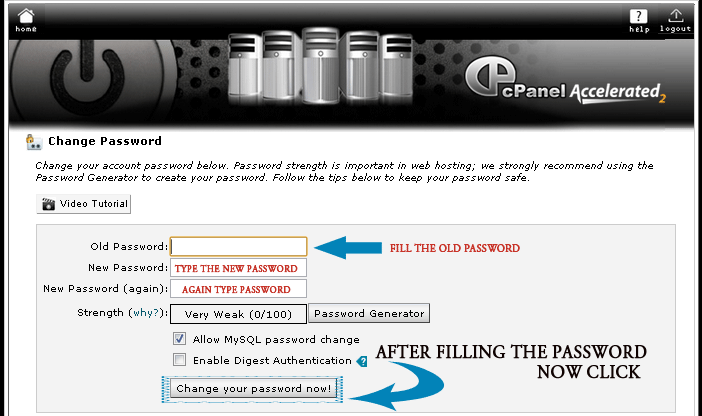
How TO Change Password In cPanel: When you click on the change password icon, you will be redirected to a page that will change the password for your cPanel access.
How to ToUpdate Contact Info in cPanel: When you click on the update info icon, you will be redirected to a page where you can update your contact details. Let’s see how:

2. Let’s see what the second row contains “MAIL”. In this row, we can check email accounts, our web-mail, spam assassins, email forwarding, mailing lists, etc. The main terms in this section are email accounts and our web mail. Let’s see what will happen when we click on Email accounts:
How To Set Email Accounts in cPanel – Here, we can create email accounts for the domains that we are using. Like if you have a field name – “abc.com,” then you can make an email account named – “info@abc.com” or “support@abc.com“.

3. Now, let’s directly come to the 3rd row, which has all the main icons useful to every hosting user.
How To Take Backups in cPanel – Backups allow you to download (to your computer) a zipped copy of either your entire site (including your home directory, databases, email forwarders configuration, and email filters configuration) or one of the previously mentioned parts of your site. These are not automatically scheduled backups. Automatically scheduled backups need to be enabled by the server owner/administrator.

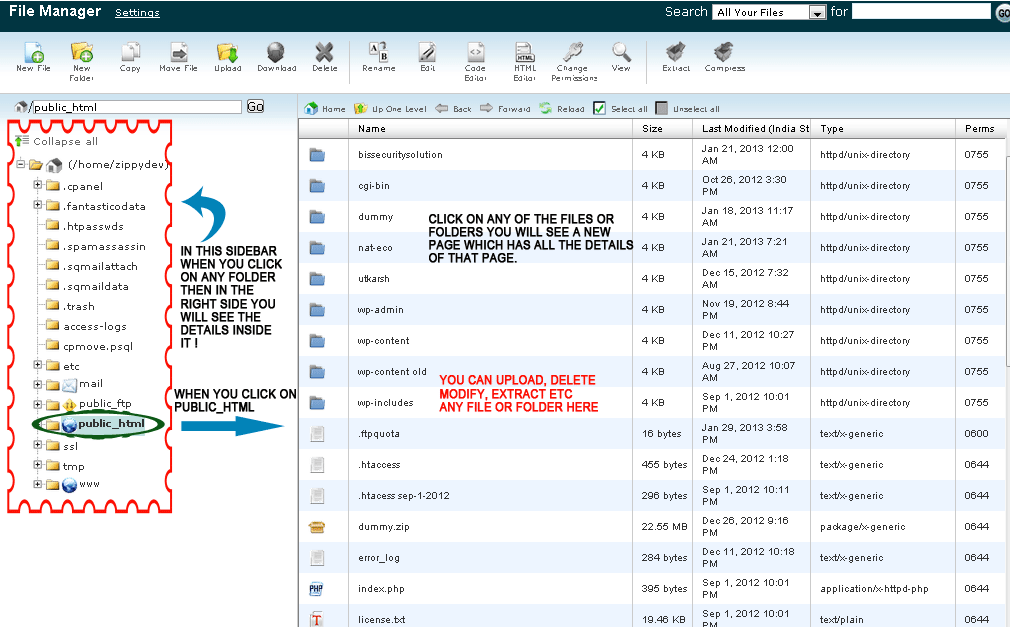
File Manager in cPanel– Now, when you click on file manager, you will redirected to a new window which will show you all the directories and folders that you have, like:-
How To See Disk-space Usage in cPanel: The cPanel Disk Usage Viewer provides an overview of the disk space that your account is using. It shows disk usage totals for your account’s directories and all of its databases rather than for individual files or databases. Use the File Manager to see disk usage data for individual files and the MySQL main page to see data for separate databases.

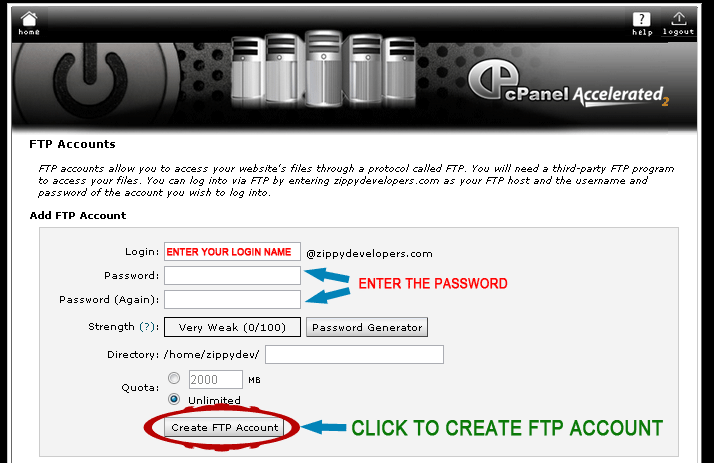
How TO Use FTP Accounts in cPanel – FTP accounts allow you to access your website’s files through an FTP protocol. You will need a third-party FTP program to access your files. You can log in via FTP by entering your domain as your FTP host and the username and password of the account you wish to log into.
4. How To Create a sub-domain using cPanel
Now, let’s see how to create a sub-domain using cPanel. Go into the Domains section and click the icon named subdomain. Sub-domains are URLs for different areas of your website. They use your primary domain name and a prefix.

How To Add Addon Domains cPanel – An addon domain allows visitors to reach a sub-domain of your site by typing the addon domain’s URL into a browser. This means you can host additional domains from your account if your hosting provider allows it. Addon Domains Sub-domains are relative to your account’s home directory.


 Ananova
You must be logged in to post a comment.