Privacy is the one word on everyone’s mind. It all began with the NSA leak, but it definitely doesn’t end there. It’s now more than obvious that any company based on U.S. soil is susceptible to government scrutiny, and that includes the possibility that the government may take a peek at your private files.
So, if you are looking for a tutorial on how to set up cPanel Auto Responder, you have stumbled upon the right article. Before moving into the technicalities, let us learn about the cPanel. cPanel is a handy software that allows users to utilize automated tools to run business operations smoothly. So you see that a cPanel plays an essential part in managing servers and even looking after certain factors relating to the website.
cPanel Auto Responder: It is assumed that you already know how to log in to the cPanel.
1) Start by clicking on the icon that says cPanel Auto Responder. Using this option, you can create autoresponders that can be used; these can send emails on your behalf to those who send you mail. This particular function is really great.
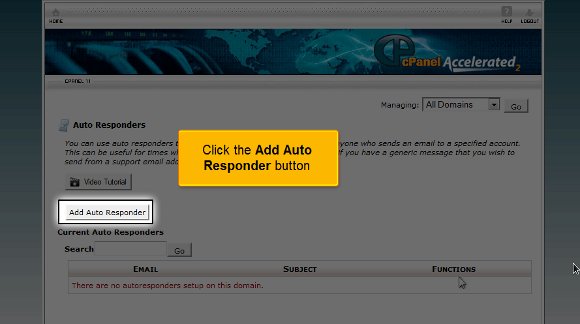
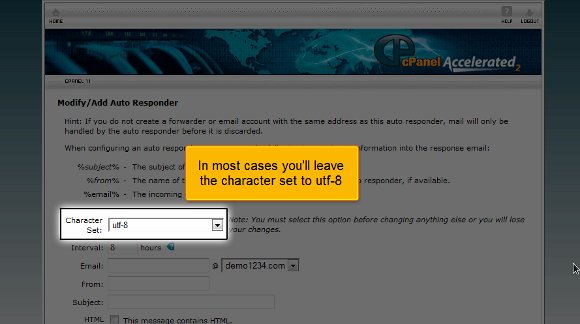
2) After clicking the cPanel Auto Responder icon, click the Add Auto Responder button. In most cases, you will have to set the character to utf-8.
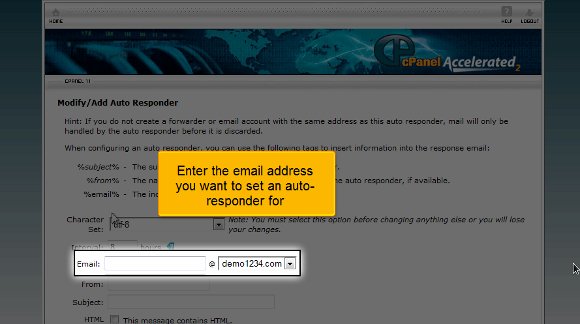
3) After that, you must enter an email address to set an autoresponder.
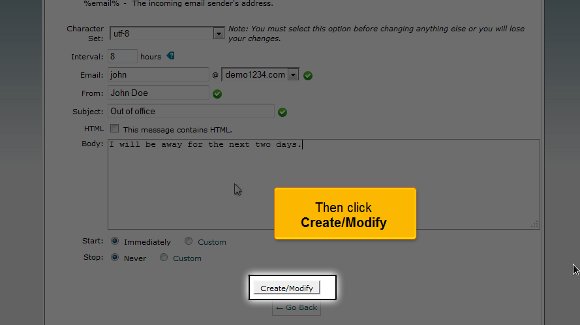
4) You will then be required to fill in the entries for the subject and From fields in your email.
5) You will then have to type in your message in this option
6) After entering your message, you have to click on the option that says Create/ Modify.
Follow the tips, and that is it. Your cPanel Auto Responder will be created within a very short time.
So let us say that if someone sends you an email to your email address, the email saying out of office will automatically be sent to their email address.
So now we have come to the end of the tutorial, and you know how to set up cPanel Auto Responder.
Now, you can return to your cPanel’s interface and check out your email’s various features. In fact, it will be better if you take some time to review some of the other tabs in your cPanel.
Now, you must also know how to log out of your email; you will see a tab at the top of the page called log out. Well, you can be assured that there is a tutorial on How to set up cPanel Auto Responder. You just need a little patience to try and understand the various aspects of the software. You do not need to rush the process, as you may not grasp all of it the first time. In fact, you can feel free to take a sufficient amount of time to learn how to set up an auto-responder in cPanel. You may feel free to look at some of the other tutorials that teach you how to set up an auto-responder in cPanel.
Follow the guidelines in the article, and you shall have no trouble using this feature in the cPanel.





 Ananova
You must be logged in to post a comment.