How To Change cPanel Password


 How To Change cPanel Password

If you want to learn how to change your cPanel password, then you should go through the tips mentioned in this tutorial. Now, let us first introduce cPanel to those who have no idea. Well, cPanel is an efficient software that uses very sophisticated features that allow users to carry out their business activities smoothly without any problems. So you see that cPanel has become an essential component of daily activities.

1) Here are the tips you can follow to change your cPanel password.

2) by now, it is assumed that you can log into cPanel. So let’s get started.

cpanel

3) Click on the icon that says Change password.
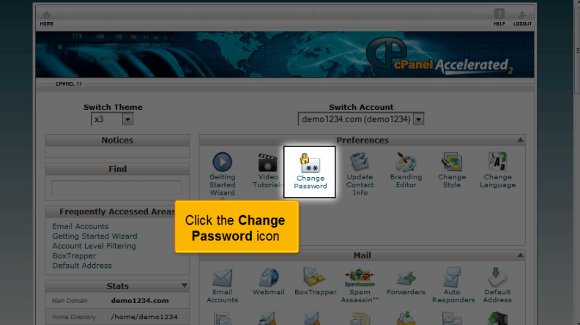
change Password

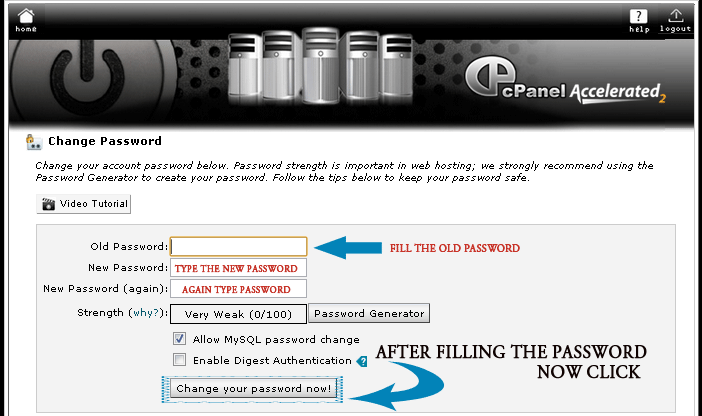
4) You must enter your current password.

cPanel Password

5) After that, you must confirm your password by typing it again.

cPanel Password

6) After that, you must click on change your password.

chage password

So that is it with this tutorial. You can now use this to create a password to log in. Try setting an unusual password, something that only you will remember.

So now you can simply go back to your cPanel interface and check out its various features. You must also devote some time to looking at some of the other tabs provided. The most important thing you should know is how to log out from the interface; it’s not something to worry about. All you have to do is simply locate the logout tab in the top corner. So, I may have understood by now that this tutorial is not complicated to understand. You merely have to have some patience to go over certain aspects carefully. So try not to rush the learning period, as you will be able to absorb things properly. You can learn all the elements at your own pace. You need not hurry through it.

In the end, you can also take your time and look at other tutorials for tips. However, if you are using cPanel for the first time, you do not have to get worried. You can consult this tutorial that will guide you through the process, and eventually, learn how to use it properly and get good results quickly. A tutorial will always teach you how to use software correctly. cPanel is a prevalent software, and people worldwide use it for its simplicity and user-friendly interface. In fact, you can start using the software immediately after its installation process. The software facilitates almost any business operation using the internet the fastest way possible. So now that you know this software has a lot of benefits, you should start using it right away, but before you do, make sure you have gone through this tutorial very well, as it will help you in the long run.

CLEARWATER EMAIL HOSTING


An email hosting service is an Internet hosting service that runs email servers. Email Hosting is a hosting solution where you can host your email solutions like technical.support@cpwebhosting.com it has to work for you than any free email service providers, as many of companies are forming a rule that they may use free email providers which may reduce spam for their company.

Email hosting services usually offer premium email at a cost as opposed to advertisement supported free email or free webmail. Email hosting services thus differ from typical end-user email providers such as webmail sites. They cater mostly to demanding email users and Small and Mid Size (SME) businesses, while larger enterprises usually run their own email hosting service on their own equipment using software such as Microsoft Exchange. Email hosting providers allow for premium email services along with custom configurations and large number of accounts. In addition, hosting providers manage user’s own domain name, including any email authentication scheme that the domain owner wishes to enforce in order to convey the meaning that using a specific domain name identifies and qualifies email senders.

Email Hosting Clearwater offers Services like Email Hosting in Clearwater, Web Mail Services, Outlook Services, POP3 and SMTP Services.

Features of Email Hosting in Clearwater

  • Anti Spam, Antivirus protection for mail server
  • POP3, SMTP and IMAP Feature included
  • Smarter mail Webmail for Windows and Horde/Sqwebmail for Linux
  • User level filter of mails and can define your own Spam settings i.e. stop SPAM before it hits your network by utilizing the industry leading Commtouch anti-spam protection technology that’s included with your email service. Commtouch detects SPAM in real-time, capturing over 98% of it. Anti-spam and anti-virus protection offers the security you need to feel certain that your communications will remain confidential.
  • Virus Protection-defends you against viruses by employing Symantec Anti-Virus, an exceptional leader in malware & virus protection. Your email is scanned prior to delivery for both incoming and outgoing mail. Anti-spam and anti-virus protection offers the security you need to feel certain that your communications will remain confidential.
  • Secure Encryption & Enhanced Security Features– SSL/TLS encryption techniques hide data during transmission so thieves can’t access your information and your email. We require SMTP Authentication and Domain Keys/DKIM Authentication as well.
  • Control Panel-Easily manage your entire hosted email environment and get control over administrative functions, including permissions, passwords, preferences, settings and more with our intuitive console.
  • Daily Backup Protection– All data is saved daily to our top tier data centers.

Clearwater email hosting provides email hosting services from Clearwater or for the people of Clearwater.

How To Use a cPanel


cpanel

The Ananova team will tell you how to use the features of a cPanel easily. There are many features available in cPanel, which somehow increases the complexity for an average user, and most of the users don’t know the features available in cPanel.

Here at Ananova, you will get to know each and every feature of cPanel:

1. Let’s start with the first row, with a heading named Preferences. In this row, you will find

the Getting Started wizard, change password, update contact info, change style, change language and shortcuts.

How TO Change Password In cPanel: When you click on the change password icon, you will be redirected to a page that will change the password for your cPanel access.

changepass

How to ToUpdate Contact Info in cPanel: When you click on the update info icon, you will be redirected to a page where you can update your contact details. Let’s see how:

updatecontact

2. Let’s see what the second row contains “MAIL”. In this row, we can check email accounts, our web-mail, spam assassins, email forwarding, mailing lists, etc. The main terms in this section are email accounts and our web mail. Let’s see what will happen when we click on Email accounts:

How To Set Email Accounts in cPanel – Here, we can create email accounts for the domains that we are using. Like if you have a field name – “abc.com,” then you can make an email account named – “info@abc.com” or “support@abc.com“.

emailaccounts

3. Now, let’s directly come to the 3rd row, which has all the main icons useful to every hosting user.

How To Take Backups in cPanel – Backups allow you to download (to your computer) a zipped copy of either your entire site (including your home directory, databases, email forwarders configuration, and email filters configuration) or one of the previously mentioned parts of your site. These are not automatically scheduled backups. Automatically scheduled backups need to be enabled by the server owner/administrator.

backups

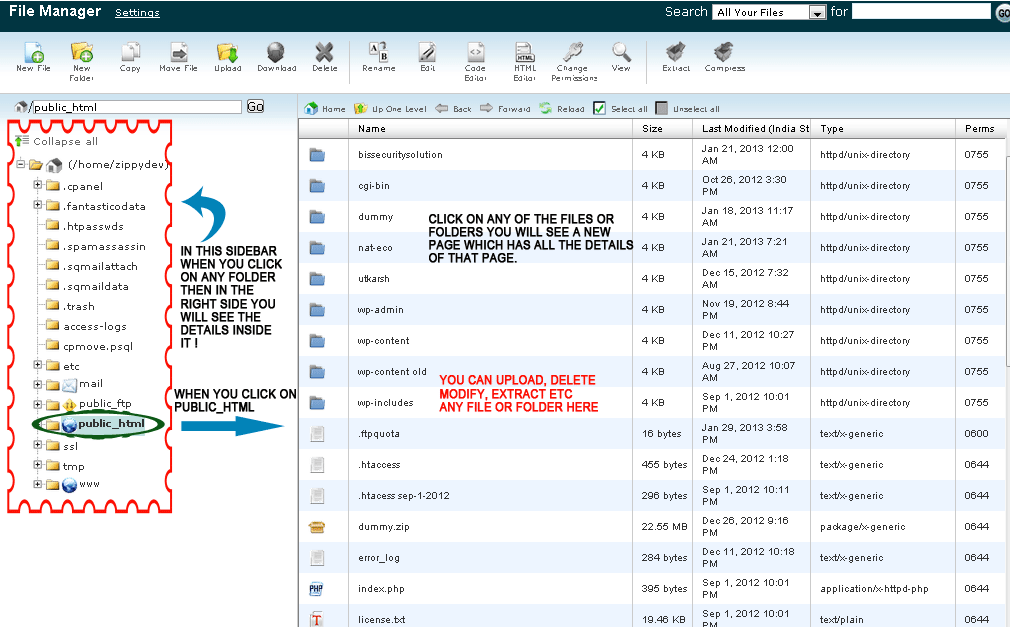
File Manager in cPanel– Now, when you click on file manager, you will redirected to a new window which will show you all the directories and folders that you have, like:-

filemanager

How To See Disk-space Usage in cPanel: The cPanel Disk Usage Viewer provides an overview of the disk space that your account is using. It shows disk usage totals for your account’s directories and all of its databases rather than for individual files or databases. Use the File Manager to see disk usage data for individual files and the MySQL main page to see data for separate databases.

diskspace

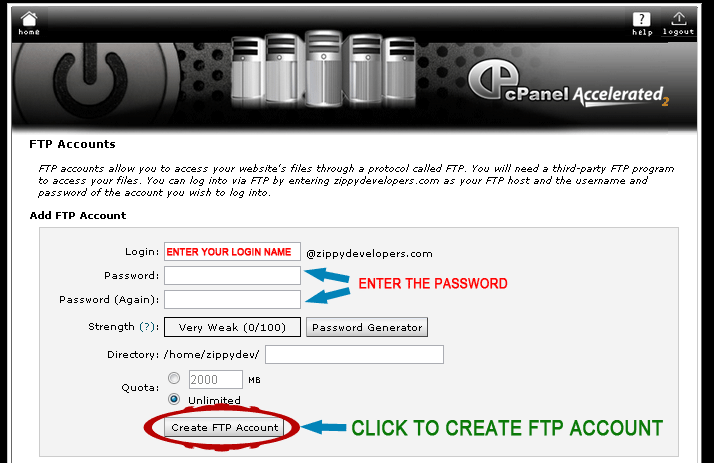
How TO Use FTP Accounts in cPanel – FTP accounts allow you to access your website’s files through an FTP protocol. You will need a third-party FTP program to access your files. You can log in via FTP by entering your domain as your FTP host and the username and password of the account you wish to log into.

ftpaccounts

4. How To Create a sub-domain using cPanel

Now, let’s see how to create a sub-domain using cPanel. Go into the Domains section and click the icon named subdomain. Sub-domains are URLs for different areas of your website. They use your primary domain name and a prefix. 

subdomain

How To Add Addon Domains cPanel – An addon domain allows visitors to reach a sub-domain of your site by typing the addon domain’s URL into a browser. This means you can host additional domains from your account if your hosting provider allows it. Addon Domains Sub-domains are relative to your account’s home directory.

addondomains