Proper Procedures to Take Data Backup of a Website From cPanel
It is always suggested that you back up your website files before making the most significant changes. Backing up a website is a crucial part of regular accounts & any databases utilized by maintenance. In essence, the Backups region bestows a fundamental interface to download and store all or just a few of your website’s files, forwarders, filters and databases. This tool may be helpful for more skilled users who want to speed up the backup process.
In cPanel, there are 2 dissimilar methods through which you can create Data backups of your account with the help of the “”Backup Wizard””. You can create and download a single Data backup file of your whole account, which consists of all your files & databases, or you can generate & download a Data backup of these items in isolation.
One can generate a backup of his/her website very quickly. With the help of the cPanel Backups functionality, account backups can be done successfully for your hosting account. If your account is under 500MB, you can complete a Data backup version with a single mouse click. On the other hand, if the performance is enormous (more than 500MB), the complete automatic bacBackup files & databases must be backed up individually. First and foremost, you should understand the requirements of your website and decide what needs to be backed up or restored accordingly.
Steps to BacBackupwebsite in cPanel
The demonstration presented here has been done by assuming that the user has already logged in to his cPanel and is ready to learn about the website’s data backup procedures. To login to the cPanel, type your domain “”URL”” in your browser window and add “”/cpanel”” at the end of the URL.
You will be taken to the home page as soon as you log into your cPanel. You can find different sections on the home page to perform various unique operations.
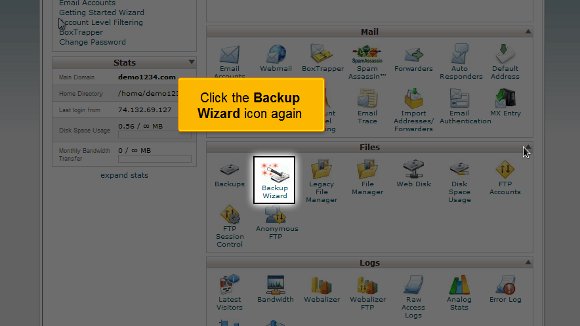
1) Go to the ”Files” section and click the “”Backup Wizard”” icon. (The Backup Wizard is an intelligible interface that can generate a Data backup of the entire website, a fractional backup, or let a website restore from the previous bacBackupved. The Backup Wizard may be very helpful to new users). Immediately, you will be taken to the chief backup screen, where you can backup or restore your files in your hosting account. You will find three options in the backup screen: Backup/restore, Full or partial backup, and Download.

2) In the backup screen, click on the “”Backup”” link that can be found at the bottom of the page.

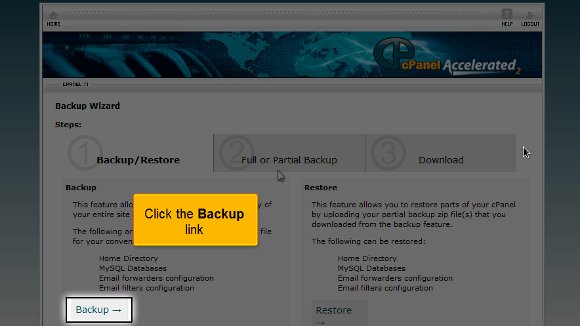
3) Here, you will be provided with the only choice of backing up a part of your hosting account. However, you need to create a full backup. For this reason, click the link that says “”Full Backup””.

4) As soon as you click the “”Full Back up”” link, you’ll’ be taken to the page where a complete backup can be done. Now, choose your preferred backup destination from the dropdown box. In this case, we have selected the “”Home Directory”” as our backup destination.

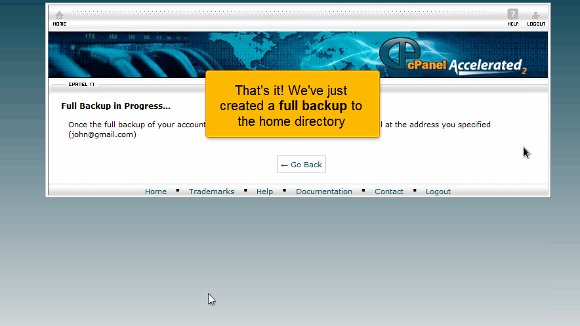
5) Now, click on the “”Generate Backup”” link at the bottom of the page. Great! We have just generated a full backup to our preferred destination (in our case, the Home directory).

6) Now, click the “”Go back”” button to visit the ”Full Back” page again.
7) Now, to download a copy of the bacBackup on your computer, click the link below the subheading “”Backups Available for Download””.

8) save this to your computer by clicking “”Save file””. Now, we have successfully created a full backup.

9) Similarly, restoring your files also includes simple and straightforward procedures. To do so, go to the Home page again.

10) On the home page, Click the “”Backup Wizard”” icon under the Files section again.
11) Now, click the “”Restore”” button on the Backup Wizard page. You will be taken to the cPanel Restore Wizard page now.

12) In the Restore wizard page, you will receive several restoring options such as Home directory, MySQL databases, email forwards, and files. Select a specific type of restore that you wish to do. In our case, we are choosing to restore to the Home Directory.

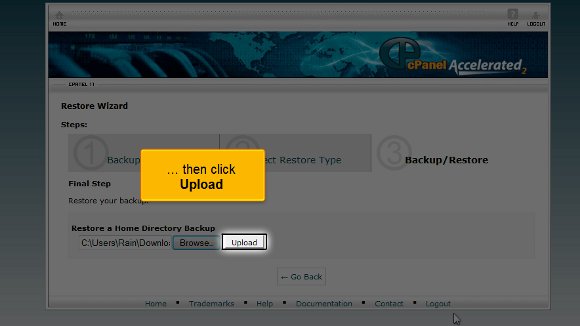
13) To click the browse button and the home directory Data backup, click the browse button.

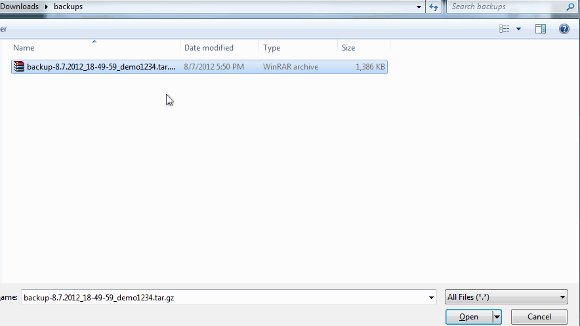
14) After locating the home directory Data backup, click the ”Upload” button.
That’s’ it!! Your files have now been successfully restored!
Now, you know the proper methods to generate a Data backup with the help of cPanel and to restore files from a backup.

 Ananova
You must be logged in to post a comment.