Looking for a backup and data recovery solution for the cloud? Well, look no further than cloud-specific disaster recovery and backup solutions. They are increasing in numbers, and some users feel they offer greater protection than traditional backup solutions do. The sweetest part: they cost less, too.
It’s the moment you try with all you have to avoid, but there’s absolutely nothing you can do: your shared hosting website has gone dark due to a hosting provider outage. Although you can research companies for months in order to find the one with the least amount of outages, you’ll never find one with 100% uptime guarantees. It’s just not possible (and if you find one, stay away! They are lying to you!).
This article will be a tutorial to help you understand how to use Hotlink protection in cPanel. The tutorial will give you a series of easy steps to follow. Now, before we proceed, it would be better to have a bit of an introduction to cPanel. cPanel is a beautiful software loaded with sophisticated tools that make some of the most complicated operations seem like a walk in the park. This software is basically used to manage the servers properly.
So, it can be assumed that you are already logged into the cPanel interface; so now, let us look at the steps to use Hotlink protection in cPanel.
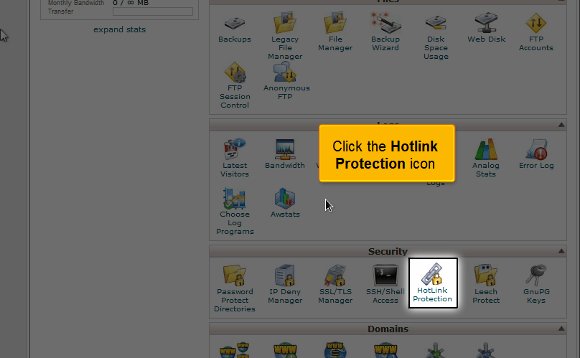
1) To start, locate the Hotlink protection icon and click on it. This will stop any other website from linking specific files, mainly image files, to your website. This feature would be good for you if you have images under copyright or want to save a little bit of bandwidth. This helps you hotlink all the photos.
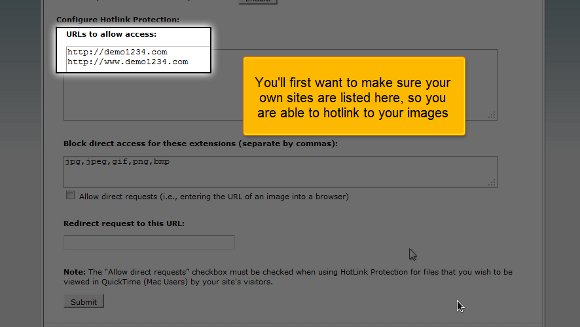
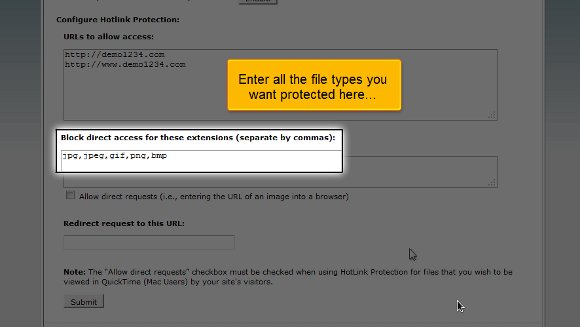
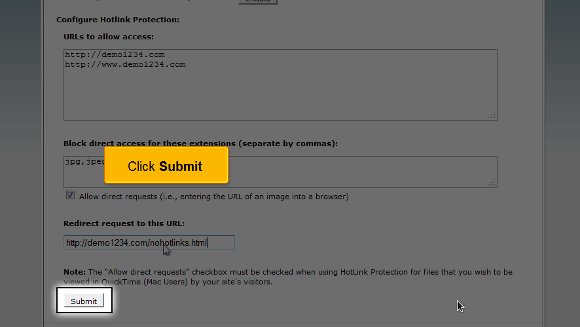
2) The second step will be when you will have to enter all the files that you are looking to protect.
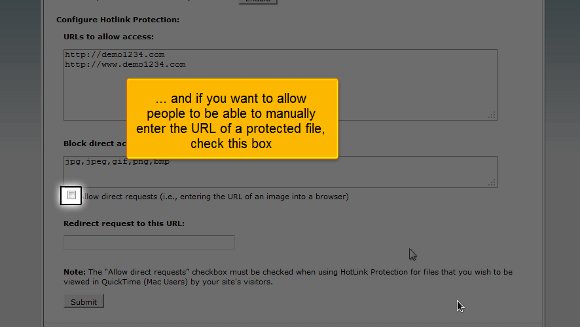
3) This option is also significant if you want to permit people to type in the URL of a file that is under protection; then you will need to enable this.
4) You then have to type out a URL to which you want people to redirect if someone wants to hotlink to the images.
5) After you have taken care of the above, you must click on Submit, and with this, you have successfully enabled hotlink protection.
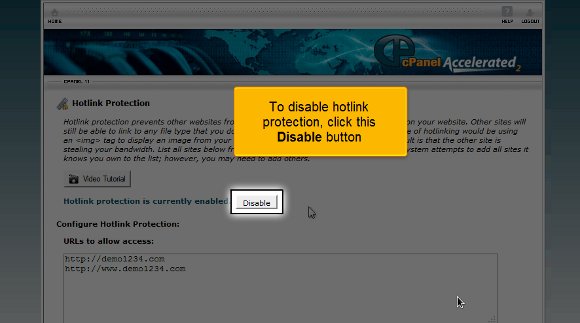
6) If you want to disable the hotlink protection, simply click on the disable protection.
So this is the end of the tutorial, and now you can use hotlink protection in cPanel without any difficulties.
The next most important thing you should know is how to log out from the interface, which is not challenging. All you have to do is locate a log-out button at the top of the page and click on it. The tips mentioned in this tutorial are not challenging; you must pay close attention to them to get the best results possible. You have to be patient with things as this will give you some time to understand the software and its features well. So, do not rush the process when you are learning the software. In fact, you should try to keep calm and go over the various features repeatedly to get a grasp of things.
You may also feel free to look into other tutorials as well. If you are using cPanel for the first time, you may take a little time to get familiar with things. It would be wise to consult the tips mentioned in the article to get the best results.
If you are totally puzzled from your last host due to any of reason you can change your host for this first of all, it’s very important to have a backup of your website and everything related to it, like databases, scripts etc. It will be very helpful in case there is data loss because of any unforeseen reason. Save at least 2 copies of everything and store them separately, so that you can work with one and the other one will function as a backup. You can take backup in various ways.
Once you have taken a new web-hosting plan and you are ready to upload your web pages, databases etc., check that you have received an IP number, FTP or FrontPage login, and password from your new hosting company. Now, upload all your files to the new server.
Before transferring your DNS servers over from your previous host to your new one, debug and test the new site from an individual IP number. Check that all the web pages exist, the links point to the right pages and that all your scripts are running.





You must be logged in to post a comment.