How To Install ZenCart
ZenCart is a shining star in the world of e-commerce. It is an open-source application written in PHP. It helps you to customize an online store very quickly. This shopping cart system lets you explore the endless possibilities of e-commerce without any hazards.
ZenCart uses a MySQL database and HTML components. It has a built-in system that can calculate discount rates, help set taxes, receive online payments, and numerous other features. It is available under the General Public License (GPL), so you do not have to spend any money to download it.
Before you install and start using ZenCart, you may become curious about its advantages so that you can choose wisely; here are some benefits of ZenCart that are given below:
It is straightforward to install. You can navigate around it very quickly. You can customize it to your liking. It has automated tasks. Proper support is provided for numerous languages and currencies. It is free of cost.
Now, to install ZenCart, you must read all the information correctly. It will be installed from Fantastico, a reliable web hosting service provider. To successfully install ZenCart, you must ensure that the Fantastico application is already downloaded, and you have to launch it.
After that, follow these quick steps:
1. Click the ZenCart link on the left of the Fantastico screen.
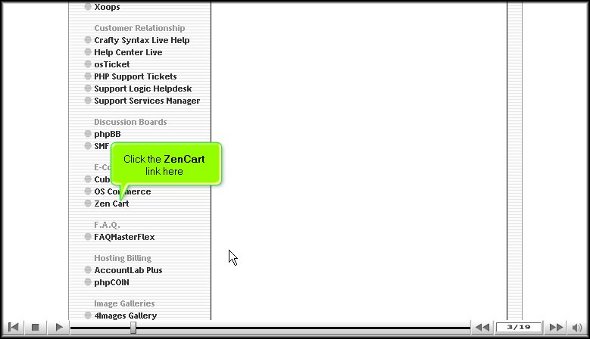
2. The ZenCart application screen will appear then.
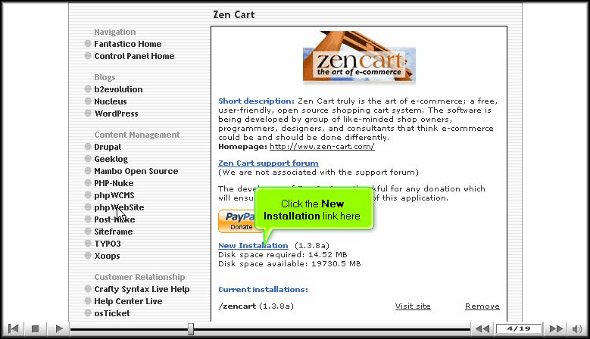
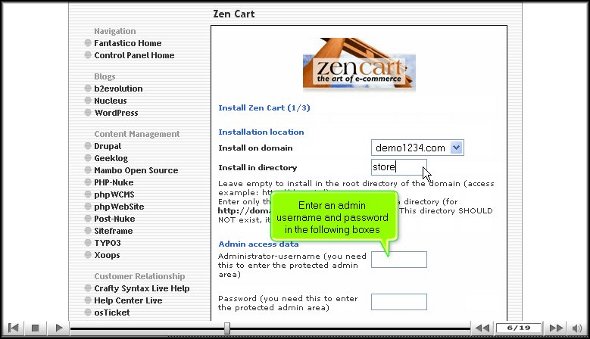
3. To install ZenCart in a directory, enter a directory name in the appropriate field. If you install it in the root directory, leave this field blank: example- store.
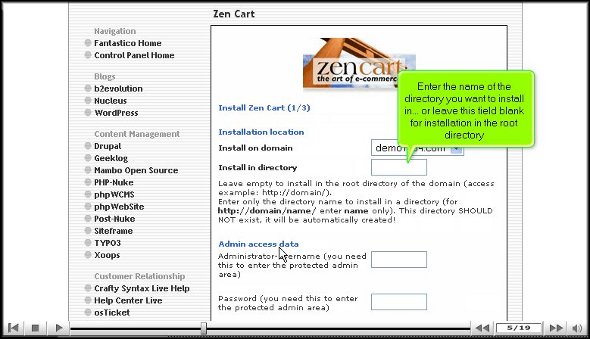
4. In the next step, enter the administrator’s name and user password in the respective fields on the same page.
5. On the next page, scroll down, and you will see a field where you must enter an administrator’s email address.
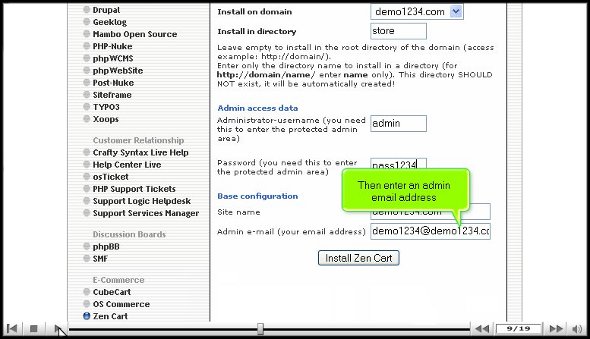
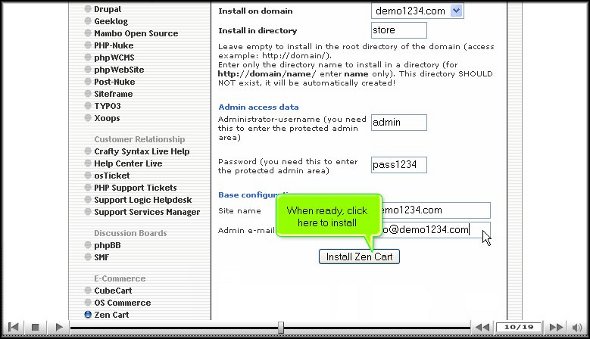
6. After entering the email address, you will see a tab below called ‘Install ZenCart’; click on it to Install ZenCart.
7. On the next page, you will see a tab called ‘finish installation’. To finish the installation process, you have to click on it.
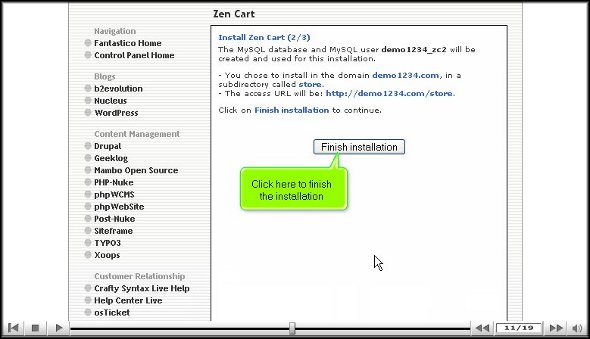
In this way, ZenCart is correctly installed on your account. If you do not face any difficulty in this process, you can be sure it has been installed on your account.
8. When you further access it, type the admin name and password you have given before.
9. Your new installation will be listed on the script’s homepage.
After installation, you may start exploring all its facilities and features. It is very user-friendly, so you will not have trouble customizing and navigating around it. But do not make haste in learning all the features at once. You should be very patient and go slow on learning it. You may find it challenging to use some aspects of the application initially, but as you spend more and more time with the application, you will gradually get used to it.
Good luck using ZenCart!
Go to the top of the page. Back to the tutorial

 Ananova