Typo3


How to install Typo3

People have often stated that Typo3 is a complicated application to use and install; the good news is that none is genuine. The application is straightforward to install and relatively user-friendly. Typo3 is a beautiful application by Fantastico, a reliable web hosting service provider.

The applications provided by Fantastico are beneficial and can help you do a host of things. The applications have very advanced tools and features. All the applications can be used with cPanel. Fantastico provides us with a good stock of scripts that allow for the easy and smooth installation of the applications. So, if you are looking for a tutorial that will teach you to install Typo3, then you are in luck, as this tutorial is designed to guide you through the entire installation period.

So, now let us look at the series of steps that you need to follow to install Typo3 on your computer.

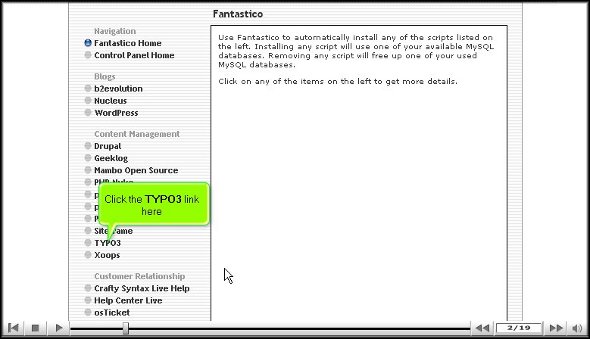
1. You have to start by clicking on Typo3.
typo3

2. Once you have clicked on Typo3, you will be taken to an installation page where you have to click on the new installation.

typo3

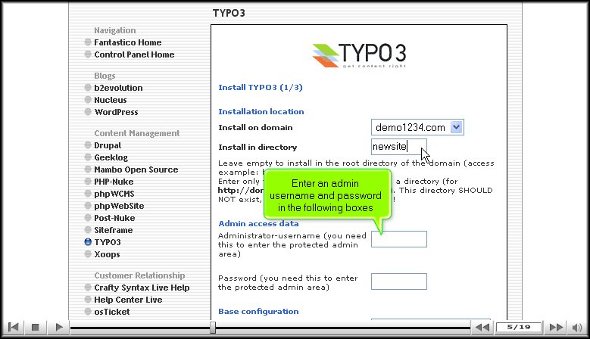
3. After That, you will be directed to yet another page where you must specify the directory in which you would like to install

typo3

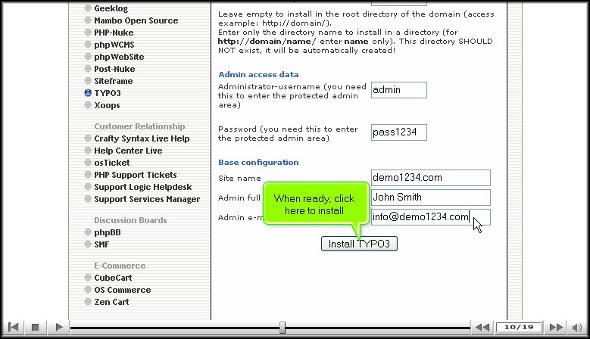
4. On the same page, you will also have to specify the name of an administrator, and you must also provide a password.
typo3

5. After that, scroll to the bottom of the page and click Install Typo3.
typo3

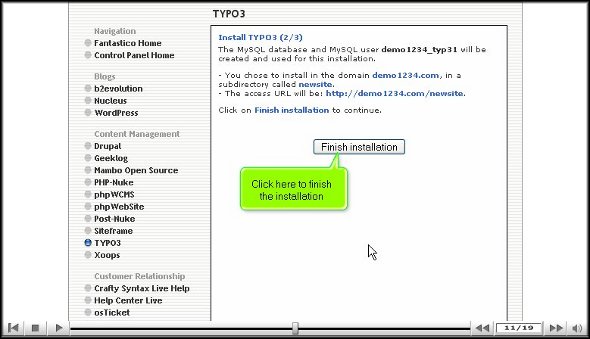
6. To round up the installation process, click finish.
typo3

So now we have reached the end of the tutorial, and if you have followed the above steps correctly, you have successfully installed Typo3 the right way.

To better understand the application, you must go through the various tools and features, as this will help you better understand the application. To absorb the simple multiplication functions, you must not rush through the learning process; you may miss out on some crucial aspects of the application.

As a new user, you will have difficulty getting used to the application’s functions. However, you may consult other tutorials to teach you how to use the tools properly. You should keep calm and go over the various parts again and again.

Once you are confident that you can handle the application, you can start configuring the application as per your requirements. After the configuration, you can log into the application and use it.

So, by now, you have probably understood that Typo3 is quite a helpful application. To get the best out of it, you must follow the steps so that you may be able to install it on your computer.

Go to the top of the page. Back to the tutorial

WebCalender


Easy installation of WebCalender

To install WebCalender, you need to follow proper steps, and this tutorial is designed to present to you the steps you need to follow if you want to install WebCalender on your computer.

WebCalender is a handy application provided by Fantastico. This application has advanced tools and useful features that allow you to perform many activities. Fantastico is a reputed web hosting service provider that has been operating for many years now. This service provider gives its users a host of applications compatible with c Panel; the applications are also straightforward to install and have user-friendly interfaces. Fantastico lets the users access its stock of scripts; these scripts help the users install the applications quickly.

Now, let us go over the steps that you will be required to follow to install Web Calendar on your computer.

1. Now, when going through the interface of Fantastico, you must locate a tab that says Web Calendar; you must click on this to be taken to an installation screen.

webcalendar

2. you must click on the new installation on the screen.

WebCalender

3. After this, you will be directed to yet another screen where you will have to provide a directory’s name, and on the very same screen, you will have to give a username for the admin and password so that you can log in to the application.

WebCalender

4. The next step would be to provide the full name for the administrator’s Username and Password.

WebCalender

5. At the bottom of the screen, you must click on Install WebCalender

WebCalender

6. To complete the process, you must click on finish.

WebCalender

This brings us to the end of the tutorial; now, you can log into the application and go through the present features and tools. Reviewing the various tools until you have absorbed everything would be best. You should not rush the process, as you miss certain essential things.

It is no secret that as a first-timer, it may be a bit of a challenge to understand the use of the tools provided in the application. So do not get worked up if you fail to understand certain things; you can feel free to take the help of other tutorials to learn about the various features and their uses. Since this application has a user-friendly interface, you will not have much trouble understanding how to use it.

After you have managed to understand the usage of each tool of the application, you can then start configuring the features as per your purpose. So, you see that this application has many benefits and can vastly improve the operations of your website. So, to get the best out of the application, you must install it correctly.

So, follow the guidelines mentioned in this tutorial to get the installation process right.

Go to the top of the page. Back to the tutorial

How To Install SohoLaunch


How to install SohoLaunch

You may have been looking for a tutorial that teaches you how to install an excellent application like Soholaunch. This application is provided by none other than the famous company Fantastico. Fantastico is a company that has been around for many years and has been providing reliable web hosting services to users worldwide. The best part is that the applications provided by Fantastico are not only easy to install but are very easy to use and deal with and are compatible with cPanel. Fantastico provides scripts that will allow you to install the applications within a very short period. Soholaunch is an application with handy features and sophisticated tools that let you do many things.

However, with this tutorial, you will learn to install Soholaunch through a systematic process broken down into a few steps.

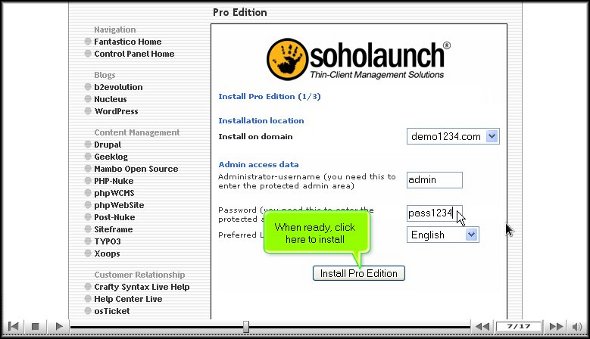
1. So when you are going through the interface of Fantastico, you will notice a tab that says Pro Edition in the left-hand corner of the screen. You will need to click on it.

soholaunch

2. After you click on the tab, you will be taken to another screen, the installation screen. On this screen, you must click a link that says new installation.

soholaunch

3. On the very same screen, you will also have to provide a name for the admin and a password.

soholaunch

4. To begin the installation process, click Install Soholaunch.

soholaunch

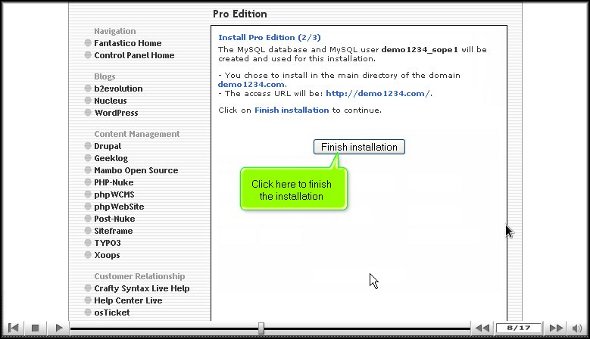
5. To complete the installation process, you must click on finish.

soholaunch

So, with that, we come to the end of the tutorial. So, if you have followed the above steps well, Soholaunch has been installed on your computer without any problems. Once you have installed the application, you can review its interface and check the features individually. This application has various tools that do different things. To learn more about the usage of the application, you must take your time to go through it and understand more about it; in fact, you can even go through other tutorials to learn about the tools. However, it would be best if you did not rush through the learning process as there are many essential aspects that you might miss out on. If you are a new user, you may find it initially challenging to adjust to the application, but you will get used to it over time. So, have a little patience and keep calm while using this application.

Once you start using this application, you will gradually understand its benefits. You will also see that you can configure the settings as per your requirements. Follow the tips in the tutorial, and you will have no problems.

Go to the top of the page. Back to the tutorial

Disk Space Usage tool in cPanel


Fundamentally, the cPanel Disk Space Usage tool records all the directories and subdirectories in your home directory. This particular feature showcases how to use your disk space. Also, it can rally around in managing your disk space quota by representing files & directories that utilize vast quantities of hard disk space. In fact, you may be able to click any of the listed directories on your computer to open the related subdirectory in the ”File Manager” feature of cPanel. This tool gives you a detailed outlook of disk usage data about separate files & directories within the subdirectory. However, the Disk Space Usage tool of cPanel will not show the disk usage data for individual files in your home directory.

The Disk Space Usage tool of cPanel also exhibits disk space usage outlines for the following:

  1. Files that are in your home directory
  2. Files that are concealed inside the subdirectories
  3. Mailing catalogs in the Mailman
  4. Files that are not present in your home directory

Owing to the characteristics of storing all of the files electronically, most files take up vaguely more disk space than their original size. For instance, a file of 300 bytes may take up 4 kB of genuine disk space. Consequently, you may discover some inconsistencies between the Disk Space Usage feature and data in the cPanel File Manager element. The Disk space usage data in this feature does not point out the amount of space used by the directory. On the other hand, it just showcases the disk usage data concerning the content. In general, manuals themselves take up an insignificant amount of disk space. Also, note that the figures contained in the Disk Space Usage tool will not reveal any latest modifications that are done in you’reyou’rethe disk space of your account.

Steps to use the cPanel Disk space tool:

The following demo has been presented by considering that the user had already logged in to the cPanel. So, let’s’ move on to how to use the Disk Space Usage tool in cPanel.

1) Click the “”Disk Space Usage”” icon under the Files section. You will be taken to the “”Disk Usage Space”” page, where you can distinguish the amount of storage space (or disk space) that has been used by each directory (folder) & sub-directory in your account. Also, you can find a collapsible list of directories (folders) at the bottom of the “”Disk Usage Space”” page.

disk-usage-00 Disk Space Usage tool

2) Click on a ‘+’ sign of any folder. In our case, the ”+” sign of the ”public_html” directory is clicked. When you click, the directory of ”public_html” will be expanded. Now, you can see all the files & folders inside the ”public_html” directory.

disk-usage-03

3) Now, click on the directory (or folder name). In our case, the ”public_html” is related. You will be taken to the “”File manager”” of cPanel now. The actual contents of ”public_html” will be observed here.

disk-usage-05

4) Also, one can choose to arrange or sort out the directories in the “”Disk Usage Space”” page by specific name or disk usage. In our case, the “”disk usage”” option is selected.

disk-usage-06

Great!! We have arrived at the final stage of this tutorial. Now, you know how to use the cPanel Disk Space Usage tool to distinguish the exact spots where your files have been stored on your computer.

Linux Hosting


Linux is a Unix-like computer operating system. Linux is one of the most prominent examples of free software and open source development; typically all underlying source code can be freely modified, used, and redistributed by anyone.

We have been providing professional grade dedicated hosting services for thousands of businesses and IT professionals like you. We specialize and offer only Linux based hosting solutions for people who demand their website reside on fast, reliable servers with the most stable operating system in the world. The Original Linux Web Host is your single-source solution for your entire web site hosting needs.

Linux plans give you the security and performance of Linux along with PHP and Ruby on Rails support. With ample disk space and monthly transfer, this PHP is easy to get started with your web site hosting account. Our “All-in-One” hosting plan is the most popular and economical. This complete and all inclusive hosting solution includes Hosting, Builder, Content, Marketing, and E-commerce in one location. are ideal for your personal or development website.

We offer the following feature-rich Linux hosting plans. Whether you are looking to build a personal website, a store front or a place to showcase your company, you can trust CPWebHosting to be by your side. These plans are hosted on servers running the Linux operating system which guarantees the highest reliability and uptime for your site and visitors. Above all, our control panel is designed for all operating systems so anyone can use our Linux hosting plan.

Our objective is to help YOU, our customers, get the best possible web hosting for the lowest possible price. We’re honest here. We don’t claim to be the cheapest web hosting company around, because we’re not. However, when it comes to finding quality web hosting, you really do get what you pay for.

Get reliable, fast, and cutting-edge web hosting for your business or personal website. To see the specific, features, and prices on all our different hosting plans. We’re sure you’ll find one that’s not only affordable, but provides everything you’d expect from a top- notch web hosting company.

The Linux kernel was first released to the public on 17 September 1991, for the Intel x86 PC architecture. The kernel was augmented with system utilities and libraries from the GNU project to create a usable operating system, which led to an alternative term, GNU/Linux.[2] Linux is packaged for different uses in Linux distributions, which contain the sometimes modified kernel along with a variety of other software packages tailored to different requirements. Predominantly known for its use in servers, Linux is supported by corporations such as Dell, Hewlett-Packard, IBM, Novell, Oracle Corporation, Red Hat, and Sun Microsystems. It is used as an operating system for a wide variety of computer hardware, including desktop computers, supercomputers, video game systems, such as PlayStation 2, 3, several arcade games, and embedded devices, such as mobile phones and routers.

User-mode Linux (UML) allows multiple virtual Linux systems (known as guests) to run as an application within a normal Linux system (known as the linux hosting). As each guest is just a normal application running as a process in user space, this approach provides the user with a way of running multiple virtual Linux machines on a single piece of hardware, offering excellent security and safety without affecting the host environment’s configuration or stability.

Web hosting using Linux


In the world of internet, everyone wants to be available on net by using social networking sites or by their own personal websites. This has given rise to web hosting services that are in being used in a large amount by users. Web hosting has become useful and profitable as websites present on Internet that provide us the knowledge for what exactly we are trying to search or what kind of website we want to build. It also helps in storing web pages in bulk that are made available for visitors on web servers.

The availability of plenty of server space is one of the primary aspects of establishing a website. Good bandwidth provided on the server also enables hassle free functionality of a website. Higher bandwidth helps in loading the page faster in order to quickly respond to visitor. India has become a leader in providing various web-based applications among which website hosting is popular. These services have become an integral part for making websites accessible easily on Internet.

Linux hosting services are being used widely by business firms using web programming language PHP. Linux web hosting is advantageous as the Linux operating system platform is compatible with the server. These user friendly services provide number of benefits by making website administrating easier.

With the help of Linux operating system, we can easily manage things with the help of control panel.  The open source code allows user to copy the code from web and make changes. Quality and stability are assured by Linux-based web hosting which does not depend on bugs.

Various files can be stored on the server with the help of hosting services. Enough storage space and ability to process dynamic content are some of the features of these services.