Privacy is the one word on everyone’s mind. It all began with the NSA leak, but it definitely doesn’t end there. It’s now more than obvious that any company based on U.S. soil is susceptible to government scrutiny, and that includes the possibility that the government may take a peek at your private files.
Now, Fantastico is a reputed web hosting service provider that has been operating for years. Fantastico is very popular because it gives users applications that allow them to perform many different activities.
All the applications provided by Fantastico are pretty compatible with CPanel. Fantastico also provides several scripts that you can use to install the applications smoothly.
Installing Xoops is relatively easy, provided you follow the correct procedure. Now, if you are looking for a tutorial to guide you through the entire process, you have found the proper tutorial. This tutorial is broken down into a series of steps that are very easy to follow.
So, now let us understand the steps you must follow to install Xoops. You must follow the steps in the tutorial below in the same order.
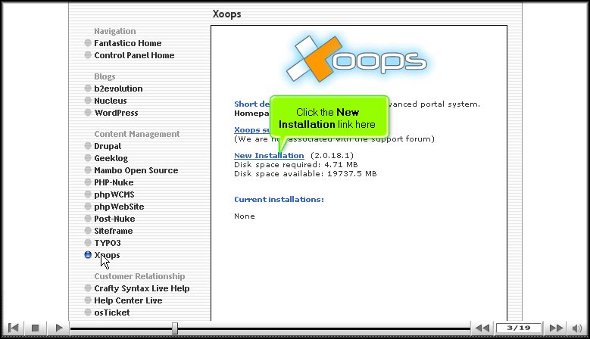
1. To start the installation process, locate a tab that says Xoops. Once you find it, you have to click on it without fail.
2. After you click on the tab Xoops, you will be taken to the installation screen of Xoops, and on that screen, you must click on the new installation.
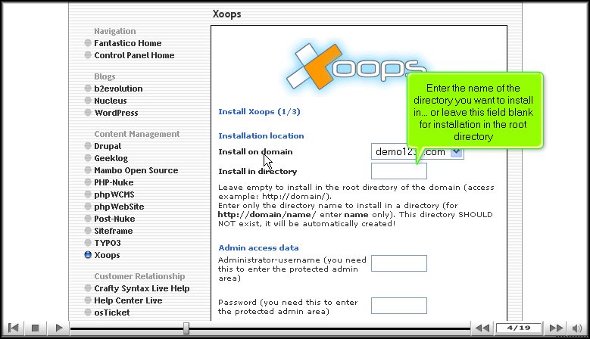
3. After you click on the new installation, you will be taken to yet another screen where you must type in a name for a directory in which you want to install Xoops.
4. On this same page, you have to provide a name for the admin and a password
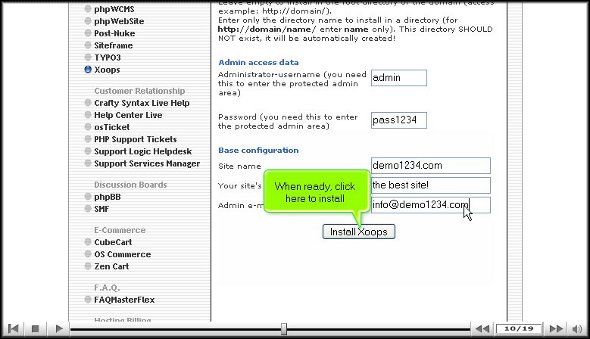
5. For the base configuration, you must provide a slogan for your website and an email address.
6. When you are done with the above steps, you can click on Install Xoops
7. To complete the installation process, you must click on Finish.
This brings us to the end of the tutorial. So now you can use the username and the password to log in to the application. Now, when you are going through the various tools on the application, you must take your time to go through each of them carefully. If you rush through the process, you may miss certain essential things. You may also consult some other tutorials that will teach you the various functions of the tool present in the application.
As a user, you may have a bit of trouble using the application, but the best way is to keep calm and go through the application’s various features. After spending time with the application, you can start configuring the settings per your requirements.
You may have realized by now that Xoops is quite a practical application with many benefits, so you must install it properly to get the best out of it. Following the steps in this tutorial, you can install the application properly.
Now, you may have looked all over the internet for a tutorial on installing Templates Express, but most of the time, you will come across tutorials that will not teach you the correct procedure. However, this tutorial is designed to guide you through systematic steps through the installation period.
Templates Express is a beautiful application from Fantastico. This application has a straightforward interface and can be handled by almost anyone. You can incorporate handy templates for your website depending on its usage. Fantastico is a company that has been operating for years, providing users with reliable services. All the applications provided by Fantastico are very compatible with cPanel. Fantastico has a vast stock of scripts that enable you to install the application quickly.
Let us go over the steps you need to follow if you want to install Templates Express.
1. You must locate a Templates tabExpress on the Fantastico interface. Once you have found this tab, click on it immediately.
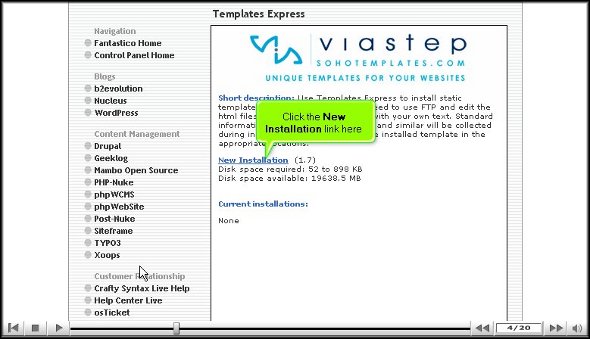
2. After you have clicked on Templates Express, you will be taken to an installation screen where you have to click on a link that says “New installation”.
3. After performing the above action, you will be directed to another screen to select a category depending on your website type. After selecting the particular category, you must choose the type of template you are looking for.
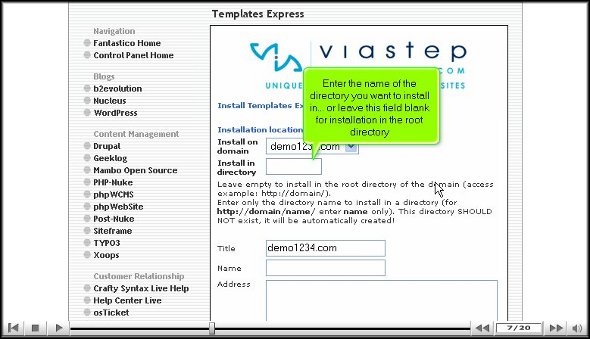
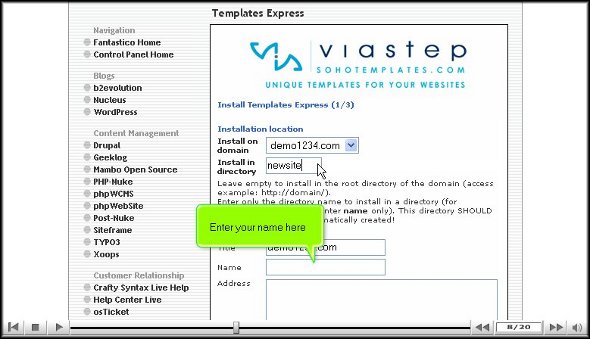
4. After that, you must type in the name of a directory in which you wish to install Templates Express. On the same page, you must type in your name, organisation address, telephone number, email id, and copyright.
5. To start the installation program, you have to click on Install Templates express
6. To confirm that the installation process for Templates Express has ended, you will have to click on finish.
If you have followed the steps mentioned above in the correct order, you successfully installed Templates Express the right way. After you finish the installation process, you can start by going through the various tools available in the application. It would be best if you took your time to go through each feature. Do not rush the learning process; you may miss some essential application parts. You may consult some other tutorials to learn this particular application’s features. As a first-time user, you may have a lot of trouble understanding how to use specific elements in the application, but the trick is to keep calm and get through the learning process. After you have spent quite a bit of time with the application, you should start configuring the settings of the tools as per your requirements. This application also facilitates e-commerce. As a user, you will notice a significant improvement in your operations once you have used Templates Express for a substantial period. So, to get the very best out of the application, you should follow the tips in the article and download the application correctly.
We all know that securing a network is really important. Whether at home or at work, any network you use should be entirely secure inside and out. But, sometimes, no matter what we try to do, networks can become compromised. This becomes a really big deal when the person using your network is doing something illegal – it could be traced back to you.
You’ve set up your website to appeal to shoppers, consumers of all kinds, and other people that you’re trying to market. But, have you thought about people that are visually impaired? Millions of visually impaired people use and rely on the Internet daily, but the Internet isn’t always friendly.
Oh, those infographics. Those charts and colourful icons are everywhere! Even if you hate infographics, you have to get in on this craze or miss out – and you don’t want to miss out. Why? Most of us have very short attention spans. So short I’m betting that you are skimming this article right now…and looking for an infographic. Busted!
If you’re running a small business, you have a budget. Heck, if you’re running any kind of business, you have a budget. Available marketing dollars are often less than they should be, but that doesn’t mean that you can’t manage Internet marketing on a tight one. Here are five unique Internet marketing strategies that you can use -and it’s cheap.
1. Cheap Website Hosting Options. I know, along with cheap website hosting comes a whole lot of scams and traps you’d rather avoid. If you don’t know about these, I urge you to read through our blog to find out more.
If you’re new to the world of website building, WordPress is the easiest way to get things up and running. It is more than just the most popular blogging platform out there (it boasts over 66 million sites worldwide) offering plugins and themes for free. Users can also download software from WordPress.org in order to create their own website.
If you have had no success locating a tutorial that will help you create a subdomain in cPanel, you are indeed lucky now. This article will be a tutorial to teach how to create a subdomain in cPanel. Well, for those of you who may not be very familiar with cPanel, this is a handy software with automated tools that facilitate smooth business operations via the internet. The primary function of cPanel is to help manage the servers.
So, it can be assumed that you already know how to log in to cPanel without difficulty. Okay, let us go over the steps that will teach you to create a subdomain in cPanel.
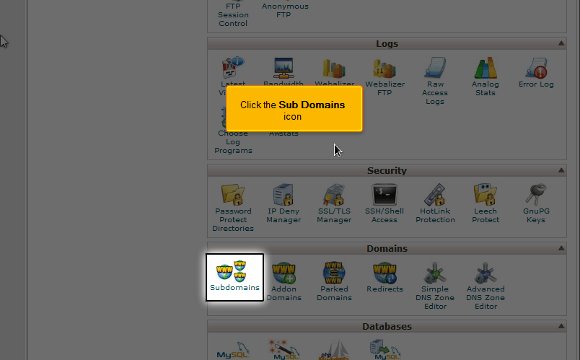
1) To begin, locate an icon that says Sub Domains. Once you have found this, you have to click on it.
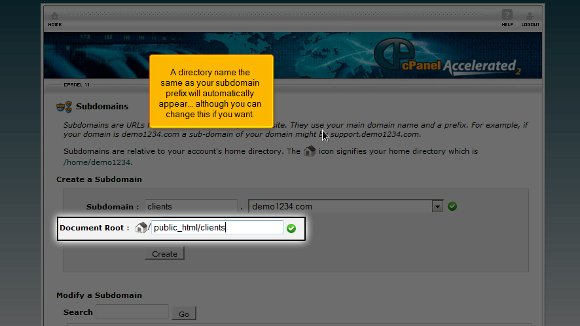
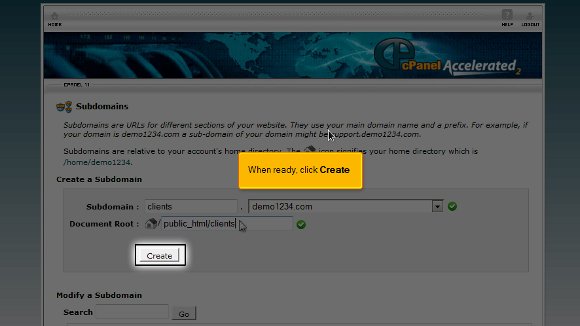
2) After that, you will be required to enter the prefix of the subdomain that you wish to create
3) You must select the domain name you wish to associate your subdomain with. After doing this, you will see that a directory name, the same as the subdomain prefix, will appear automatically, but you can change the word if you like.
4) After you feel that you are ready, you must press create and create your subdomain.
Once you have completed the last step, it means that you have reached the end of the tutorial, and you can create a subdomain in cPanel So now you have to simply go to the interface of the cPanel, and you can begin work with the various features of the cPanel. You can start working with the emails and multiple domains and configure your emails.
Logging out from the cPanel is not so tough after all; you simply have to locate the logout button on the top end of the page. The tips mentioned in the article should not be very tough to follow. In fact, if you take the time and follow the directions, you will not have any problems. You simply have to have a little patience to understand the software. You should not rush the learning process as you can learn tons during this phase. So take your time and review things until you feel you have absorbed every aspect of the software properly. So try not to get worked up; try relaxing instead, and the results will be great. Now, you can also consult other tutorials. However, if you are a newbie to this, you should really take the time to understand the software’s various features. This tutorial is just perfect if you want to learn to create a subdomain in cPanel. To get the best results, follow the tips in the article very closely, and you should have no problems.
In essence, FTP represents “File Transfer Protocol”. File transfer protocol is managing the files related to your website. cPanel has an FTP server that is user-friendly and pre-configured already. If you own a website, your FTP access must be configured previously. You can quickly log in through FTP using your cPanel account username & password.
Also, you can systemize FTP accounts for supplementary users. Initially, you have to create a user’s account. After that, a particular user can log into your website with the help of an FTP client like Cyberduck or FileZilla. For instance, if a user attempts to log into the FTP website using a client/customer, he/she has to format the username like username@instance.com, where “instance.com” symbolizes the domain name. If you provide the login information in this fashion, your server can possess numerous FTP accounts across several websites.
How to Create Additional FTP Accounts in cPanel
To log in to your cPanel account, just enter the website ‘URL’ and add “/cpanel” at the end of the ‘URL’. Now, you will be taken to the login screen. Here, enter your web hosting username & password to access your cPanel.
The demonstration given below assumes that the user has already logged in to the cPanel and is ready to discover how to set up additional FTP accounts.
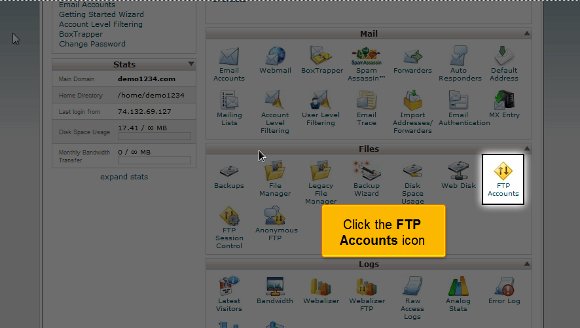
1) Once you are inside the cPanel home page, click on the FTP accounts icon that can be found under the Files section. This is the place where one can manage their FTP accounts. You will be taken to the FTP accounts page. FTP accounts let you access your website’s files through a protocol.
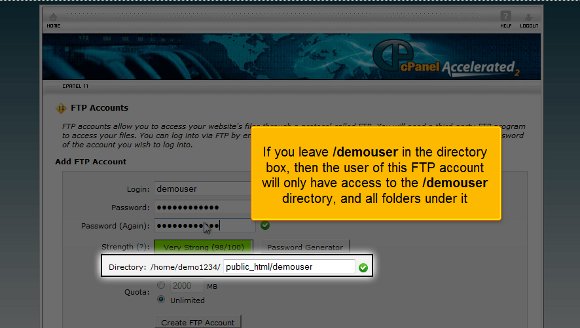
2) enter a unique login ID in the Login space to generate a new FTP account.
3) Now, enter a password and confirm a password one more time for the new account. Make sure that you use a secure password. A secure password should not possess dictionary words and should only contain numbers, symbols and letters. Also, remember that the passwords should have a minimum of 5 characters.
4) Indicate the FTP account’s home directory. The Directory field describes the peak level of your directory access that shall be fixed to your new FTP account. In the directory box, if you leave “/demouser”, then the user of this FTP account may only possess access to the “/demouser directory” and all the other folders under it. In an attempt to offer access to the user to the entire website, you have to delete all except the forward slash “/”.
5) The Quota field below the Directory field establishes the disk space allocated to the FTP account. You may also provide a specific quota limit on this FTP account if needed.
6) When you are ready, click the “Create FTP Account” button at the bottom of the page.
Voila! You have created a new FTP account in cPanel now. From this point, you can modify the password of your FTP account, adjust the quota level, or completely delete an account overall. So, now you know how to generate extra FTP accounts in cPanel from this tutorial.
















 Ananova
You must be logged in to post a comment.